To find your LinkedIn profile URL fast, open your profile with Me > View Profile > Public profile & URL on desktop, or tap Contact info on mobile. The link you usually want is the clean public address, often in the www.linkedin.com/in/ format, and you can copy or customize it from there.
If you’re rushing to submit a job application, update a resume, or fix a broken bio link, the good news is that LinkedIn keeps this in a predictable place. The part that trips people up is that LinkedIn shows more than one kind of link, and each one behaves a little differently depending on whether you’re on desktop, mobile, or just copying from the browser.
Where to Find Your LinkedIn Profile URL
A lot of people search for how to find my LinkedIn profile URL when they’re already in a hurry. Maybe a recruiter asked for it, a portal wants a profile link, or you’re trying to drop it into a portfolio before the page times out.
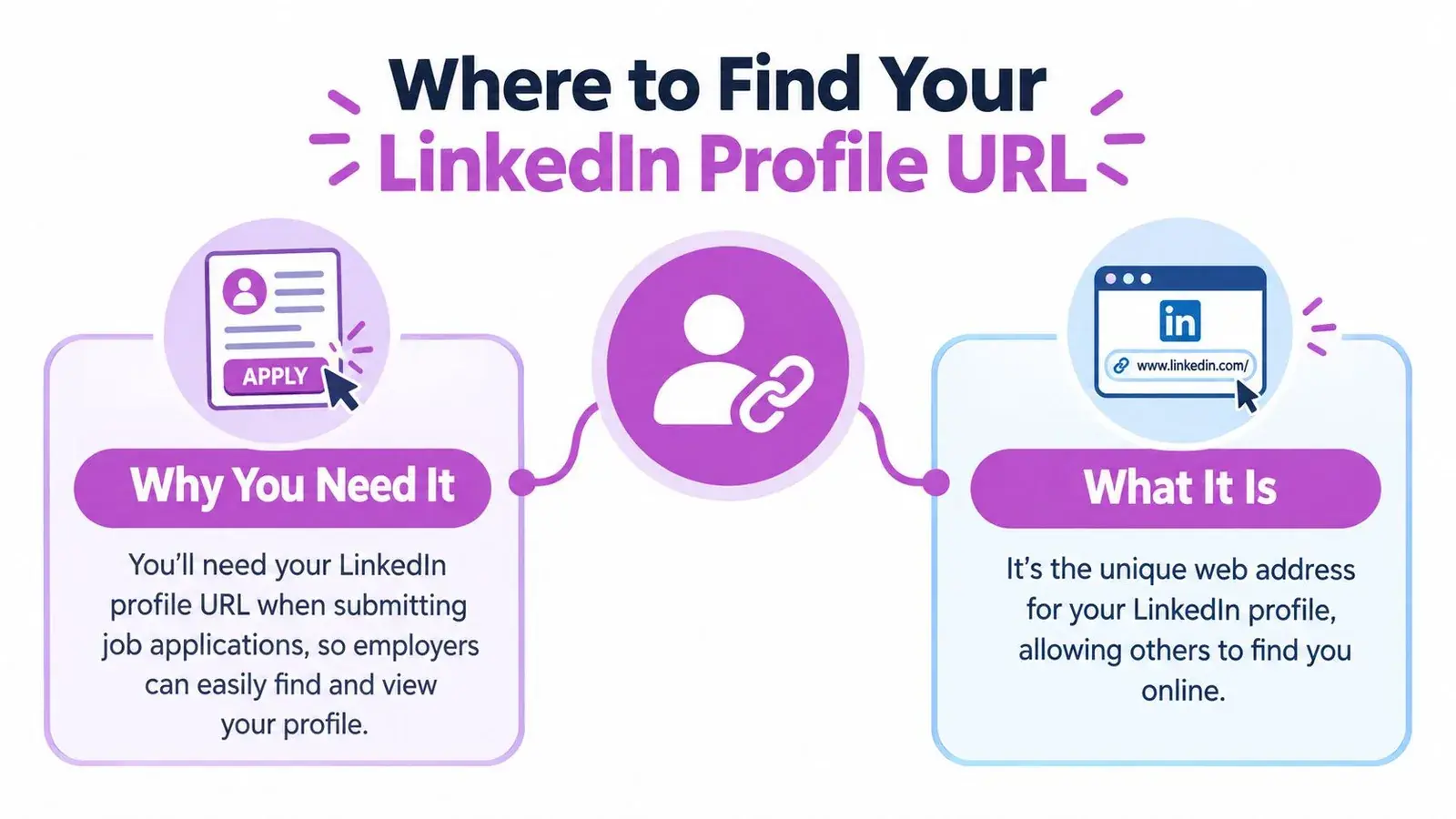
Your LinkedIn profile URL is the web address that opens your public profile. In most cases, it looks like linkedin.com/in/yourname, which is the version you want for resumes, email signatures, and other places where you need a clean, stable link. LinkedIn’s help also confirms that the URL can be found on your profile page in the Public profile & URL panel, while mobile users can find it under Contact info on the profile page. That matters because the path is slightly different depending on the device you’re using, and it’s easy to copy the wrong link if you’re not paying attention.
Practical rule: if the link looks long, cluttered, or full of extra tracking text, it’s probably not the one you want to paste publicly.
The quickest fallback is the browser address bar when you’re already viewing your profile. By the end of this guide, you’ll know how to locate the link, copy the right version, and customize it so it looks professional on any device.
Finding Your LinkedIn URL on Desktop
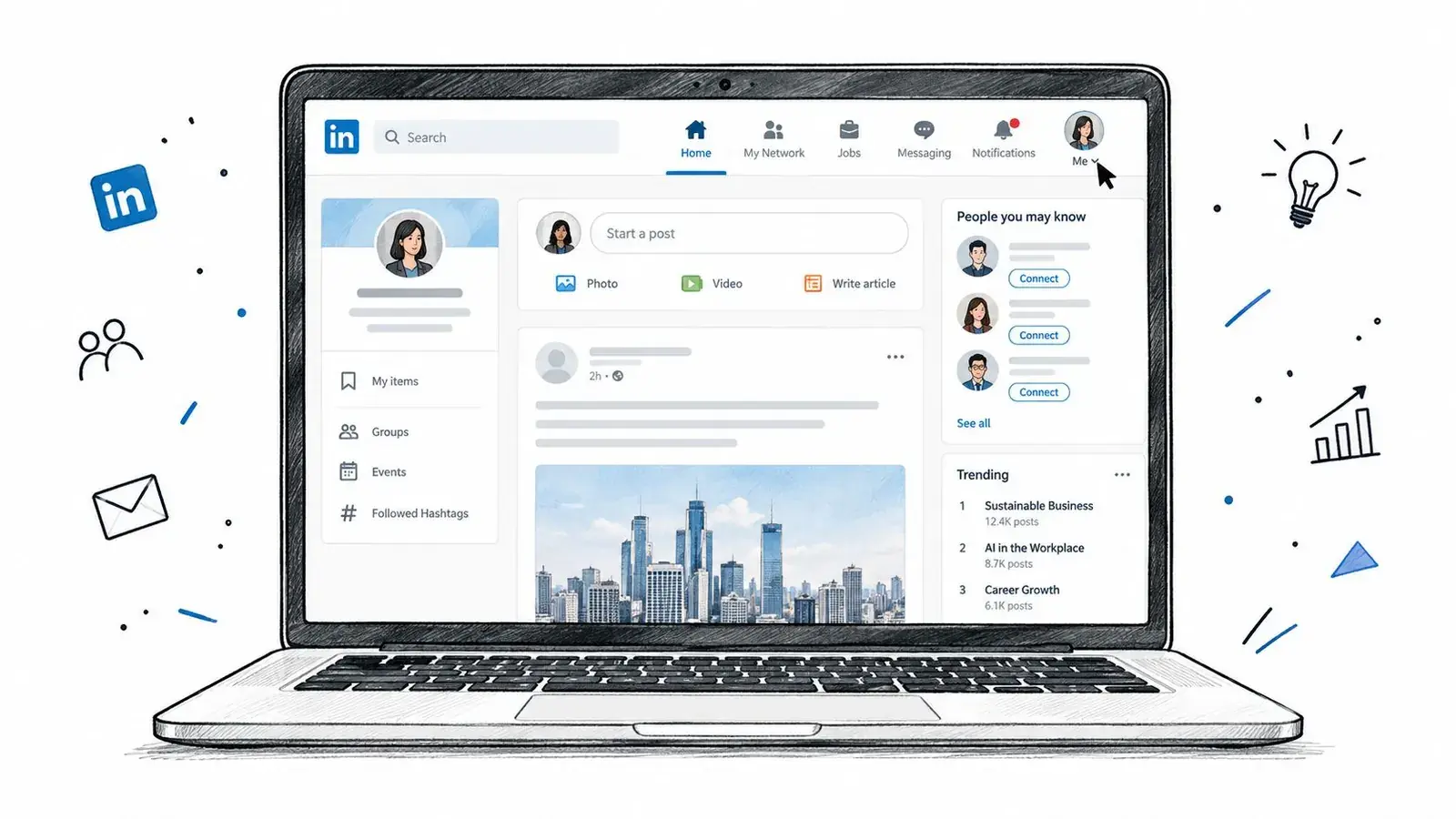
On desktop, the process is straightforward once you know where LinkedIn hides the controls. Start by signing in, then hover over Me in the top navigation bar and click View Profile. That opens your own profile page, which is the right place to check both the browser address bar and the public profile settings.
Copy the clean address bar version
Once your profile loads, look at the browser’s address bar at the top of the window. The clean version usually starts with www.linkedin.com/in/ or linkedin.com/in/, followed by your custom slug. That is the version to copy for resumes, job applications, and websites because it’s short and easy to recognize.
Use Ctrl+C on Windows or Cmd+C on Mac to copy it. If you want to be precise, highlight the full address, including the https prefix, then paste it somewhere safe first so you can check it before sharing.
Find the edit path if you want the public URL panel
LinkedIn also exposes the URL through the profile controls. On your profile, click the Edit icon near the intro card or open Edit your public profile URL from the Public profile & URL area. LinkedIn’s help pages confirm that you can view and manage the public link directly.
The pencil icon edits your profile details, not just the link, so don’t confuse the two. The address bar shows the live profile page you’re viewing, while the public profile panel is where LinkedIn lets you manage the vanity URL itself. If you log out, the slug doesn’t change just because your session ended.
The safest habit is simple. Copy the profile URL from the page you’re already on, then check that it still looks like a clean linkedin.com/in/yourname link before you paste it anywhere.
Finding Your LinkedIn URL on Mobile
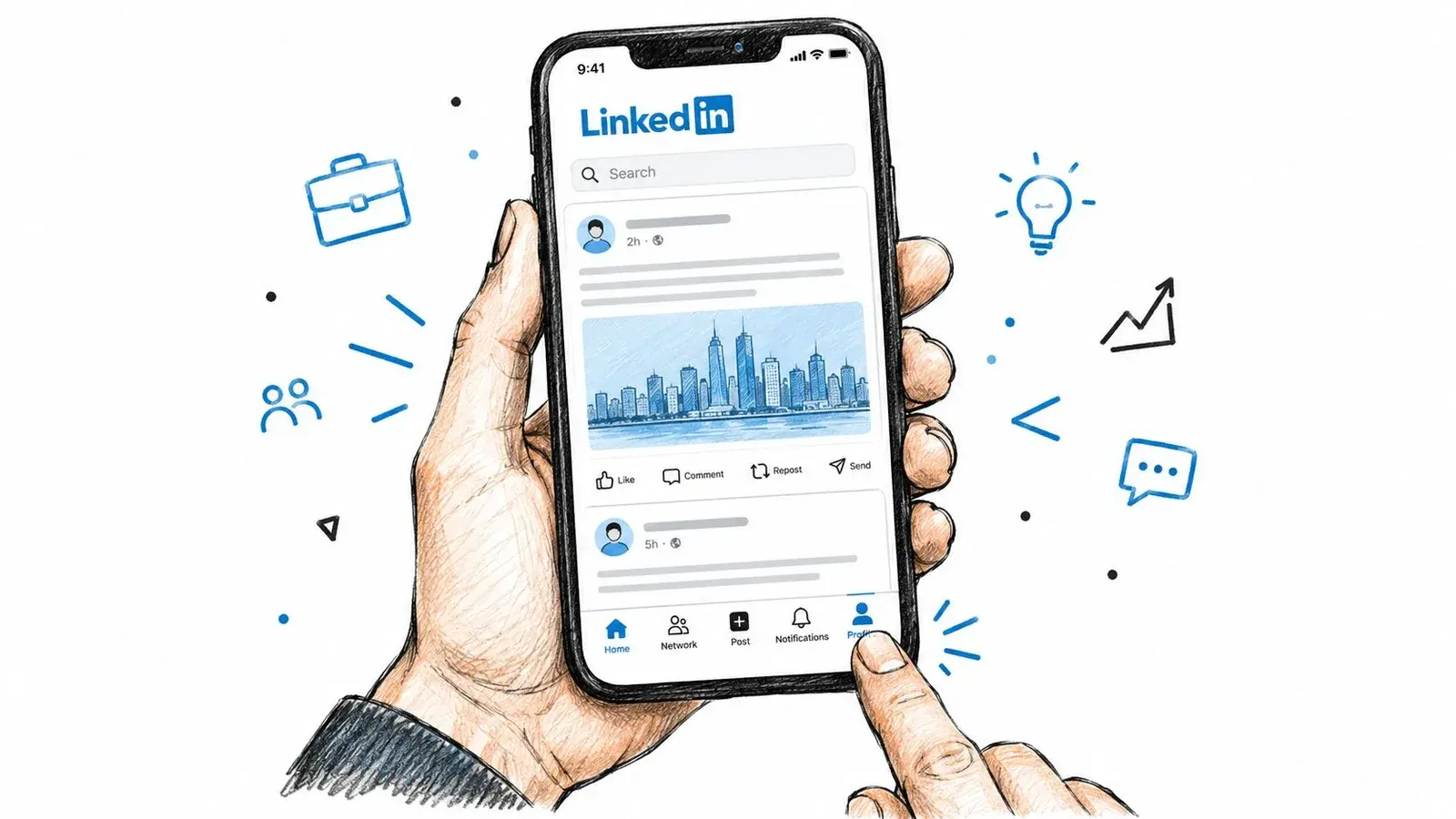
Mobile is a little different because the app doesn’t give you a browser-style address bar to inspect. Open the LinkedIn app, make sure you’re signed in, then tap your profile photo in the top-left corner of the home feed. From there, tap View Profile if the app shows it, or tap your name banner to open your profile page.
Open Contact info and copy the link
Once your profile is open, scroll until you see Contact info. Tap it to expand the details section, where LinkedIn shows phone, email, and your profile URL. The link row usually displays your linkedin.com/in/yourname address, and that is the one you want to copy.
On iPhone, LinkedIn often opens a sheet with options like Copy, Open in browser, and Share. On Android, you may see a small copy icon beside the link instead. The wording shifts a little by platform, but the goal is the same, copy the public profile link, not the app’s full share wrapper.
Use the share flow if the app shows it first
If you’re on a mobile browser instead of the app, LinkedIn may offer a Share via path from the three-dot menu on your profile. That’s fine too, as long as you confirm the final link is still your public profile and not a long tracking URL. The mobile share link and the browser address bar link can look different, which is why it helps to check the final text before you paste it into a bio, message, or application.
The mobile path is useful when you’re away from a laptop, but it’s still best to copy the clean public URL and verify it once before sending it onward.
Which LinkedIn Link You Should Actually Copy
Not every LinkedIn link is equally useful. If you paste the wrong one, you can end up with a messy URL in a resume, a broken QR code, or a link that looks unprofessional on a business card.
| URL Type | Example | Best For | Avoid On |
|---|---|---|---|
| Public vanity URL | linkedin.com/in/yourname | Resumes, email signatures, websites, QR codes, social bios | Almost nowhere, this is the safest default |
| Full address-bar URL | A longer profile URL that may include extra parameters | Temporary personal checking, quick verification | Public documents, QR codes, printed materials |
| In-app share link | A shareable profile link from LinkedIn’s app or share flow | Direct messaging, sending your profile to one person | Clean public assets, unless it matches the vanity URL exactly |
The public vanity URL is the version LinkedIn surfaces under Public profile & URL, and it’s the one you should treat as your main link. It’s short, readable, and stable enough for most public-facing uses. The full address-bar version can include tracking text or other extra pieces, which makes it less tidy for anything you publish widely.
For a useful parallel, the same clean-link principle applies beyond LinkedIn too, as shown in this guide on using for tiktok bio from Julip. The point is simple, public profile links should be easy to copy, easy to scan, and easy to trust.
If you’re comparing link formats across platforms, this is the same kind of decision covered in Twitter profile optimization, where a clean profile link matters just as much as the profile itself. Use the short version when people need to recognize you fast. Use the messy version only when you’re checking that the page resolves correctly.
Customizing Your LinkedIn Profile URL
A custom LinkedIn URL makes your profile easier to share and easier to remember. On desktop, go to Me, choose View Profile, then open Public profile & URL and click the edit icon beside your current URL. LinkedIn’s help also shows another path through the profile page and public settings, where you can type a new slug into the custom URL field and save it.
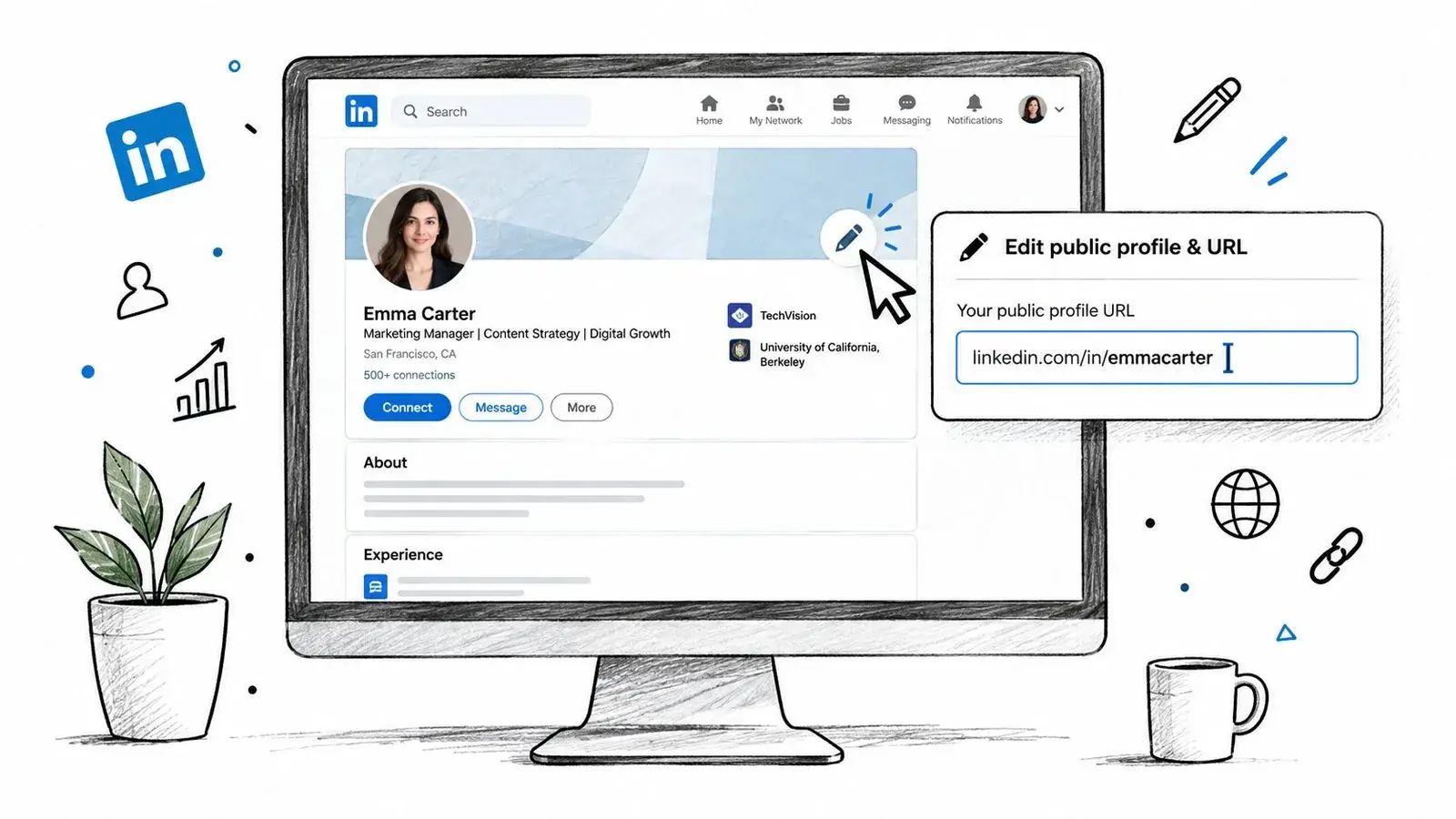
A good slug should feel like your name tag, clear at a glance and easy to repeat. Keep it lowercase, use hyphens instead of spaces, and match your real name or brand as closely as you can. Avoid numbers unless you need them, because they make the link harder to say out loud and easier to mistype. If your name is common, add a role or broad descriptor only if it still reads naturally, not like a pile of keywords.
Short helps here too. A compact slug fits better in a resume header, a footer, or a business card, and it is easier for someone to scan without stopping.
LinkedIn limits how often you can change a custom URL, so treat the slug like a long-term choice, not a temporary label. Repeated edits can leave old links floating around in emails, portfolios, and saved profiles, which makes it harder for recruiters, clients, and collaborators to find the same page later. For a consistent presence across networks, see this guide to personal branding on Twitter when choosing your slug.
Good rule: choose a slug you can keep for a long time, then use that same link everywhere once it is set.
After you save it, reopen your profile and check that the new address appears in the browser bar. That quick check catches a typo before you paste the link into a public page.
Sharing Your LinkedIn URL Safely
A LinkedIn URL is safe to share, but only if you share the right version. The clean public profile link is the one you want on resumes, email signatures, websites, and QR codes. Anything longer, cluttered, or parameter-heavy should be trimmed before you publish it.
LinkedIn’s mobile and desktop surfaces can produce links that look slightly different, but your goal is always the same, remove anything extra and keep the bare linkedin.com/in/yourname format. That means stripping tracking text, query strings, and extra tokens before you post the link publicly. It also means preferring https links so scanners and browsers open the profile correctly on phones and desktop devices.
If you’re using a printed business card, generate the QR code from the clean vanity URL, then test it with two phones before printing in bulk. That extra check matters because a QR code built from a messy link can still work, but it’s harder to trust and harder to update later. For public forums, it’s also smart to review your profile visibility settings so you’re not sharing more than you intend through an exposed email address.
If you use LinkedIn links as part of your broader social footprint, cross-posting from Twitter to LinkedIn is a useful companion workflow because it shows how the same profile link can support different channels without creating chaos. Keep the public link simple, then reuse it consistently instead of generating a new version for every place you post.
A quick safety checklist helps:
- Use the clean public URL: Keep only the linkedin.com/in/yourname form when possible.
- Keep the link secure: Prefer https on resumes, signatures, and QR codes.
- Scan before sharing: Open the link once in an incognito window or private browser tab.
- Check printed items carefully: Read the card or poster once before you hand it out.
Quick Checklist and Next Steps
You’ve found your LinkedIn link when the profile opens the right person in the right place, whether you copied it from the browser bar, the public vanity URL, or the in-app share option. Use the browser address bar or the Public profile & URL settings if you want the public profile link, and use Contact info on mobile if you just need the link inside the app.
A simple final check keeps things clear:
- Open your own profile: Use Me > View Profile on desktop, or tap your profile photo on mobile.
- Confirm the URL type: Make sure you are copying the public profile link, not a tracking-heavy share link.
- Use it in the right place: Put the clean public URL on your resume, email signature, portfolio, and QR code.
- Test it once: Open it in a private browser window to see where it lands.
- Keep one version: Reuse the same link everywhere so people do not have to guess.
If you want one more cleanup step, update your About section, request a few recommendations, or polish your bio with the Twitter bio generator guide before reusing the same URL on your personal website.