How to read, understand, and use your X data without confusing public metrics, free per-post analytics, and Premium features
To check your Twitter (X) analytics, open the analytics control under one of your own posts for that post’s metrics (free), or open x.com/i/account_analytics for account-level totals and trends (X Premium). The access steps below cover both, and the metrics section explains what each number means.
Here is the honest situation with Twitter analytics in 2026: X documents several overlapping surfaces, including public post metrics, the Post Activity Dashboard, Ads analytics, Professional Home, and subscriber-only Media Studio features. Access can vary by account and region, so any guide that describes one universal dashboard is oversimplifying the product.
This guide separates those surfaces, explains what every metric means, shows how to calculate engagement rate, and identifies what a public-account analyzer can and cannot reveal.
For multi-post analysis, the complete guide to Twitter threads adds the Xholic Thread Retention Framework and a companion calculator for opening hold, middle exposure, end exposure, and the largest adjacent drop.
If you already know the basics, use the section headers to jump to what you need, from accessing the dashboard to what your engagement rate actually tells you, with an FAQ at the end.
What Is Twitter Analytics - and What Does It Actually Show You?
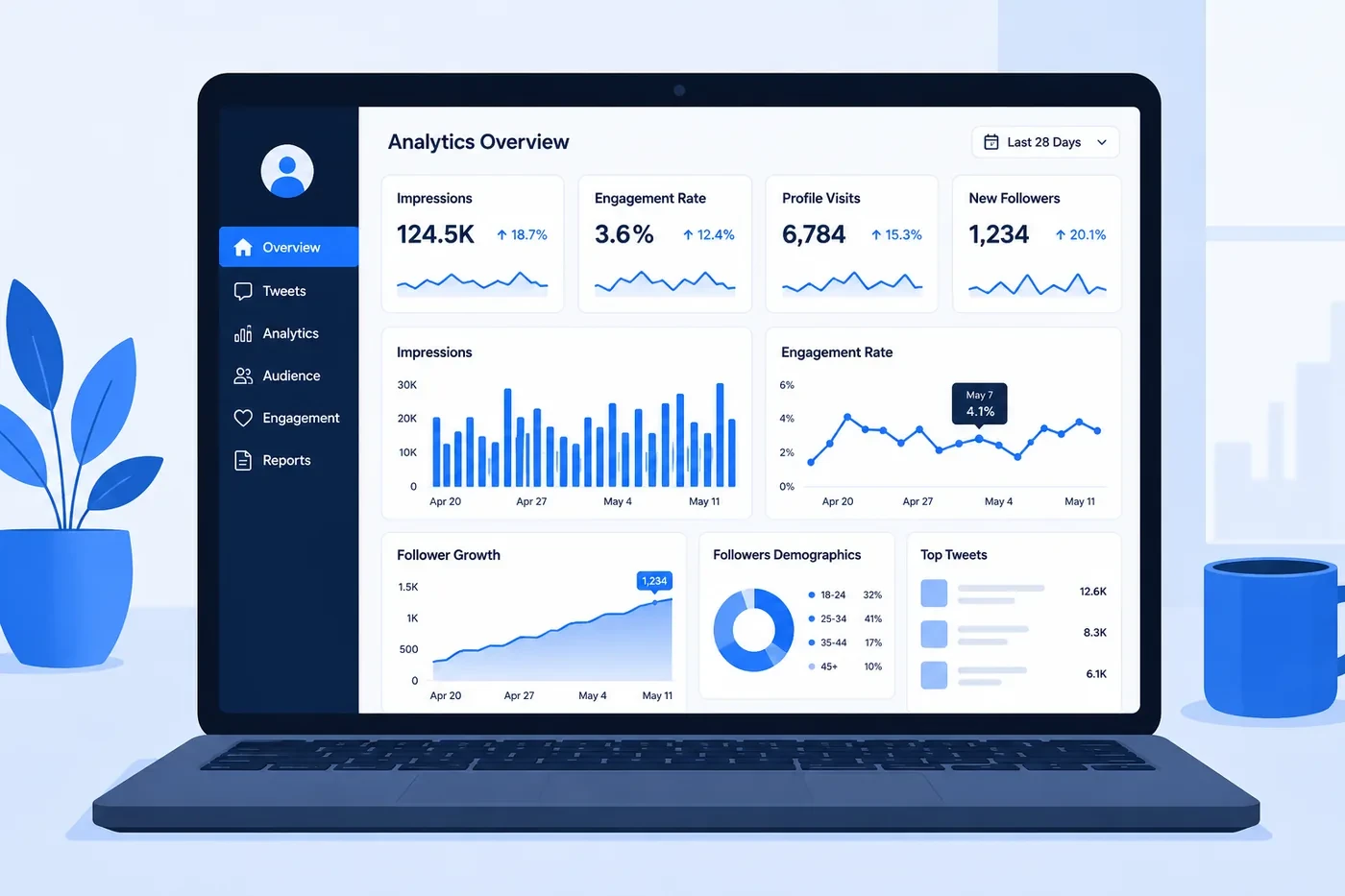
Twitter analytics is the platform’s built-in system for measuring how your content performs and how your account grows over time. It tracks every interaction on every tweet, how many times it was seen, how many people clicked, replied, liked, retweeted, or followed you from it, and aggregates that data into dashboards you can analyze.
At the account level, you get trend data: is your reach growing or shrinking? Are people actually engaging with your content or just scrolling past it? At the post level, you get a breakdown of exactly what happened to each individual tweet.
Key insight: A crowded feed makes intuition unreliable. Analytics helps you find the content and timing that actually reaches and resonates with your specific audience.
What Twitter analytics can tell you
- Impressions: how many times your tweets appeared in someone’s feed, search, or profile
- Engagement rate: the percentage of people who saw your tweet and did something with it
- Profile visits: how many people clicked through to your profile (a signal of interest beyond a single tweet)
- Follower growth: net new followers over time, showing whether your growth is trending up or down
- Link clicks: how many people clicked links in your tweets - the closest proxy to actual traffic you drove
- Video metrics: views, completion rate, watch time for video content
- Top tweets: which posts performed best in a given period, and why
What Twitter analytics cannot tell you
- Who specifically viewed your tweets: you only see aggregate counts, never individual usernames
- Who unfollowed you: only daily net follower change, not identity of unfollowers
- How you compare to competitors: no benchmarking tools in native analytics
- Detailed audience demographics: the old free Audience Insights tab was removed in 2020; current audience data sits in X’s Premium analytics
- A guaranteed, unlimited account-history export across every analytics surface
For the things native analytics cannot show, tools like Xholic AI and the tools in my separate Twitter follower tracker guide fill the gap.
What’s Free in Twitter Analytics, and What Requires Premium?
Here is the documented situation.
Important: X’s built-in post analytics are free per post; the account analytics dashboard needs X Premium. X’s Post Activity Dashboard documentation still describes the dashboard as free with analytics.x.com registration or an Ads account, but analytics.x.com now redirects to X’s in-app Analytics page (x.com/i/account_analytics), and since 2024 X has put account-level analytics behind Premium. Premium is tiered and priced by region, and Media Studio access is limited to Premium and Premium+.
| Feature | Free (no Premium) | X Premium or Additional Eligibility |
|---|---|---|
| Public post metrics (views, likes, reposts, replies) | Visible on public posts | Also visible |
| Account Analytics page (analytics.x.com now redirects to x.com/i/account_analytics) | Older X Ads Help documentation still describes free access after Analytics or Ads registration | The account analytics dashboard needs X Premium |
| Post impressions, engagements, and engagement rate | Free per post on your own posts | Account-level totals and trends sit in the Premium dashboard |
| CSV export and date filtering | Not part of free per-post analytics | Part of the account dashboard; each export covers up to 30 days and 3,000 posts (UTC) |
| Video retention, view rate, and completion rate | Documented in the Video Activity Dashboard | Media Studio itself has separate verified-subscriber eligibility |
| Xholic public-account scan | Free, no X account authorization | Private impressions, clicks, and follower-source data are not available |
Pro tip: Start with the free metrics already available on your posts, and open the account dashboard if you have X Premium. Without Premium, use a public-account analyzer for recent visible-post signals while remembering that it cannot replace private first-party analytics.
How Do You Access Twitter Analytics?
There are three practical ways to inspect performance: X’s account analytics dashboard (X Premium), per-post metrics inside X, and public-account analysis tools. Here is how to use each one.
Option A: X Analytics on Desktop
Step 1 Open X’s Analytics page
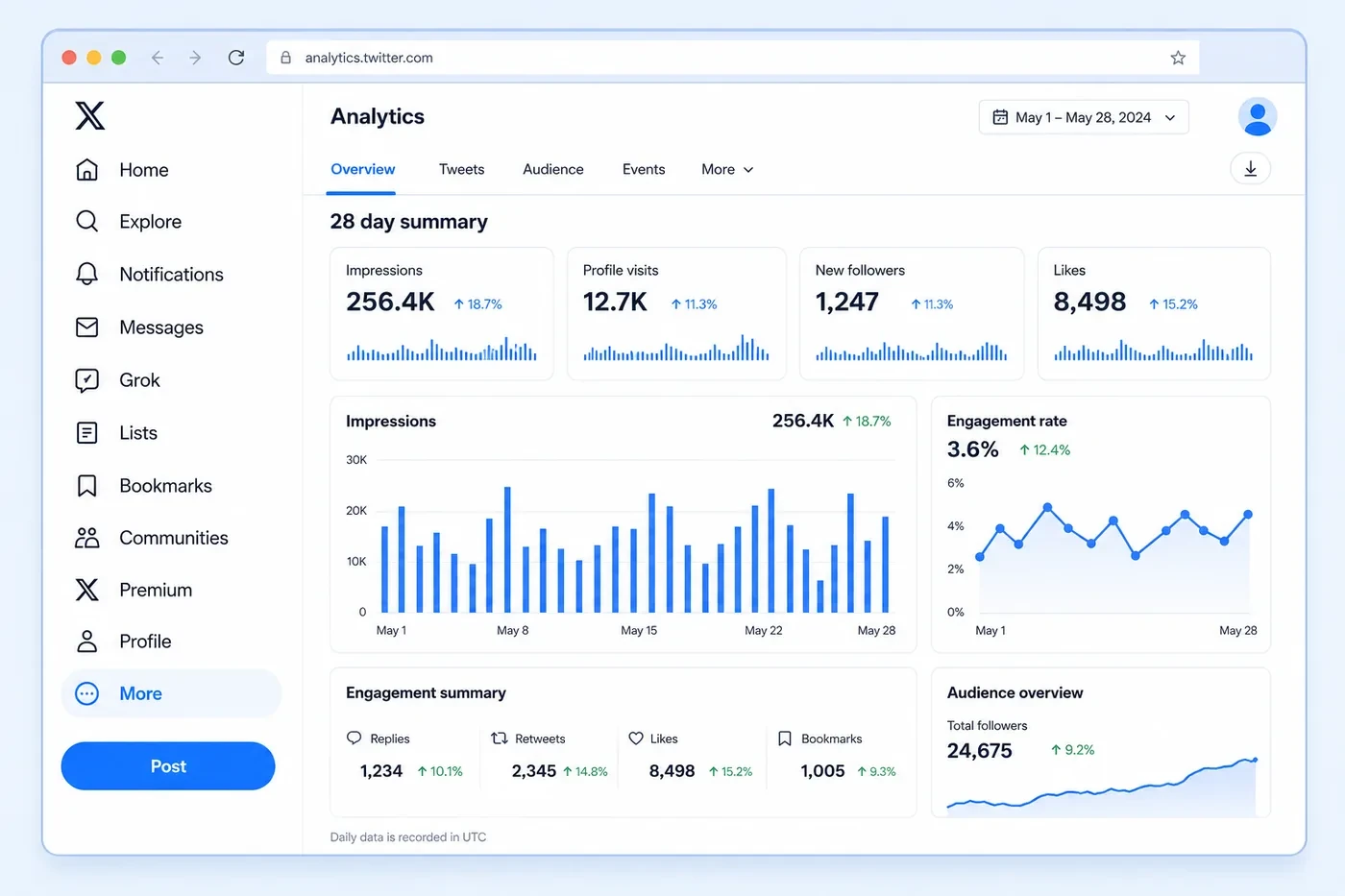
Open x.com/i/account_analytics (analytics.x.com now redirects there) while signed in to the X account you want to measure. The account analytics dashboard needs X Premium. X’s older Ads Help documentation still describes free access through analytics.x.com registration or an Ads account, so if you have an Ads account it is worth checking what your account shows.
Step 2 Check the date range
The dashboard defaults to the last 28 days. You can adjust this by clicking the date picker in the top right. Shorter ranges (7 days) are useful for checking the impact of a specific campaign or content type. Longer ranges show you trajectory.
Step 3 Read the Overview tab
The page is split into Overview, Audience, Content, Video, Live, and Spaces tabs. Start with Overview for account-level totals and trends for the period. X notes that detailed engagement metrics become available once an account reaches 50 followers.
Step 4 Open the Content tab
Use the Content tab to review individual posts. Click any post to see its breakdown, such as impressions, engagements, detail expands, link clicks, profile clicks, and follows from that post.
Step 5 Export your data (optional)
If the dashboard offers export for your account, use its export control to download post-level data, then open the file in Excel or Google Sheets. Exports cover up to 30 days and 3,000 posts at a time (UTC), so export on a regular cadence if you want a longer history.
Option B: Per-Post Metrics Inside X
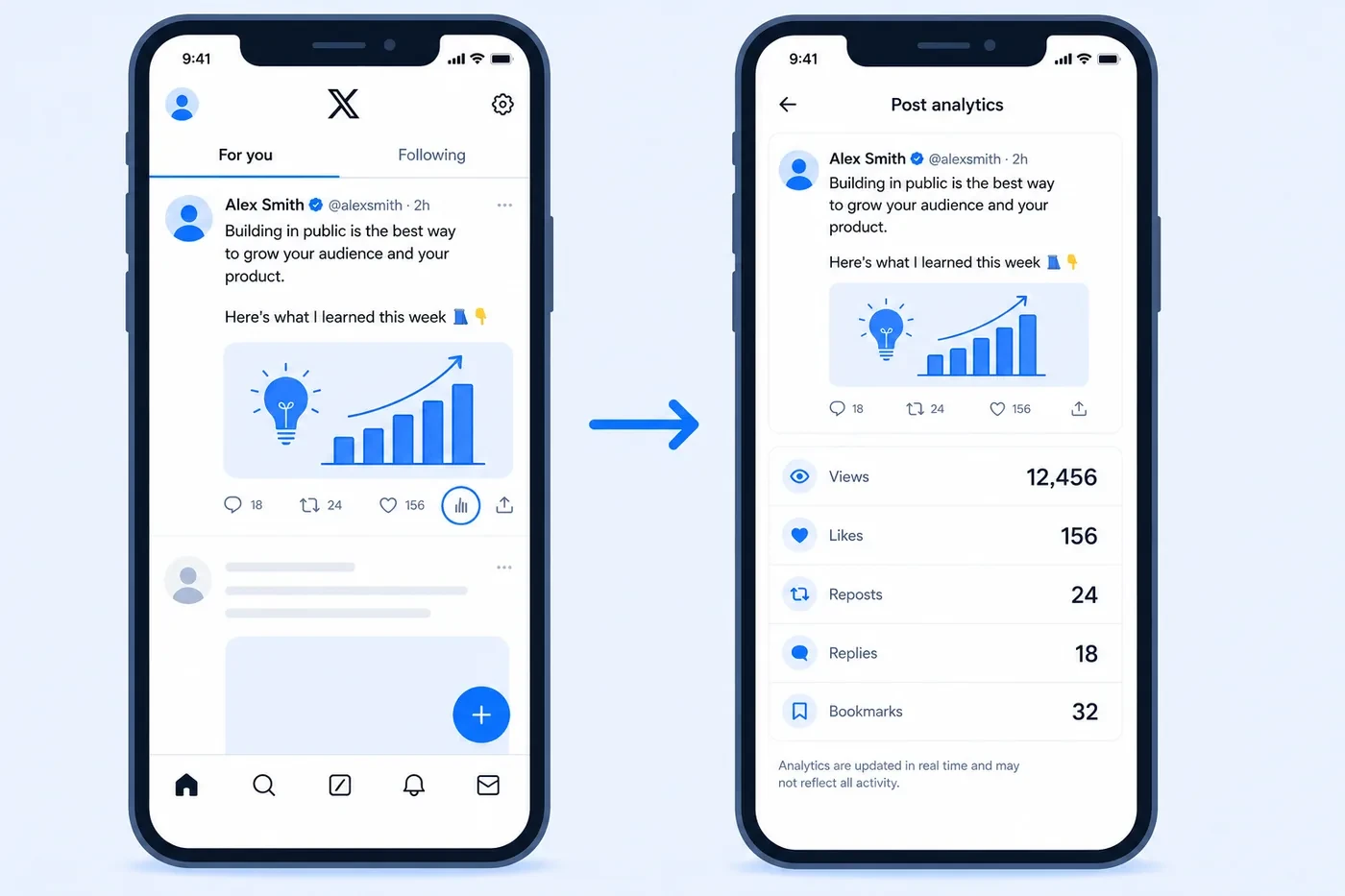
Public posts expose visible metrics such as views, likes, reposts, and replies. Account owners may also see a post-analytics control with more detailed first-party metrics, depending on the account and current X interface.
Step 1 Open the Twitter app and find any of your tweets
Step 2 Tap the bar chart icon below the tweet
When a bar-chart or analytics control appears beneath one of your posts, tap it to open that post’s available analytics. If the control is absent, the account dashboard at x.com/i/account_analytics (X Premium) is the other first-party route.
Step 3 Read your post metrics
The detail view can include impressions or views, engagements, profile visits, and interaction types such as likes, reposts, replies, link clicks, and bookmarks. The exact fields shown can vary by surface and account.
Pro tip: The mobile per-post view is most useful for checking your recent tweets quickly. If you notice one post has significantly more profile visits than usual, that is a strong signal - people were interested enough to look at who you are, not just engage with the tweet itself.
Option C: Xholic AI for a Public-Account Check
If you want a fast check without authorizing an X account, use Xholic AI’s free Twitter analyzer. It summarizes current public profile counts and recent visible original posts, then calculates directional engagement, cadence, content mix, and top-post signals. It cannot access private impressions, clicks, historical follower sources, or another account’s first-party dashboard.
This is most useful for a quick account audit, competitor research, or deciding what to investigate in your own first-party dashboard. See the Twitter analyzer guide for a screenshot walkthrough and interpretation limits.
What Does Every Twitter Analytics Metric Mean?
Twitter’s dashboard uses terminology that sounds intuitive but often means something specific that is worth understanding precisely. Here is every major metric with a plain-English explanation and what to actually do with the information.
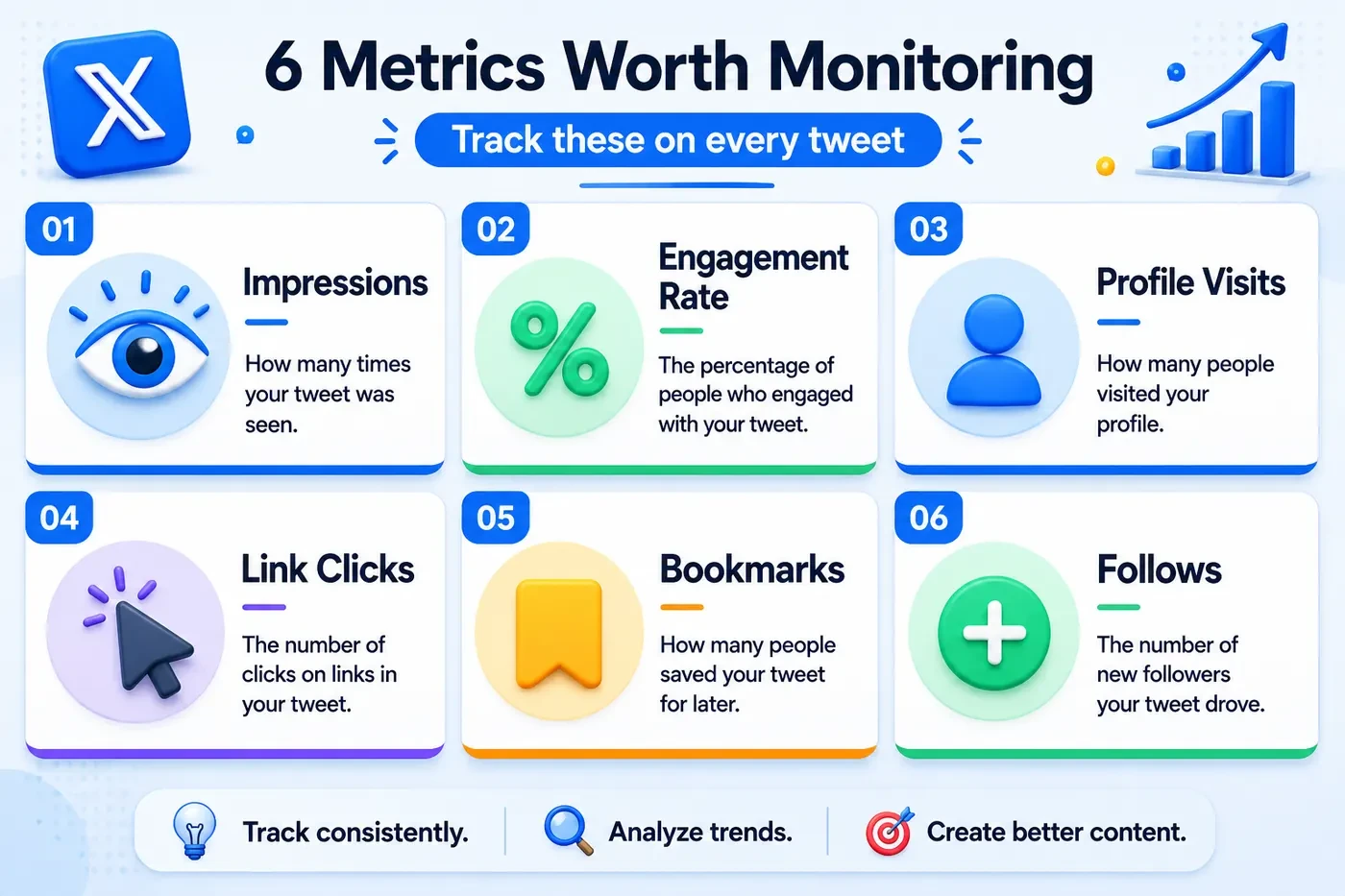
Impressions
Impressions are the total number of times your tweet appeared in someone’s feed, search results, or profile page, whether or not they looked at it, clicked it, or did anything at all. It counts every single display.
What it tells you: your reach. A tweet with high impressions but low engagement is being seen but not resonating. A tweet with low impressions but high engagement rate is connecting with a small but interested audience. Neither is inherently bad, context matters.
Heads up: Impressions are not the same as reach. Twitter does not publish a ‘reach’ metric for organic posts. Impressions counts every time the tweet was displayed, including if the same person sees it multiple times. Two people seeing your tweet once each = 2 impressions. One person seeing it twice = also 2 impressions. X’s view count help page notes that your own views of your post count too.
Engagement Rate
Engagement rate is the percentage of people who saw your tweet and did something with it, liked, retweeted, replied, clicked, or expanded it.
Formula: Engagement Rate = (Total Engagements / Impressions) x 100
Example: if your tweet got 2,000 impressions and 60 total engagements (likes + replies + retweets + clicks), your engagement rate is 3%.
Key insight: Benchmark: Rival IQ’s 2026 benchmark report puts the median brand engagement rate on X at about 0.03% per post, measured per follower, not per impression (up from 0.015% the year before). Don’t compare it with the impression-based rate above.
Profile Visits
Profile visits count how many people clicked through to your profile page after seeing a tweet. This is one of the most underrated metrics in the dashboard.
A high profile visit count on a specific tweet means people wanted to know more about you, they were curious enough to investigate. These are often your best-performing tweets in terms of intent, even if the raw engagement numbers are not the highest. Tweets that drive a lot of profile visits are the ones worth studying and replicating.
Follows
The ‘follows’ metric on individual tweets shows how many new followers came directly from that tweet. Twitter attributes these follows to the post that was being viewed when someone tapped Follow.
This is the most useful metric for separating content that brings in new followers from content that satisfies existing ones. A tweet with 20 new follows is very different from a tweet with 400 likes but 0 new follows, both have value, but for different reasons.
Link Clicks
Link clicks count how many people tapped or clicked a URL inside your tweet. This is the most direct measure of traffic driven, if you linked to a blog post, a product, or a tool, this tells you how many people actually clicked through.
Link clicks combined with your website analytics give you a complete picture of Twitter-to-site traffic. If you are linking to your Xholic tools or guides, this is the metric that tells you whether Twitter is actually driving visitors.
Detail Expands
A detail expand happens when someone clicks ‘Show more’ or taps on the tweet to open it in full, without necessarily liking, retweeting, or clicking a link. It means they were interested enough to read more carefully, even if they did not take further action.
High detail expands on a tweet can indicate curiosity: the hook may have worked well enough that people wanted to read the full thing. If a tweet has many detail expands but few likes or retweets, the content was interesting but may not have felt shareable or worth bookmarking.
Bookmarks
Bookmarks are a relatively newer metric showing how many people saved your tweet to their private bookmarks list. Bookmarks usually suggest people found the post useful enough to come back to, rather than something that only entertained them in the moment.
Pro tip: A high bookmark rate relative to likes often indicates your content is highly practical or informational. Threads with specific tips, tool recommendations, and how-to content are the kind of posts people tend to save. If you are building a resource-driven brand, bookmark rate is one of your most meaningful metrics.
Video Views and Completion Rate
For tweets with video, Twitter shows total video views and completion rate. X counts a view when at least half the player is on screen for 2+ seconds, or when someone taps to expand or unmute. Completion rate shows the percentage of viewers who watched to the end.
A high view count but low completion rate means people started watching but dropped off early, usually a signal that the first 3 seconds did not deliver on the promise, or the video ran too long. A high completion rate means the content held attention all the way through, which is worth doubling down on.
How Do You Calculate Your Twitter Engagement Rate?
Twitter’s dashboard shows engagement rate automatically, but understanding how it is calculated helps you interpret it honestly, and stops you from gaming it in ways that make the number look good without actually mattering.
The standard formula
Engagement Rate = (Total Engagements / Impressions) x 100
Total Engagements includes, per X’s definition: reposts, replies, follows, likes, link clicks, embedded media clicks, username or profile photo clicks, and post expansions (detail expands). Twitter counts all of these together.
What counts as a ‘good’ engagement rate on Twitter in 2026
These bands are a rough rule of thumb for the impression-based rate, not a published benchmark.
| Engagement Rate | What It Means | Who Typically Achieves This |
|---|---|---|
| Below 0.1% | Content is reaching people but not connecting. Revisit your topics, tone, or hook. | Large brand accounts, passive posting |
| 0.1% - 0.5% | Average. Acceptable but leaves significant room to improve. | Most regular brand and creator accounts |
| 0.5% - 1% | Good. Your content is resonating. Keep testing to push higher. | Active creators, engaged niche accounts |
| 1% - 3% | Strong. You understand your audience well. Focus on consistency. | Engaged personal brands, niche experts |
| 3%+ | Excellent. Rare for accounts with large followings. Your content is genuinely connecting. | Small tight-knit niche accounts, viral posts |
Key insight: Engagement rate typically decreases as follower count increases. An account with 500 followers that posts niche content for a highly engaged audience will usually have a higher engagement rate than an account with 500,000 followers. This is normal and expected - do not use it as a direct comparison across accounts of different sizes.
The engagement rate mistake most people make
The most common mistake is optimizing for engagement rate on its own without connecting it to your actual goal. If your goal is driving traffic to a product or blog, what matters is link click rate, not just total engagement. A tweet with 500 likes but 2 link clicks is a vanity win. A tweet with 50 likes but 85 link clicks achieved something real.
Match the metric to the goal:
- Goal: grow followers -> watch profile visits and follows per tweet
- Goal: drive website traffic -> watch link clicks
- Goal: build authority and trust -> watch bookmarks and detail expands
- Goal: build reach and awareness -> watch impressions and retweet rate
- Goal: start conversations -> watch reply rate relative to impressions
How Do You Read Your Twitter Analytics Dashboard?
Most people open their analytics, look at the numbers, feel vaguely good or bad about them, and close the tab. Here is a more structured way to get genuine insight out of the data in under ten minutes.
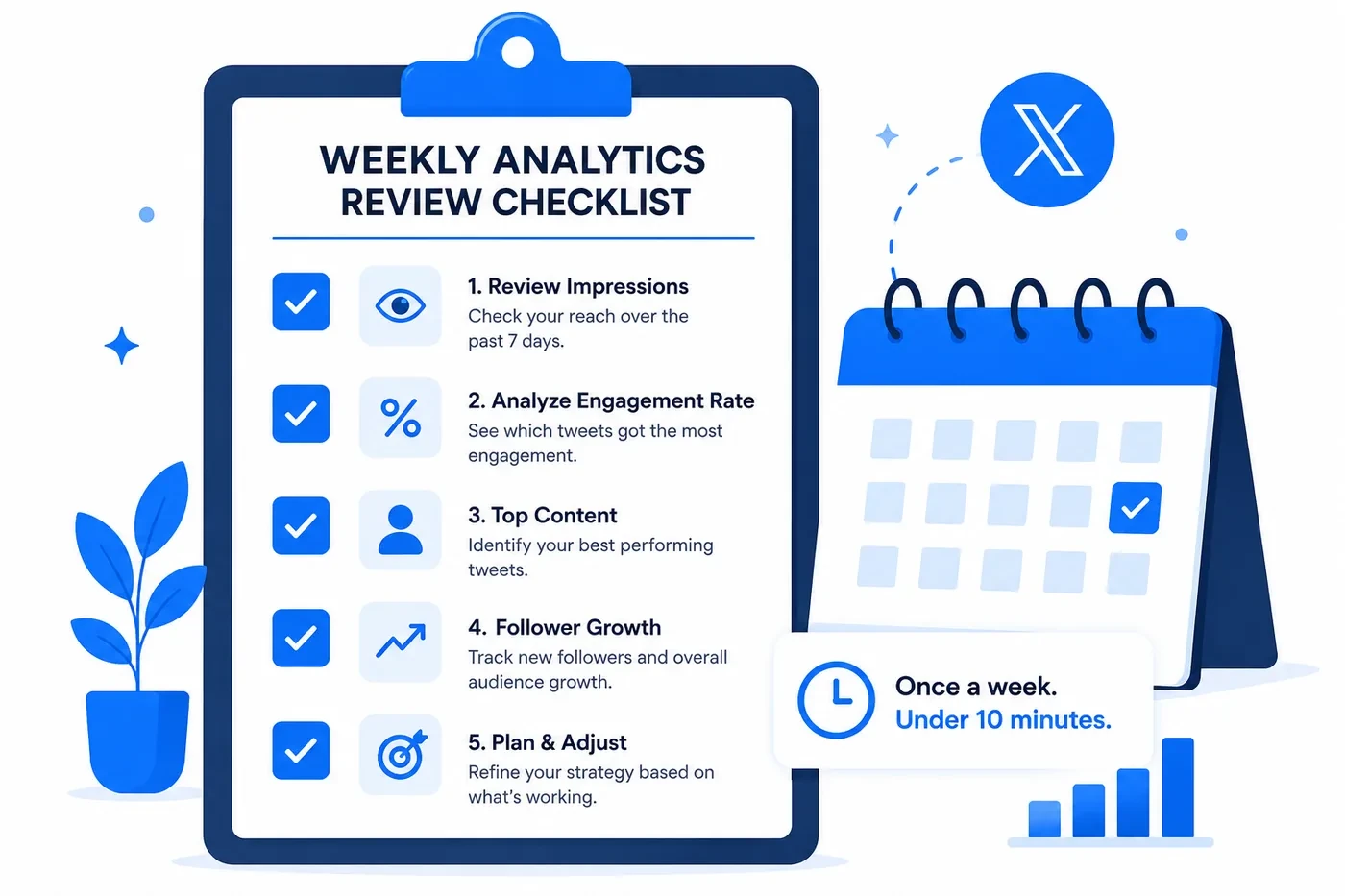
The 5-step weekly analytics review
Do this once a week, with the same reporting window and the same engagement-rate formula every time, so trend changes are easy to diagnose.
- Record your totals and check the trend. Note impressions, engagements, profile visits, and follows for the period from the Overview tab. What matters is not the raw number, it is the percentage change from the previous period. Is it up or down? By how much?
- Find your top 3 posts. Separate original posts from replies so one format does not hide the performance of the other, then look for the posts that drove the most engagement, qualified replies, profile visits, or follows. What do they share: a format (thread, image, opinion, how-to), a topic, a hook, a posting window? That pattern is your repeatable edge. A weekly median across recent original posts is more useful than one viral outlier.
- Find your bottom 3 posts. Just as important. What did the low performers share? A format that underperformed before? A topic your audience does not care about? A time slot that consistently underperforms?
- Check your follower trend. Are you gaining more than you are losing? If follower count is flat or declining despite regular posting, the content strategy needs revisiting. Use a follower tracker tool to see day-by-day changes with more granularity than the native dashboard shows.
- Decide what to repeat and what to stop. A good review ends with a decision, not a screenshot folder: pick one pattern to repeat and one weak pattern to stop testing next week. Keep the test small, such as a different posting time, hook format, or a thread instead of a single tweet. One deliberate test per week compounds quickly.
Reading your monthly trend: what the numbers are really telling you
| What You See | What It Actually Means | What to Do |
|---|---|---|
| Impressions up, engagement rate down | You’re reaching more people but connecting with fewer. Reach grew, resonance didn’t. | Audit your recent content - are you drifting from your core topic or audience? |
| Impressions flat, engagement rate up | Your content is getting better but not reaching new people. | Focus on strategies that extend reach: thoughtful replies in larger conversations and collaborations. |
| Both up | Healthy growth. Audience is growing and engaging. | Double down. Find what changed and do more of it. |
| Follower growth flat despite high engagement | Your engaged audience is loyal but you’re not reaching new people. | Post more content people want to repost or quote, and join relevant conversations where new readers can find you. |
| High profile visits, low follows | People are curious but your profile isn’t converting them. | Revisit your bio, pinned tweet, and profile photo. |
Which Twitter Analytics Tools Can You Use for Free?
No single surface provides every useful signal. These tools fill different gaps around X’s public metrics and first-party dashboards.
Xholic AI
Xholic AI’s free X Profile Analytics tool checks a public handle without signup and summarizes visible recent-post engagement, posting cadence, content mix, and top posts. Use it for directional research, not as a substitute for private impressions, clicks, or long-term follower history.
Twitter’s own mobile per-post stats (free)
As covered earlier in this guide, your own posts show per-post stats in the app for free; which fields appear can vary by account. It does not give you account-level trends, but it is a solid starting point for understanding your content performance tweet by tweet.
See more options in my guide: Twitter Follower Tracker: 7 Best Free Tools in 2026.
Which Twitter Analytics Mistakes Keep People Stuck?
These are the patterns that show up again and again when people dig into their data the wrong way.
1. Optimizing for impressions instead of engagement
Impressions are easy to chase and hard to convert. A tweet that lands on 50,000 timelines and triggers nothing is worth less than one that reaches 2,000 people and makes 80 of them click through to your site, follow you, or save it. Stop reporting impressions as success unless your actual goal is awareness at scale.
2. Checking analytics daily instead of weekly
Day-to-day fluctuations in impressions and engagement are mostly noise. Algorithms have good days and bad days, timing varies, and not every tweet is meant to perform equally. Weekly or bi-weekly reviews give you genuine signal. Daily checks create anxiety without insight.
3. Not connecting analytics to content decisions
Analytics without action is decoration. If your data consistently shows that how-to posts outperform your opinion tweets, but you keep posting opinion tweets because they feel good to write, the data is pointless. The discipline is taking what the data shows and changing your approach accordingly, even when the finding is uncomfortable.
4. Ignoring the ‘follows per tweet’ metric
This is the most underused number in the dashboard. Which tweets are actually bringing in new followers? If you can identify two or three formats that consistently drive follows, those are your franchise content types. Build more of them deliberately rather than posting a wide variety and hoping something works.
5. Using engagement rate to compare yourself to large accounts
An account with 200,000 followers will usually have a lower engagement rate than an account with 2,000 followers in a tight niche. This is structural, not a reflection of content quality. Compare your own engagement rate over time, or compare to accounts in a similar follower range. Cross-size comparisons are usually misleading.
Twitter Analytics: Frequently Asked Questions
Is Twitter analytics free in 2026?
Partly. X’s built-in post analytics are free per post; the account analytics dashboard needs X Premium. X’s Ads Help Center still describes the Post Activity Dashboard as free with analytics.x.com registration or an ads account, but analytics.x.com now opens X’s in-app Analytics page, and since 2024 X has put account-level analytics behind Premium. The page also asks for 50 followers before showing detailed engagement metrics. Public-account tools such as Xholic provide directional recent-post analysis without X authorization.
How do I access Twitter analytics?
Inside X, open the analytics control beneath one of your own posts for free per-post metrics. For account-level analytics, open x.com/i/account_analytics (analytics.x.com redirects there), which needs X Premium. For public-account research, use a third-party analyzer, but do not treat its visible-post estimates as private first-party data.
What is a good engagement rate on Twitter?
There is no universal good engagement rate because the answer changes with the denominator, account size, content format, and audience. Compare like with like: use the same formula every time, build a four-week baseline for your own account, and compare posts or accounts in a similar follower range.
What is the difference between impressions and reach on Twitter?
Twitter does not publish a ‘reach’ metric for organic posts. Impressions count every time your tweet was displayed, including multiple views by the same person. Reach would count unique viewers. Since Twitter only shows impressions, a single person viewing your tweet five times would contribute 5 to your impression count. This is worth remembering when interpreting high impression numbers.
Can I see Twitter analytics for someone else’s account?
You can see public metrics on any account’s tweets, likes, retweets, replies, and view counts are visible publicly. However, you cannot see another account’s full analytics: their impressions, engagement rate, profile visits, or follower trend data. These are only visible to the account owner. Public-account tools like Xholic’s X Profile Analytics estimate engagement from visible posts.
How far back does Twitter analytics go?
The default and maximum date ranges depend on the X analytics surface currently available to your account. Use the dashboard’s date selector and export controls. Each export covers up to 30 days and 3,000 posts at a time (UTC), so save regular exports if you need a durable history instead of relying on a fixed retention window.
Does Twitter analytics show who viewed my tweets?
No. Twitter analytics shows aggregate view counts (impressions) but does not reveal which specific accounts viewed your tweets. You can see total impressions, engagement counts, and profile visits, but never the identities of individual viewers. This applies to both free and Premium accounts.
What happened to Twitter analytics after the rebrand to X?
The rebrand did not produce one simple replacement dashboard. X currently documents Post Activity, Video Activity, Ads analytics, Professional Home, and Media Studio surfaces with different access paths. The old analytics.x.com address now redirects to the in-app Analytics page at x.com/i/account_analytics, so start there and with the current official documentation rather than relying on an old Twitter menu path.
Why are my Twitter analytics not loading?
If the dashboard is not loading, confirm that you are signed in to the correct account and that it has X Premium (the account dashboard needs it), then try a private window or another browser. Also check whether others are reporting an outage. Per-post metrics can be delayed, so refresh the app or check again later before treating missing data as permanent.
How do I improve my Twitter engagement rate?
Ways that usually help improve engagement rate on Twitter: post content that prompts a response (questions, polls, bold opinions), write stronger tweet hooks (the first line determines whether anyone reads the rest), post at times when your audience is active, and consistently stay in a clear niche rather than posting broadly. Use your analytics to identify which content formats generate the most engagement for your specific audience, then produce more of them deliberately.
Related Guides
Analytics tells you what is working. These guides help you act on it:
- Twitter Follower Tracker: 7 Best Free Tools in 2026 - track your follower growth with more granularity than the native dashboard provides
- How to Change Your Twitter Handle (Without Losing Followers) - if your profile analytics show low conversion, a cleaner handle is one of the easiest fixes
- How to Make a Viral Tweet in 2026 - use your engagement data to identify the formats worth replicating
- How to Write a Twitter Bio That Gets You Followers - high profile visits but low follows usually means your bio is not converting
- Fake Tweet Generator - mock up different tweet formats and hooks before posting to test how they look
- Twitter Analyzer Tool Guide - learn how to interpret a public account scan and its limits
Putting It All Together
Twitter analytics is only useful if you act on it. The dashboard, the metrics, the benchmarks, none of it matters if you check the numbers and change nothing.
Start simple: look at your top three and bottom three tweets from the past 28 days. Find one pattern in each. That pattern is your first data point. Over four weeks of consistent review, you will have enough signal to know what your audience actually responds to, not what you guess they want, not what performs well for someone else’s account, but what works for yours specifically.
If you need a public comparison alongside your first-party dashboard, Xholic AI’s free analyzer provides a recent visible-post snapshot without signup. Keep exporting your own X analytics separately for private impressions, clicks, and historical reporting.
Related Xholic Resources
For profile-level workflows, begin with the X Profile Analytics Guide, continue into the X Profile Audit Guide, and run the X Profile Audit tool when you want a structured review.
For follower monitoring, open the Live Twitter Follower Count tool and use its step-by-step guide to interpret short-window movement without overreacting.
For deeper reporting, learn how to read a Twitter analytics dashboard, what can be measured through Twitter analytics for another account, and how Twitter profile visits fit between post exposure and follower growth.