Quick answer: To change your Twitter/X handle: tap your profile photo -> Settings & Privacy -> Your Account -> Account Information -> Username. Type your new handle (4-15 characters, letters/numbers/underscores only, no spaces) and save. You will not lose followers. Your old handle becomes available to others immediately.
Changing your Twitter handle is something most people do once and never revisit, which means when the moment comes, it usually causes more panic than it should. The settings path is short, but the side effects of doing it wrong can linger for weeks.
This guide covers everything: the exact steps on mobile and desktop, what actually changes (and what doesn’t) when you switch handles, how to protect your followers and SEO during the transition, and the questions people don’t think to ask until after they’ve already made the change.
One quick note before we start: there is a difference between your Twitter handle and your display name. Most guides blur this line, and it causes confusion. We will clear that up in the very next section.
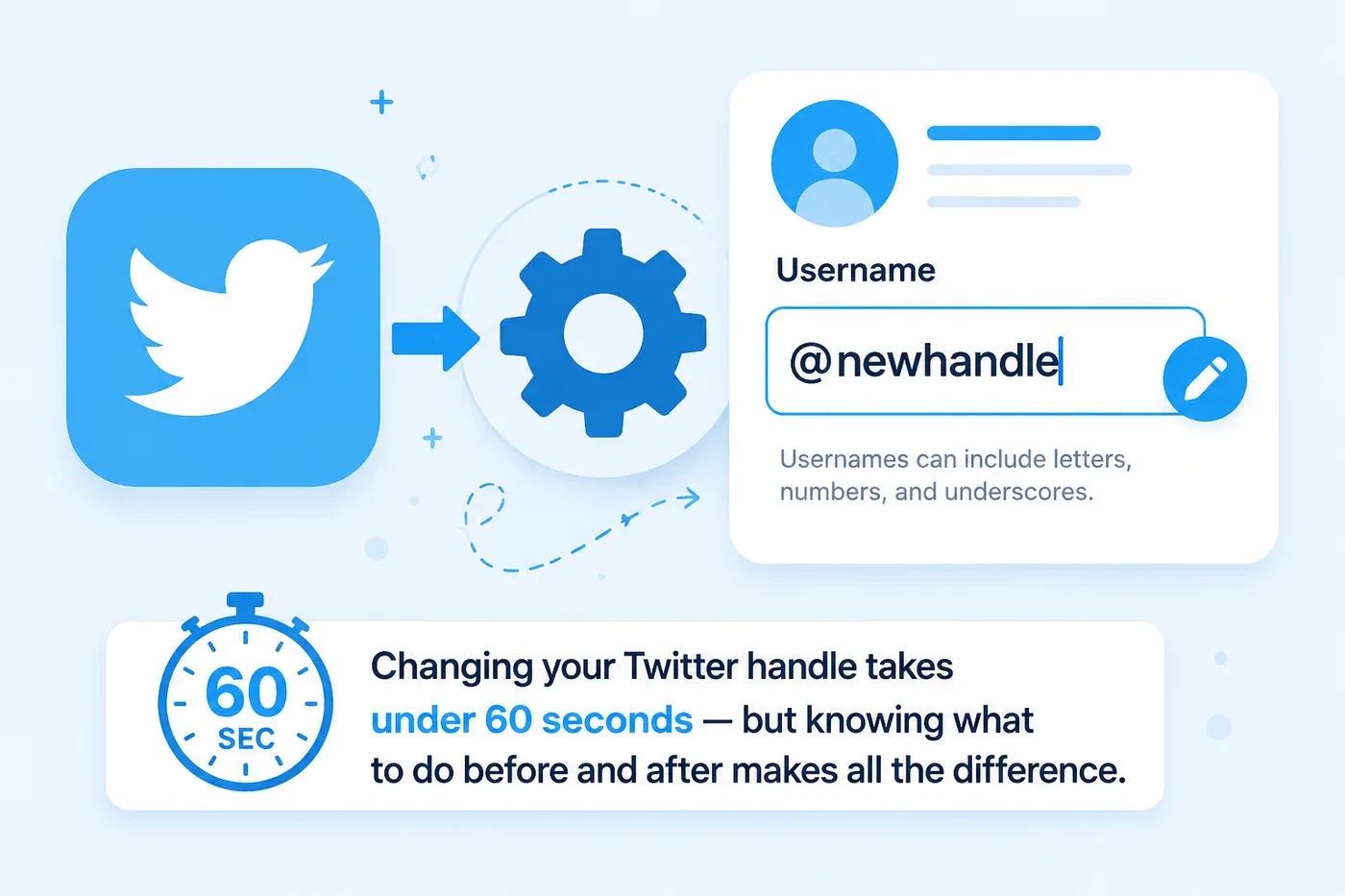
Twitter Handle vs. Display Name: What’s the Difference?
This trips up a lot of people, so let’s settle it before anything else.
| Requirement | Details |
|---|---|
| Your Handle (@username) | Starts with @. Unique to you. Used in URLs, mentions, DMs. E.g. @xholic_ai |
| Your Display Name | The bold name at the top of your profile. Not unique - anyone can use the same display name. E.g. “Xholic AI” |
| Where you change them | Handle: Settings -> Account Information -> Username. Display name: Edit Profile -> Name. |
| Do followers stay? | Yes for both. Changing either one does not affect your follower count. |
When someone tags you in a tweet, they use your handle, so @xholic_ai, not “Xholic AI”. Your handle also forms your profile URL: twitter.com/xholic_ai. The display name is just cosmetic. You can update it any time with zero consequence. This guide focuses on changing your handle, the one that actually matters for discoverability, mentions, and SEO.
Twitter Handle Rules: What You Can and Can’t Use
Before you pick a new handle, it helps to know the exact rules. Twitter enforces these automatically. If your chosen handle breaks any of them, it won’t let you save the change.
| Requirement | Details |
|---|---|
| Minimum length | 4 characters |
| Maximum length | 15 characters |
| Allowed characters | Letters (A-Z), numbers (0-9), underscores (_) |
| Not allowed | Spaces, hyphens, dots, special characters (@, #, !, etc.) |
| Case sensitivity | Not case-sensitive. @Xholic_AI and @xholic_ai are the same account. |
| Uniqueness | Every handle must be unique. If it’s taken, you can’t use it. |
| The @ symbol | Don’t type @ when entering your handle - Twitter adds it automatically. |
| Impersonation rules | Handles designed to impersonate others (including adding ‘_’ or ‘real’ to a famous name) can be suspended. |
Pro tip: Your handle is part of your Twitter profile URL. If you’ve built backlinks to twitter.com/youroldhandle, those URLs stop working when you change it. More on protecting your SEO equity in the section below.
3 Things to Do Before You Change Your Twitter Handle
Changing your handle mid-stream without telling anyone is how you quietly bleed followers and confuse people who try to tag you. These three steps take less than ten minutes and save a lot of headaches.
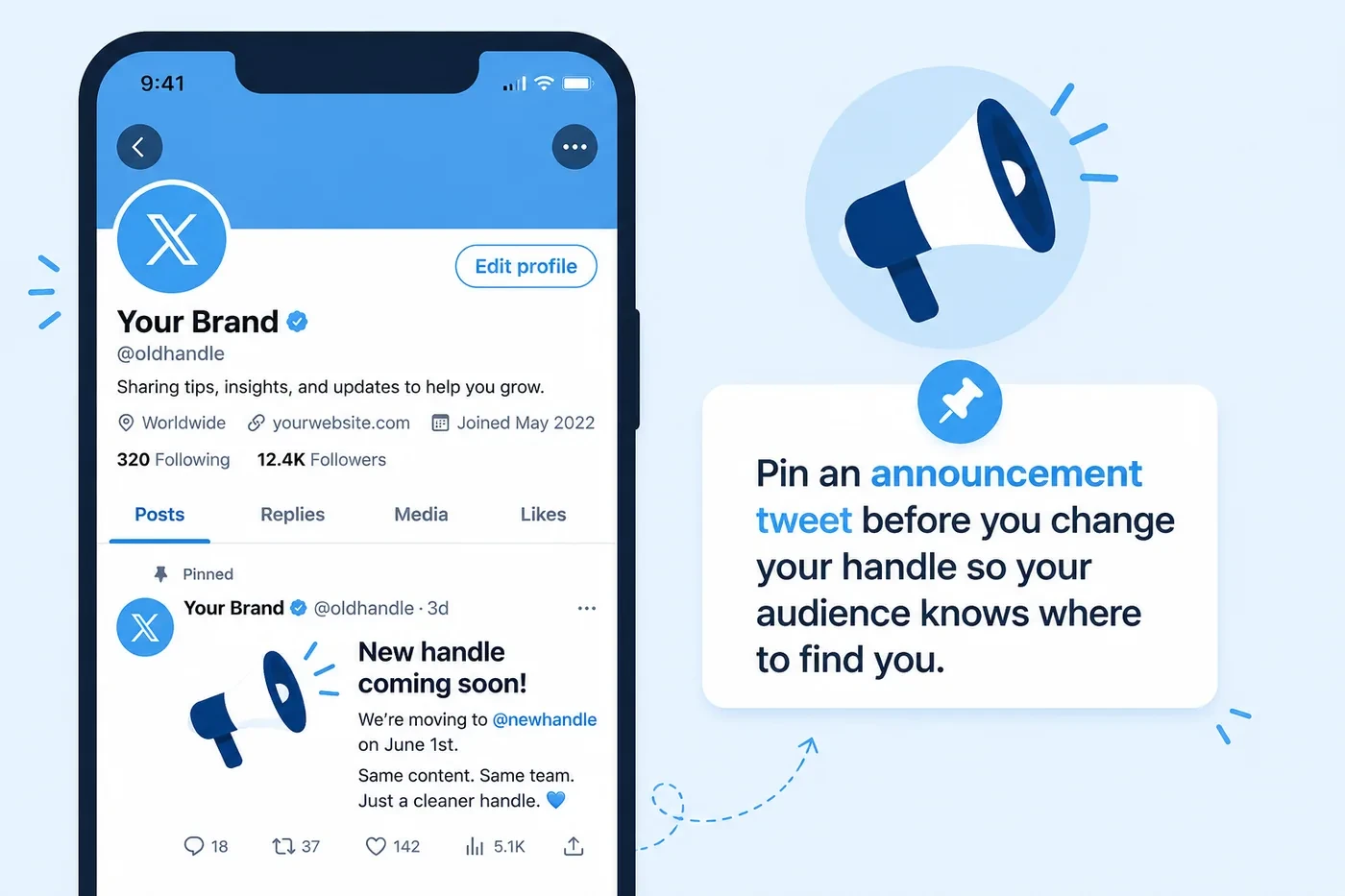
1. Announce the Change in Advance
Post a tweet, ideally a pinned tweet, 3 to 7 days before you make the switch. Something like: “Heads up: @oldhandle is moving to @newhandle next week. Same account, same content, same me, just a cleaner name.”
People who’ve saved your handle somewhere, quoted you in newsletters, or plan to tag you will appreciate the heads-up. It also creates a natural moment to re-engage your existing audience, which doesn’t hurt.
2. Update Everything That References Your Old Handle
Your handle appears in more places than you think. Before or immediately after the change, update:
- Your Twitter bio and pinned tweet
- Your website’s social media links and footer icons
- Email signature, newsletters, and contact pages
- Any third-party tools or scheduling apps connected to your account (Buffer, Hootsuite, etc.)
- Your LinkedIn, Instagram, and other social bios if you cross-reference Twitter
- Any blog posts or guides on your site that mention your Twitter handle including, if relevant, your Twitter analytics setup
3. Screenshot Your Current Follower Count and Analytics
This takes 30 seconds, and you will be glad you did it. Grab a screenshot of your follower count and your analytics dashboard before the change. If anything looks off afterward, you have a clean baseline to compare against.
You can check your current follower trends and engagement baseline in Xholic’s analytics dashboard before and after the switch, useful for confirming nothing dropped unexpectedly.
Heads up: Once you change your handle, your old handle is immediately available for anyone else to register. There is no grace period. If someone snaps up your old handle, any old mentions or links pointing to it will show a different account (or a dead page). Act quickly on the switch if the old handle is worth protecting.
How to Change Your Twitter Handle on Mobile (iPhone and Android)
The steps are identical on iOS and Android. You’re looking for a path through Settings that most people have never been to before, so the screenshots below show exactly where to tap.
Pro tip: The quickest path: tap your profile photo (bottom left) -> Settings and Privacy -> Your Account -> Account Information -> Username.
Step-by-Step: Change Handle on Mobile
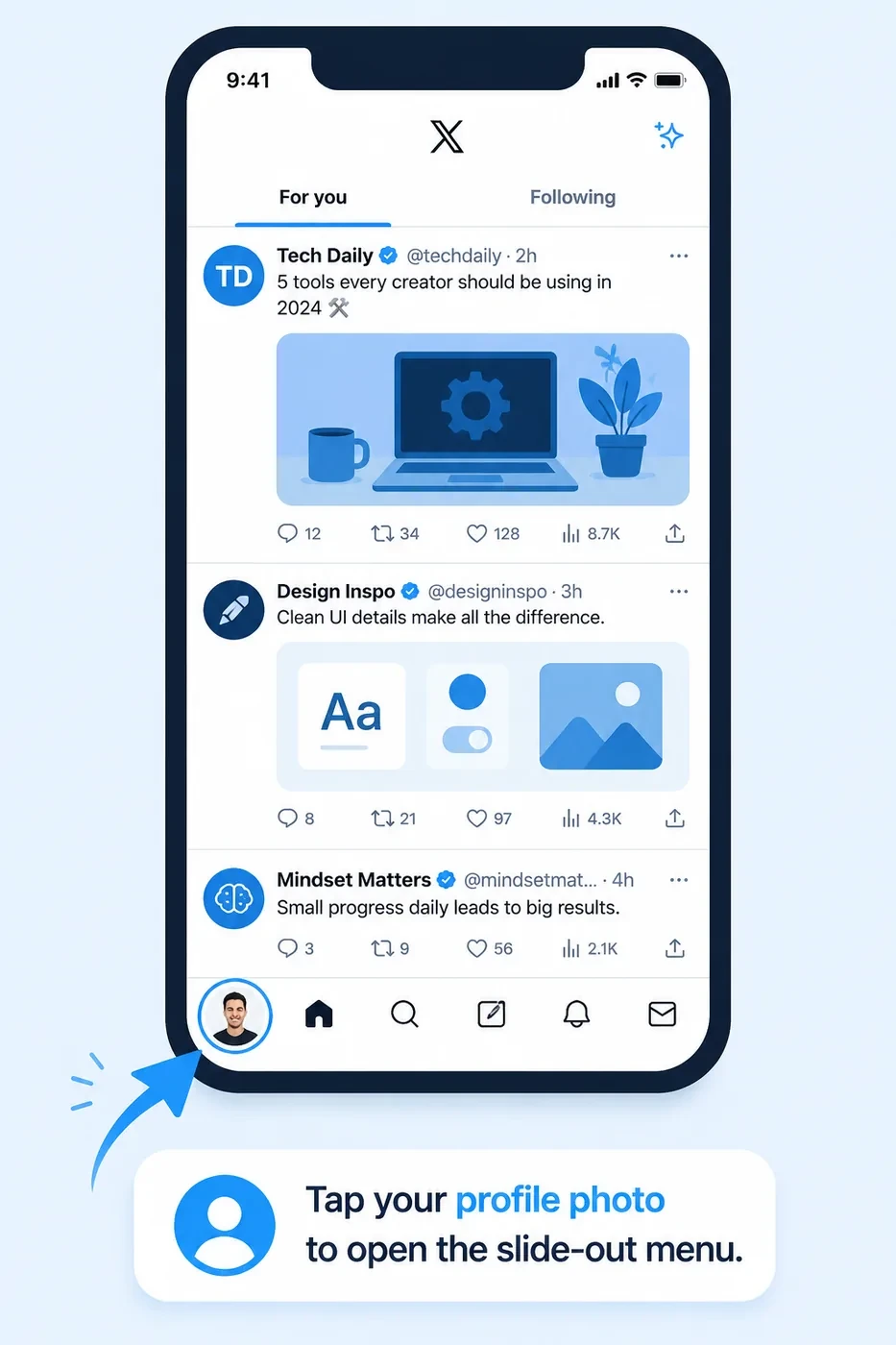
Step 1: Open Twitter and tap your profile photo
Launch the Twitter (X) app. In the bottom navigation bar, your profile photo appears on the far left. Tap it. On some versions of the app, it appears at the top-left corner of the home screen.
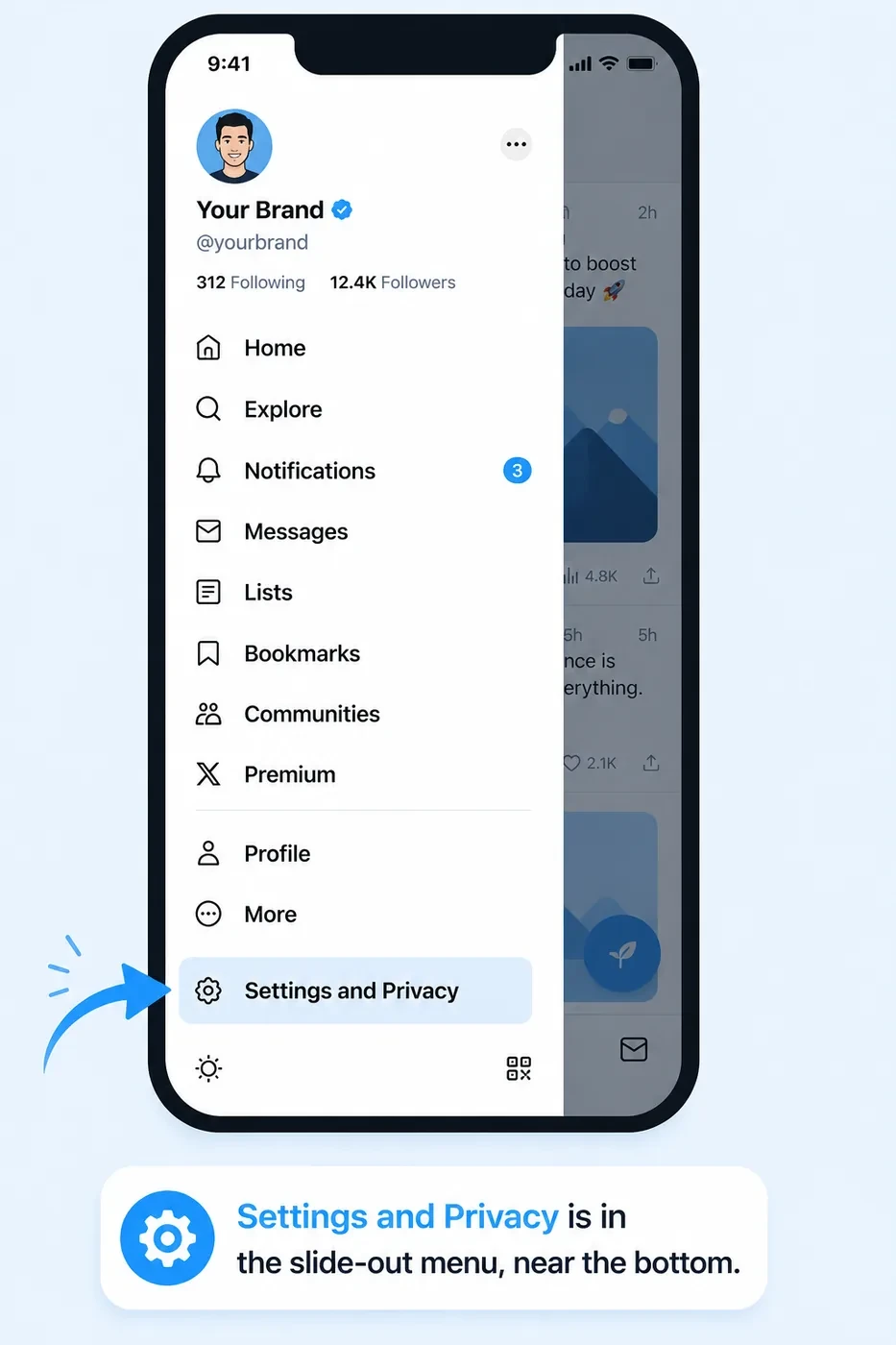
Step 2: Tap ‘Settings and Privacy’
A slide-out menu opens from the left. Scroll down past your account name, the navigation options (Home, Explore, Notifications, Messages), and you’ll see ‘Settings and Privacy’ near the bottom. Tap it.
Step 3: Tap ‘Your Account’
Inside Settings, the first section you’ll see is ‘Your account’. Tap it. This is where all account-level identity settings live, your username, phone, email, and more.
Step 4: Tap ‘Account Information’
Inside ‘Your Account’, tap ‘Account information’. You may be asked to confirm your password or complete a two-factor authentication step here, that’s normal. It’s Twitter verifying it’s actually you before letting you change core account details.
Step 5: Tap ‘Username’ and enter your new handle
You’ll see your current username displayed. Tap on it. A text field opens where you can type your new handle. Twitter will check availability in real time; a green checkmark means it’s available, and red means it’s taken.
Remember: 4-15 characters, letters/numbers/underscores only. Don’t include the @ symbol; Twitter adds it for you.
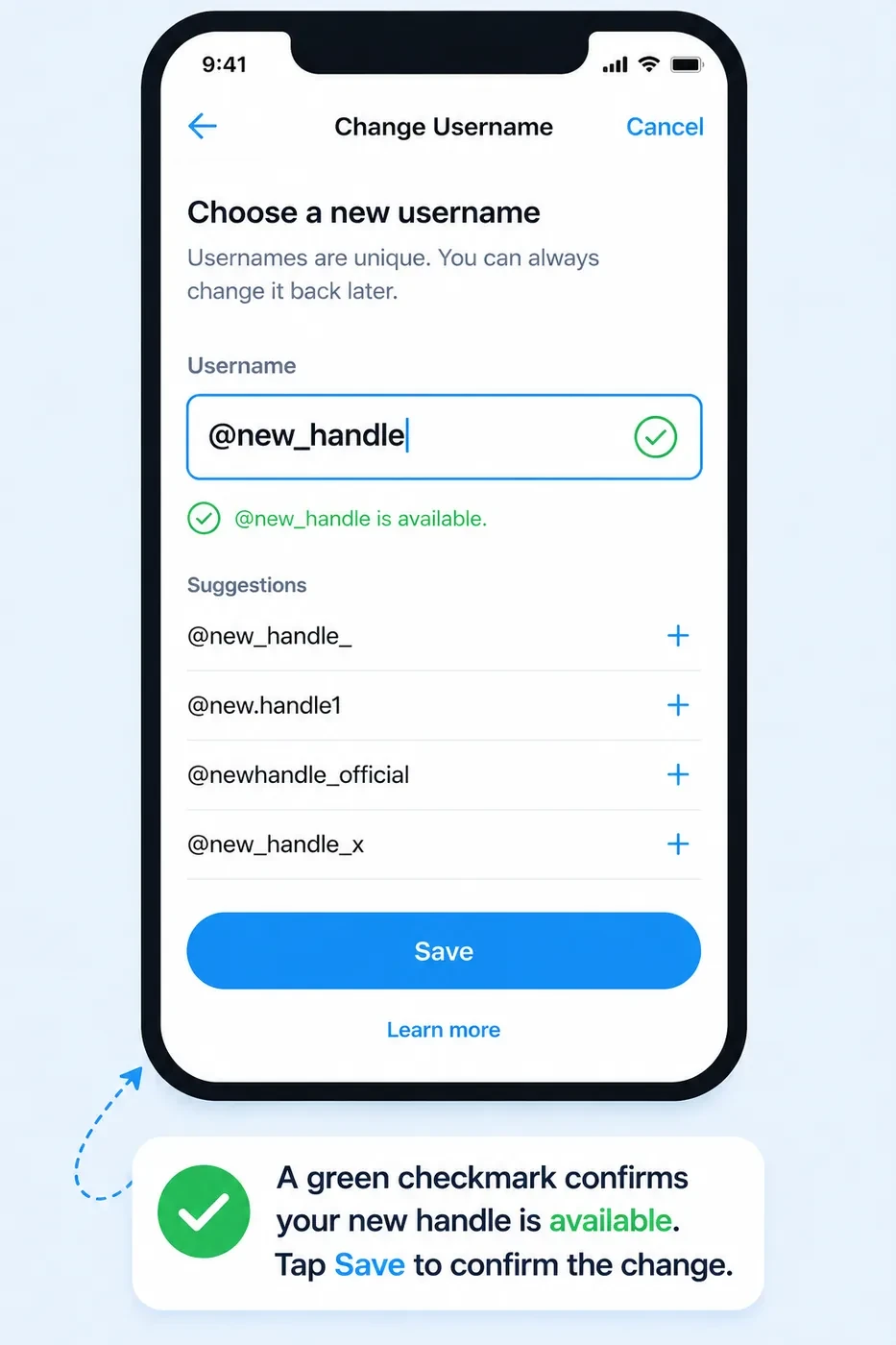
Step 6: Tap ‘Save’ to confirm
Once you see the green checkmark confirming your new handle is available, tap ‘Save’ or ‘Done’ (depending on your app version). The change applies immediately. Your profile URL and all mentions going forward will use the new handle.
How to Change Your Twitter Handle on Desktop
The desktop flow is slightly different visually but follows the same logic. You’re working through the left sidebar navigation rather than a slide-out menu.
Pro tip: Direct URL shortcut: once logged in, go to twitter.com/settings/account, then click ‘Account information’ -> ‘Username’. Saves you two clicks.
Step-by-Step: Change Handle on Desktop
Step 1: Log in and find ‘More’ in the left sidebar
From twitter.com, look at the left sidebar. Below the main navigation icons (Home, Explore, Notifications, Messages, etc.) you’ll see a button labeled ‘More’, it looks like three dots in a circle, or just the word ‘More’. Click it.
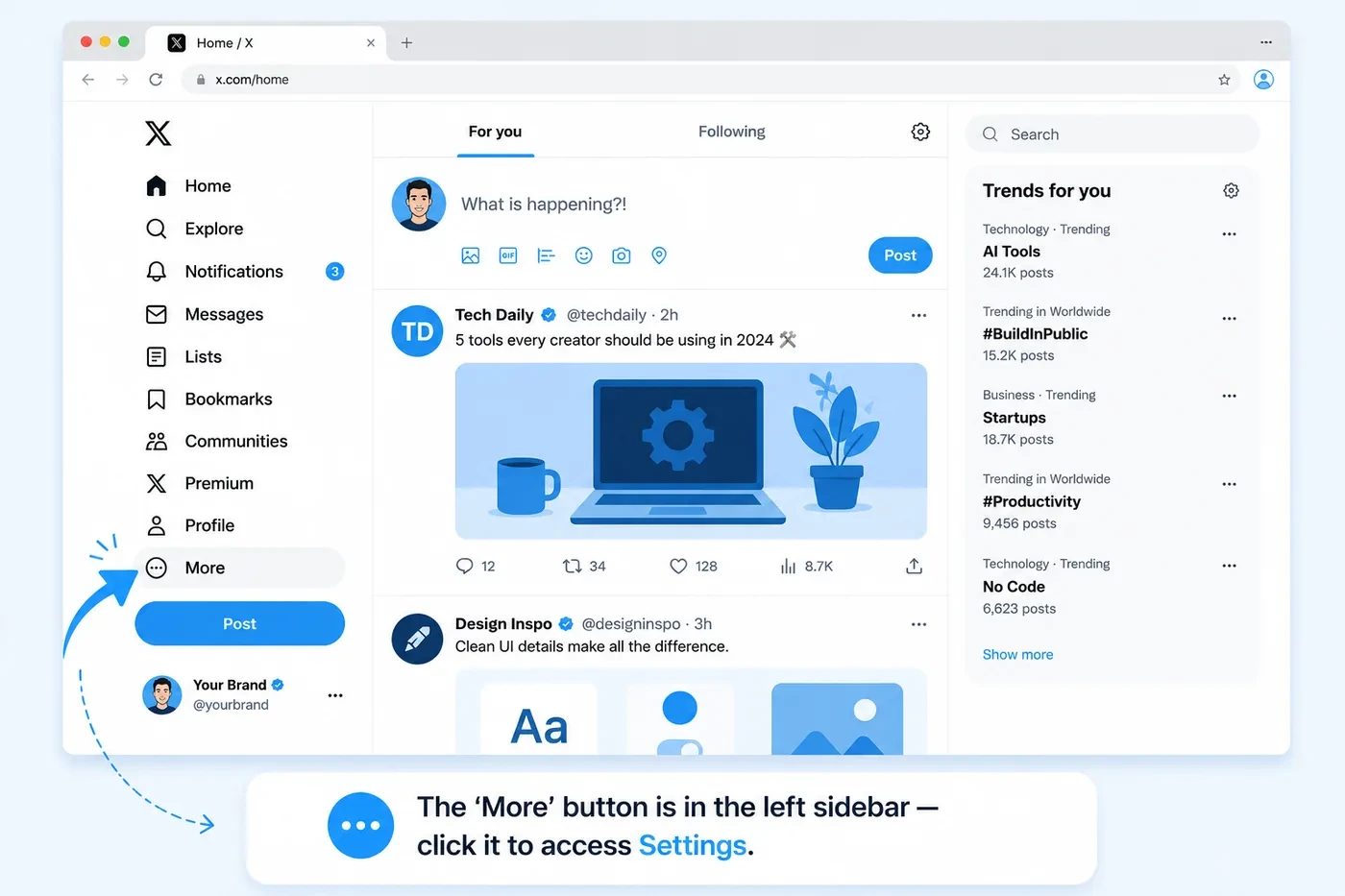
Step 2: Click ‘Settings and Privacy’
A popup menu appears from the ‘More’ button. Near the bottom of this popup, you’ll see ‘Settings and Privacy’. Click it. This takes you to the main Settings page.
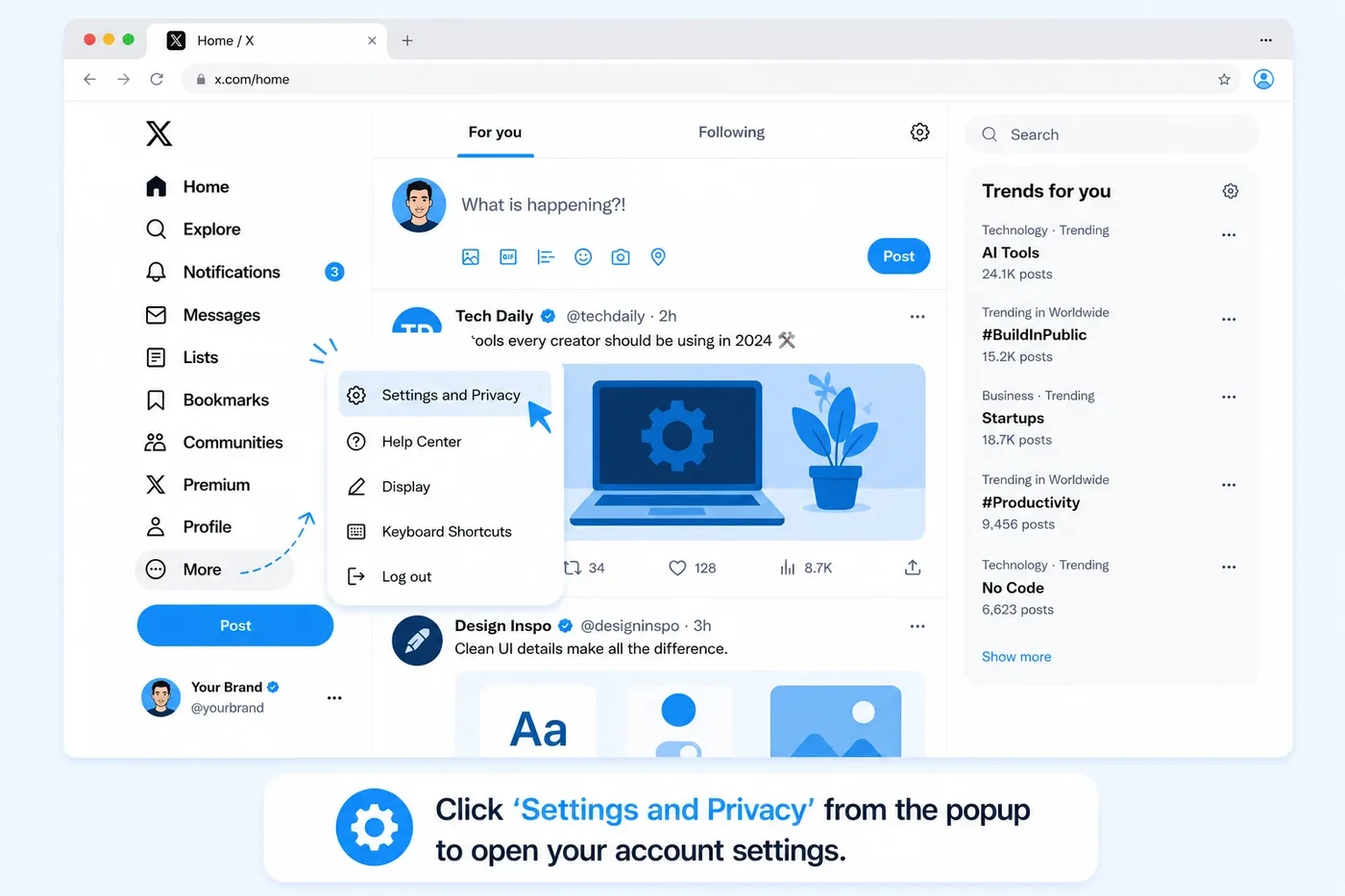
Step 3: Click ‘Your account’ -> ‘Account information’
On the Settings page, click ‘Your account’ in the left column. Then click ‘Account information’. Verify your password or 2FA when prompted.
Step 4: Click ‘Username’ and type your new handle
Your current username appears with an arrow. Click it. A field opens, clear the existing handle and type your new one. Twitter checks availability instantly as you type.
Same rules apply here: 4-15 characters, no spaces, no special characters, underscores are fine.
Step 5: Save your changes
Click ‘Save’ to confirm. Your handle updates immediately across your entire Twitter profile, including your public URL.
What Actually Changes When You Change Your Twitter Handle
People worry about this more than they should, and occasionally don’t worry enough. Here’s the honest breakdown.
What stays the same
- Followers and following count - completely unaffected. Everyone who followed @oldhandle now follows @newhandle.
- Your tweets, replies, likes, and media - all preserved.
- Your DMs and conversations - still intact.
- Your verification badge (if applicable) - stays on the account.
- Your account creation date - nothing resets.
What changes immediately
- Your profile URL - twitter.com/oldhandle no longer leads to your account. It either shows an error or, if someone registers the old handle, shows their profile.
- Old mentions in others’ tweets - tweets that tagged @oldhandle will still show @oldhandle as a clickable link, but that link now points to whoever owns the old handle (or a dead page). The mention is no longer connected to you.
- Any links on your website or elsewhere pointing to your old Twitter URL - those break instantly.
- Third-party tool connections - some scheduling and analytics tools may need to be reconnected or updated.
The SEO angle most people miss
If your Twitter profile or individual tweets have earned backlinks say, a blog post somewhere links to twitter.com/youroldhandle, those links stop pointing to you the moment you change handles. If organic traffic or link equity from your Twitter presence matters to your brand, audit your backlinks before switching. Tools like Ahrefs or Google Search Console can show you which external pages link to your Twitter URL.
For most personal accounts this is a minor issue. For established brand accounts with years of inbound links built up, it is worth factoring in. You may also want to update your Twitter analytics tracking to reflect the new handle if you use any external monitoring tools.
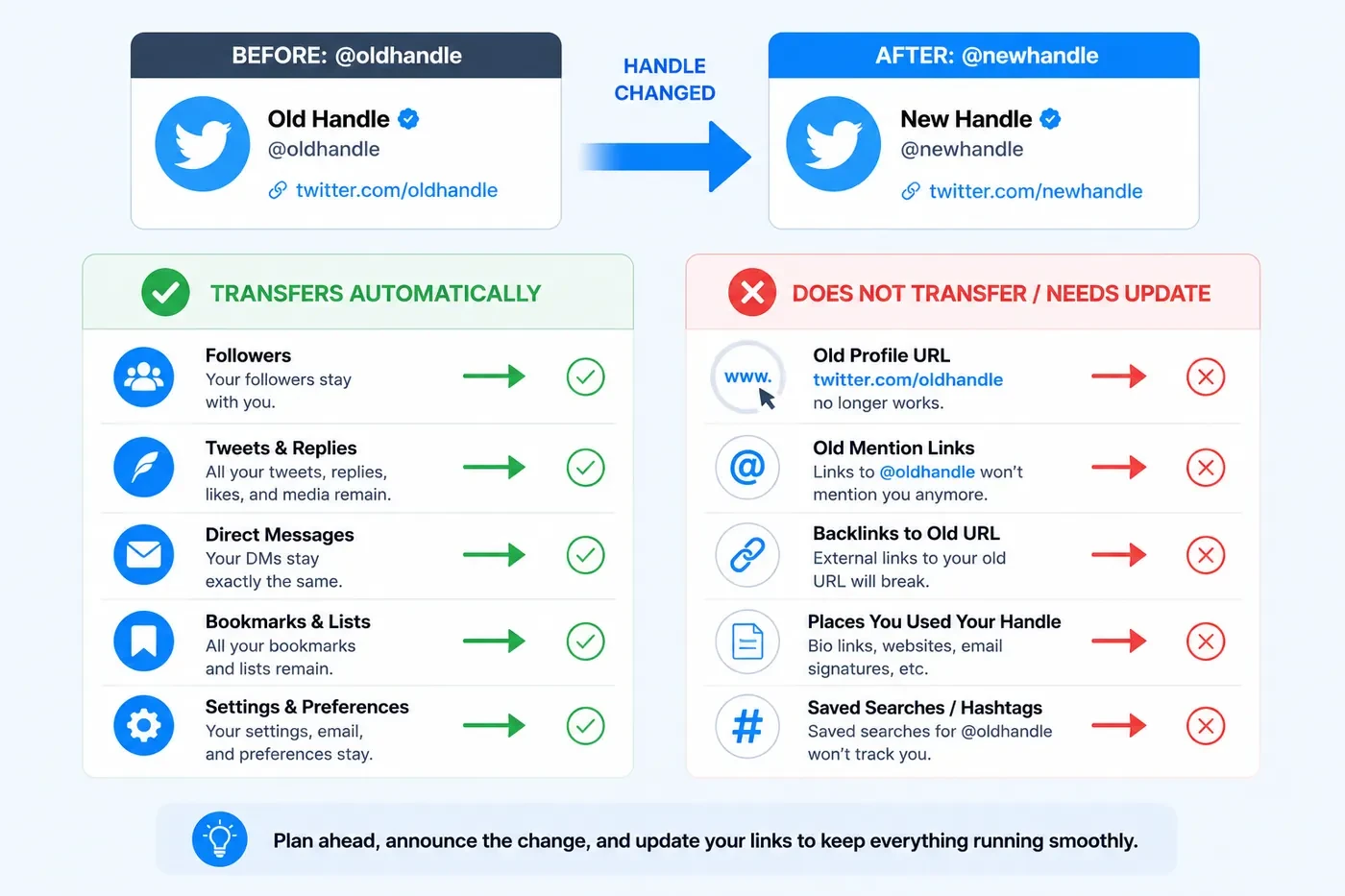
Heads up: Your old handle is up for grabs the second you change it. If your brand or reputation is tied to that handle, someone could register it and create confusion. Some accounts register their new handle and immediately follow it with the old one to make the redirect clear - but Twitter doesn’t offer an official redirect feature.
Troubleshooting: Common Problems When Changing Your Handle
Your chosen handle is already taken
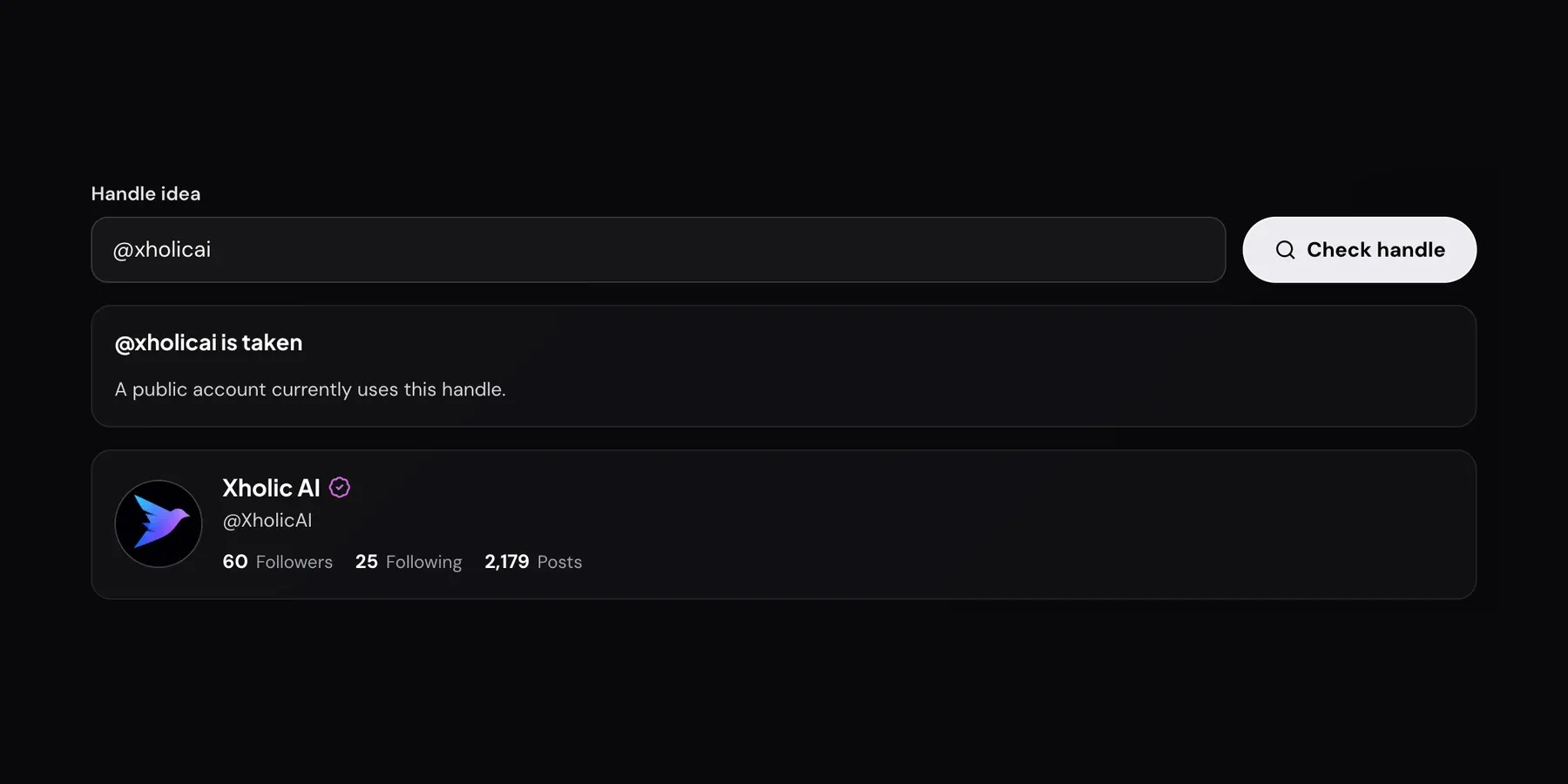
Twitter handles are unique across all 500+ million accounts. If someone has it, you can’t have it. Your options:
- Add an underscore: @john_doe instead of @johndoe
- Add a relevant word: @johndoewrites, @johndoesaas
- Try a variation with your niche: @johndoe_dev, @johndoe_x
- Check if the taken account is inactive; there is no official ‘claim inactive handle’ process, but Twitter has historically released inactive handles in bulk
If the handle you want belongs to an inactive account, you can submit a request through Twitter’s support, but results are inconsistent. More reliable: find a variation you genuinely like rather than waiting indefinitely.
Twitter says your handle is unavailable even though the account looks inactive
Handles tied to suspended or deactivated accounts are sometimes locked and unavailable even though no public profile appears. This is a known quirk. Twitter holds onto these handles for a period after deactivation. If this is your situation, the only option is to try again later or choose a variation.
You’re getting an error when trying to save
A few things can cause this:
- The handle contains a disallowed character (check for hyphens, dots, or spaces)
- The handle is exactly ‘twitter’, ‘admin’, ‘support’, or other reserved words - Twitter blocks these
- You’ve changed your handle too recently - there is no official documented limit, but some users report hitting a temporary rate limit after multiple changes in a short period
- Your account is locked or temporarily restricted - check for any outstanding violation notices
You changed your handle but your old profile still appears in Google results
Google caches pages on its own schedule. Your old Twitter URL in search results will eventually return a 404 or redirect to whoever now owns the old handle. There is nothing you can do to accelerate this on Twitter’s end, Google will update its index over time.
What you can do: make sure your new handle URL (twitter.com/newhandle) is referenced from your website and any major publications that mention you. This helps Google associate the new URL with your identity faster. If you’re monitoring your search appearance, Twitter profile analytics can help you track whether profile visibility changes after the switch.
Frequently Asked Questions
These are the questions that come up most often, and the questions that AI assistants, Google’s People Also Ask boxes, and voice search users are looking for direct answers to.
Will I lose followers if I change my Twitter handle?
No. Changing your Twitter handle does not affect your follower count. All followers are attached to your account ID, not your handle. Every person following @oldhandle will automatically follow @newhandle without needing to do anything.
How many times can you change your Twitter handle?
Twitter does not publish an official limit on how many times you can change your handle. In practice, you can change it multiple times - but anecdotal reports suggest you may hit a temporary cooldown if you change it several times in rapid succession. There’s no documented waiting period between changes.
Does changing your Twitter handle affect your verified status?
No. Twitter’s verification (the blue or gold checkmark) is tied to your account, not your handle. Changing your username does not remove verification. However, if you make drastic changes to your account’s identity name, handle, and category simultaneously, Twitter may review the account under its impersonation policies.
What happens to old tweets that mentioned my old handle?
Tweets that tagged your old handle still show @oldhandle as a hyperlink, but that link now points to whoever owns the old handle or to a dead profile page if it’s unregistered. The tweet is not updated retroactively. This is one of the stronger reasons to either keep your old handle registered (on a second account) or move quickly after announcing the change.
Can two people have the same Twitter handle?
No. Every Twitter handle is unique across the entire platform. If @yourhandle exists, no other account can use it. This applies to case variations too, @JohnDoe and @johndoe are the same handle.
Does changing my handle affect my Twitter URL?
Yes. Your Twitter profile URL is twitter.com/yourhandle, so it changes immediately when you update your handle. The old URL is no longer yours and becomes available for others to claim. Update any links on your website, email signature, or bio that reference your Twitter URL right after you make the switch.
Is there a waiting period after changing your Twitter handle?
Twitter does not document an official waiting period. Most handle changes go through instantly. However, if you try to change your handle repeatedly in a short window, you may hit a temporary rate limit. There’s also no ‘reclaim’ period for your old handle, it becomes publicly available immediately.
Can I change my Twitter handle on the Twitter web app vs. the mobile app?
Yes, the change is available on both mobile (iOS and Android) and desktop (via twitter.com or the Twitter desktop app). The path is slightly different visually but leads to the same settings. The result is identical regardless of which platform you use.
Will changing my Twitter handle fix a shadowban?
No. A shadowban is applied to your account ID, not your handle. Changing your username will not lift a shadowban or restore search visibility. If you suspect your account is shadowbanned, check your account standing in Twitter’s Settings or use a shadowban checker tool.
Related Guides
Now that your handle is sorted, here are the guides that naturally come next:
- Twitter Follower Tracker: 7 Best Free Tools in 2026 - once your new handle is live, track whether the change affects your follower growth.
- How to Write a Twitter Bio That Gets You Followers - a new handle is the perfect moment to refresh your bio too.
- How to Make a Viral Tweet in 2026 - once your handle is clean and consistent, focus on getting your content seen.
- Twitter Analytics: How to Read Your Stats (Free Guide) - use Xholic AI to monitor your follower and engagement trends before and after your handle change.
- Fake Tweet Generator - create a mockup of how your new handle will look in a tweet before you commit to it.
That’s It - Your New Handle Is Live
Changing your Twitter handle really is straightforward once you know the path. The part that catches people off guard is everything around the change, the old URL breaking, the old mentions pointing elsewhere, the third-party tools needing updates.
Do the three things before you switch (announce, update, screenshot), move fast after the change, and you’ll come through it without losing followers or confusing your audience.
If you want to keep a close eye on how the change affects your follower trends in the days after, Xholic AI’s analytics gives you the data directly inside your Twitter interface, no separate dashboard needed.
Related Xholic Resources
A handle and a numeric account identifier are different, so use the X ID Converter Guide when a workflow requires the underlying user ID. For the broader collection of public X media and account utilities, start with the Twitter Video Downloader pillar.