Twitter advanced search operators are special commands you type into the X search bar, such as from:username, since:YYYY-MM-DD, and "exact phrase", to filter posts by author, date, content, and engagement. On X (Twitter), they turn messy keyword searches into precise queries you can use to find old tweets, isolate conversations, monitor brands, and surface stronger content ideas faster.
If you’ve ever tried to find one specific post, a founder talking about your category, or a thread that blew up last month, you already know the problem. The basic search bar often gives you a pile of loosely related results. Operators fix that. They let you search with intent.
This matters more than most guides admit. Its core value isn’t memorizing a list of commands. It’s knowing which combinations produce useful results, which queries break, and where manual search stops being enough.
Why You Need More Than the Basic X Search Bar
Users often search X like they’re using Google. They type two words, hit enter, and hope the right post appears. That works for live trends. It fails when you need precision.
The moment you’re doing creator research, brand monitoring, lead discovery, or post analysis, vague search becomes expensive. You waste time scrolling through reposts, low-signal replies, unrelated mentions, and posts from the wrong time period.
X’s own help documentation shows that Advanced search is built into the desktop web experience, available while logged in from the search results page through Advanced search or More options. It also makes clear that X kept both a graphical form and a syntax-based approach, which is why power users can run precise, repeatable searches instead of relying on a plain keyword box (X advanced search help).
Operators give you control
Think of operators as search instructions.
Instead of searching open source analytics, you can search:
- By author:
from:username - By timeframe:
since:YYYY-MM-DD until:YYYY-MM-DD - By phrasing:
"exact phrase" - By intent: include one term, exclude another, or combine multiple options
That changes the job completely. You’re no longer browsing. You’re querying.
Practical rule: If your search result feels random, your query is too broad.
Form vs typed operators
The graphical advanced search form is useful when you’re learning. Typed operators are faster once you know what you’re doing. They also make your workflows reusable. You can save a query in a note, rerun it next week, and compare results without rebuilding it from scratch.
If you’re auditing another account’s content patterns, this also pairs well with a more structured review process like this guide to Twitter analytics for another account. Search tells you what exists. Analysis tells you what matters.
The Complete Reference of Twitter Advanced Search Operators
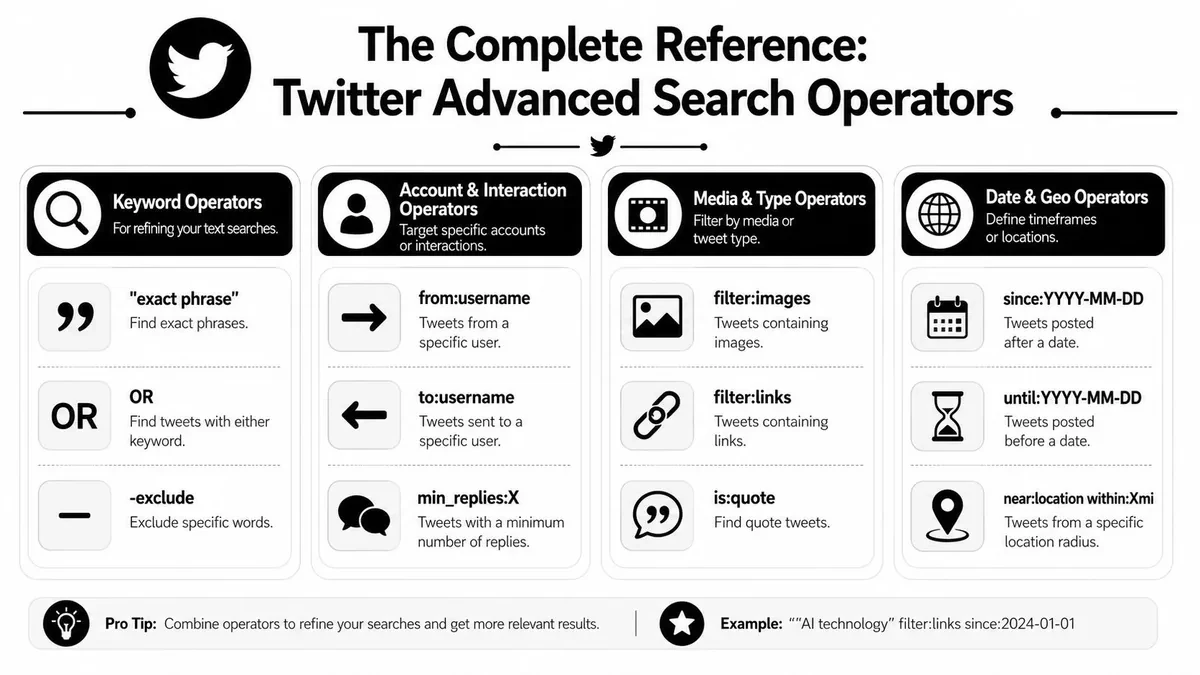
X advanced search supports a broad operator set for keyword logic, exact phrases, hashtags, author and recipient targeting, mentions, replies, links, engagement thresholds, language, and date constraints, which is why investigators and market researchers use it for structured workflows, not just casual lookup (Bellingcat’s X advanced search reference).
Use this section like a desk reference.
If you want another practical cheat sheet after this one, MicroPoster’s advanced search tips are a solid companion reference.
Keyword logic and phrase matching
These operators control the text logic of your query.
| Operator | What it does | Example |
|---|---|---|
"exact phrase" |
Finds that phrase exactly | "product market fit" |
word1 word2 |
Treats space as AND | founder growth |
OR |
Returns either term | founder OR creator |
-word |
Excludes a word | analytics -sports |
#hashtag |
Finds a hashtag | #buildinpublic |
lang:xx |
Filters by language | saas lang:en |
What works in practice:
- Exact phrase is the fastest way to cut noise.
- OR is best when people use different words for the same idea.
- Negation with
-is how you remove junk terms, irrelevant niches, or your own brand name from monitoring queries.
A good example:
("AI replies" OR "reply writing") lang:en -jobs
That keeps the topic broad enough to catch phrasing differences, while cutting obvious noise.
People and account targeting
These are the operators most growth marketers use first.
| Operator | What it does | Example |
|---|---|---|
from:username |
Posts from an account | from:levelsio |
to:username |
Replies sent to an account | to:stripe |
@username |
Mentions of an account | @openai |
Use them differently:
from:for content researchto:for audience pain points and customer questions@usernamefor brand mentions and conversation tracking
Search
to:competitorwhen you want complaints, requests, and confusion. Searchfrom:competitorwhen you want positioning, hooks, and launch language.
Date filters
Dates are where manual search becomes useful instead of annoying.
| Operator | What it does | Example |
|---|---|---|
since:YYYY-MM-DD |
Posts after a date | since:2026-01-01 |
until:YYYY-MM-DD |
Posts before a date | until:2026-03-31 |
Best use cases:
- Launch research: find posts around a campaign window
- Trend comparison: compare topic language across periods
- Post recovery: locate an old tweet you vaguely remember
The syntax has to be exact. Use YYYY-MM-DD.
Engagement and quality filters
These help you move from “find mentions” to “find traction.”
The operator language has become standardized enough that multiple references describe the same foundations, including grouping, negation, and account filters. Practical guides also commonly show engagement thresholds with examples like 500 likes or 300 reposts, which reflects how users search for high-engagement content systematically rather than relying only on ranking (Tweetbinder on Twitter advanced search).
| Operator | What it does | Example |
|---|---|---|
min_faves:X |
Minimum likes | saas min_faves:500 |
min_retweets:X |
Minimum reposts | launch min_retweets:300 |
min_replies:X |
Minimum replies | pricing min_replies:20 |
These are great when you’re researching:
- Viral formats
- Polarizing takes
- Questions that sparked real discussion
They aren’t perfect. High likes can mean broad appeal or shallow agreement. High replies can mean strong interest or a fight. Open the post and inspect context before using it as a model.
Content and media filters
These narrow the type of post you want.
filter:linksfor posts containing URLsfilter:imagesfor image postsfilter:mediafor posts with media-filter:repliesto remove replies from resultsis:quotefor quote posts
A few practical combinations:
SaaS filter:links -filter:replies"before and after" filter:images(founder OR startup) is:quote
If you’re building a swipe file, media filters are underrated. Image posts often reveal strong hooks, visual packaging, and launch framing more clearly than text-only posts.
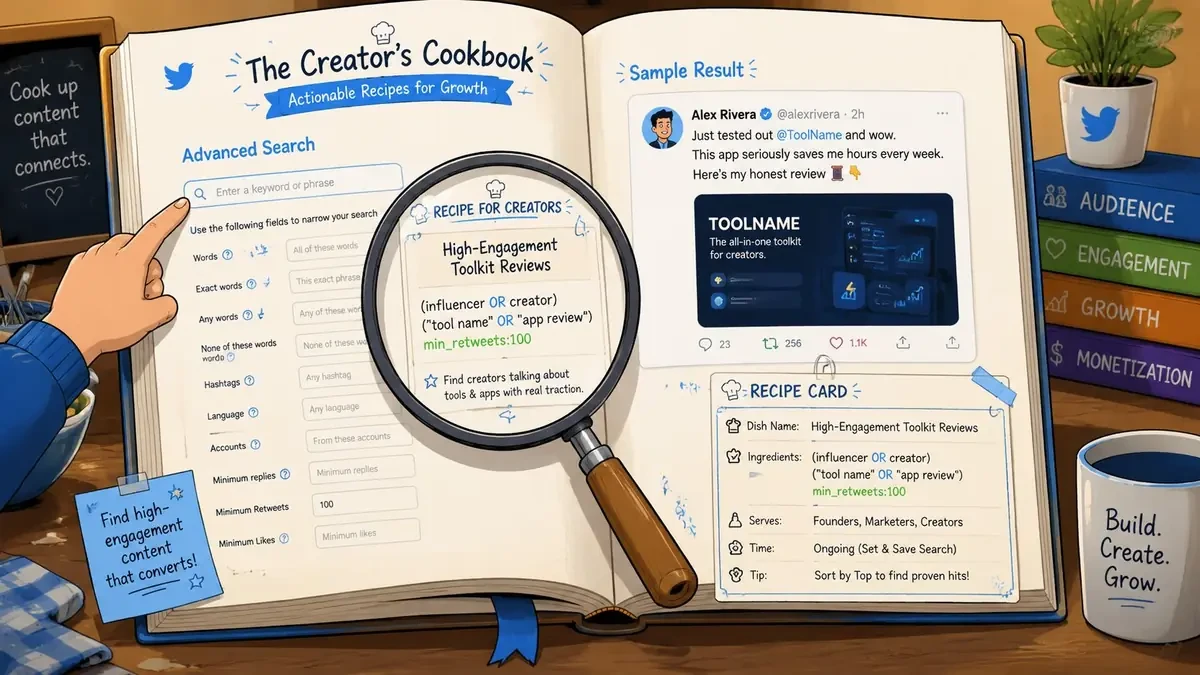
Practical Search Recipes for Creators and Founders
The best way to learn Twitter advanced search operators is to stop memorizing and start running repeatable searches. These are the queries I’d keep in a notes file.
Find unanswered questions in your niche
Goal: surface real questions you can answer with posts or replies.
Query:
("email deliverability" OR "cold email") ? -filter:replies lang:en
Why it works:
- Quoted phrases keep the topic tight
ORcatches alternative wording?biases toward questions-filter:repliesremoves clutter from reply threads
This is one of the fastest ways to turn search into content ideas. If you want the next step after finding those conversations, this walkthrough on how to increase Twitter engagement helps with the response side.
Track competitor conversations without drowning in noise
Goal: see what people say to, about, and around a competitor.
Query:
(@competitor OR to:competitor OR from:competitor) -filter:replies
This gives you three angles in one pass:
- Mentions show public discussion
- Replies to them show customer sentiment
- Posts from them show messaging and positioning
If you’re doing this for multiple competitors, make one saved search per brand. Don’t cram every company into one giant query unless you’re doing broad category research.
Good competitor research isn’t “what did they post.” It’s “what language keeps appearing around them.”
Source proven content ideas
Goal: find posts on your topic that already earned attention.
Query:
("founder lessons" OR "startup mistakes") min_faves:500 lang:en -filter:replies
Why this is useful:
- You’re not guessing what angles resonate
- You’re seeing which hooks people stopped for
- You can study format, not just topic
Look for patterns like:
- list posts
- personal confession hooks
- strong contrast
- specific lessons in plain language
A sample post you might find and remix structurally:
“The biggest mistake early founders make isn’t building too slow. It’s talking to too few users.”
You shouldn’t copy that. You should study the structure: bold claim, narrow audience, tension, clear payoff.
Find social proof and customer language
Goal: uncover testimonials, praise, and phrasing you can reuse in messaging.
Query:
"your product name" (love OR helpful OR amazing) -from:yourhandle
This works best when your product name is distinct. If the brand term is generic, add context words.
You can also search category phrases instead of your brand:
"social media scheduler" (love OR recommend)"AI writing tool" (helpful OR best)
For presentation or planning workflows, it can help to mock up how you’d respond publicly before posting. A quote tweet mockup tool is useful for internal review, campaign approvals, or reply drafting. Label mockups clearly when needed, and don’t use them to impersonate people or mislead viewers.
How to Combine Operators for Laser-Focused Queries
Single operators are useful. Combined operators are where the greatest power is.
The underlying search logic is stable enough that developers and independent references describe the same basics: spaces act like AND, parentheses group terms, and - excludes terms. That consistency is what makes advanced search feel like a real query language instead of a temporary trick (X Developer syntax summary via Tweetbinder reference).
Start broad then constrain
A simple search:
founder advice
Better:
"founder advice" lang:en
Better still:
"founder advice" lang:en min_faves:500
Each added operator removes ambiguity.
A common error is starting with a monster query. Such attempts often stack too many conditions, get no results, and assume the operator is broken. Start with the core phrase. Add one filter at a time.
Use grouping when intent matters
Parentheses are what keep multi-topic searches from turning sloppy.
Try this:
(founder OR creator OR marketer) ("content system" OR "posting workflow")
That tells X to return posts matching one audience term and one workflow term.
Without grouping, your intent can get muddy fast.
A strong query usually has two parts. The subject you’re researching, and the filter that makes the result useful.
Clean the results with exclusions
Negation is the most underused part of Twitter advanced search operators.
Examples:
AI writing -jobs"content calendar" -template@brandname -from:brandname
This is how you strip out hiring posts, spam terms, self-posts, and adjacent topics you don’t care about.
A practical workflow looks like this:
-
Start with the main phrase
creator tools -
Add scope
creator tools lang:en -
Add intent or quality
creator tools lang:en min_faves:500 -
Remove noise
creator tools lang:en min_faves:500 -jobs -giveaway
The result is usually much cleaner than trying to force precision with one giant exact phrase.
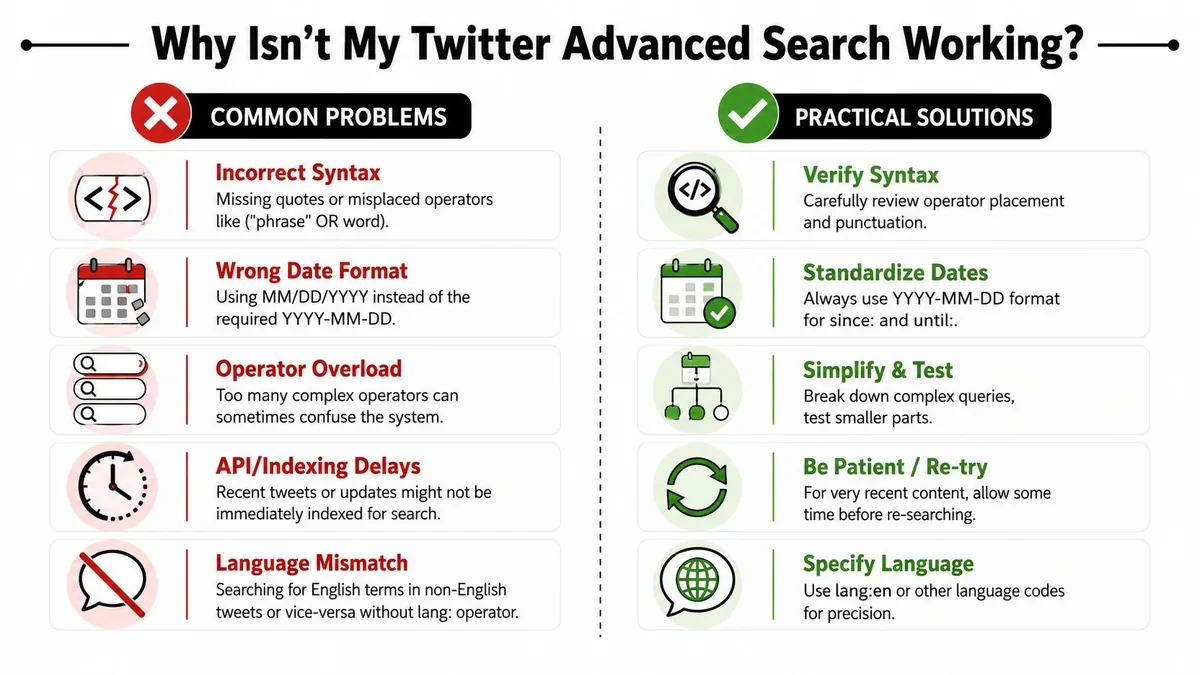
Troubleshooting Why Your Advanced Search Isn’t Working
Sometimes the query is wrong. Sometimes X is inconsistent. Both happen.
A major blind spot in most guides is operator portability. Independent references note that support can differ across X web search, mobile, TweetDeck or X Pro, and the APIs, so a query that works in one environment may fail in another without a clear explanation (operator compatibility notes collected by igorbrigadir).
Syntax mistakes that break good queries
The common ones are boring, but they’re usually the cause.
- Wrong date format: use
YYYY-MM-DD - Broken quotation marks: exact phrases need straight quotes around the phrase
- Bad grouping: open and close parentheses correctly
- Lowercase
or: use uppercaseORwhen you want either term - Too many filters too soon: you can narrow yourself into zero results
If a query returns nothing, remove half the operators and test again.
Platform differences that confuse people
At this point, people think they’re losing their minds.
A query may work on desktop web and not behave the same way elsewhere. Some guides mix legacy Twitter syntax with current X behavior. Others list API-compatible operators next to web search operators as if everything is interchangeable. It isn’t.
That’s why I treat the desktop web search experience as the baseline. If a query matters, test it there first. Then check whether you can reproduce it on mobile or inside your other workflow tools.
A simple troubleshooting sequence
Use this when results look wrong.
| Step | What to check | What to do |
|---|---|---|
| 1 | Query returns zero results | Remove engagement filters first |
| 2 | Too much irrelevant content | Add quotes or exclusions |
| 3 | Date range looks wrong | Recheck date format |
| 4 | Works on one device only | Test on desktop web |
| 5 | Mixed-language results | Add lang: |
Don’t debug five variables at once. Strip the query back to one phrase, confirm it works, then layer filters back in.
One more practical note. Very fresh posts can be harder to surface consistently right away. For something extremely recent, retry later before assuming the syntax failed.
Beyond Operators When to Use an AI Discovery Tool
Operators are excellent when you already know what you’re looking for. They help you retrieve.
They are weaker when the job is discovery. You don’t always know the keyword, phrase, or account that matters yet. Sometimes the valuable post uses unexpected language. Sometimes the best conversation hasn’t crossed a fixed engagement threshold but is clearly gaining momentum.
Manual search is great for retrieval
Use operators when you need to:
- find a post from a specific account
- isolate brand mentions
- study a topic in a date range
- pull examples with links, images, or replies
That’s a strong fit for research tasks with known inputs.
If you’re building more technical workflows around search and programmatic access, this 2026 guide to the X API is useful background for understanding where the API differs from the web experience.
AI tools help with discovery
AI discovery tools become useful when you’ve hit the ceiling of manual search.
That’s usually the point where you want to:
- search by meaning instead of exact keywords
- spot high-momentum conversations before they look obvious
- organize examples into a reusable research library
- turn discoveries into drafts, replies, or content systems
This is also where tool selection matters more than operator memorization. If you’re comparing workflow stacks beyond native search, this roundup of top Twitter analysis tools for better engagement and stronger tweets is a practical next read.
Best Practices for Efficient X Search Workflows
Good searchers don’t just know operators. They keep a repeatable system.
The core set, including from:, to:, min_faves, and - for negation, has become standardized enough to support repeatable investigations and competitive analysis. Practical guides commonly use thresholds like 500 likes to systematically surface high-engagement content rather than browsing randomly (Tweetbinder’s operator overview).
Habits that save time
- Save your best queries: keep a simple note with your top searches by use case.
- Build in layers: start broad, then add filters one by one.
- Bookmark the advanced search flow: the form is still useful when you want to sanity-check syntax.
- Separate research goals: don’t mix lead gen, content research, and brand monitoring into one query.
- Keep a swipe file: when you find a strong post, save it with a note on why it worked.
If you’re tying discovery back to performance review, a focused analytics workflow helps. This guide to Twitter analytics is useful once you’ve collected patterns and want to see which ones map to your own account.
What experienced searchers avoid
- Overfitting the query: too many conditions can hide good results.
- Trusting likes alone: high engagement doesn’t always equal useful insight.
- Using one platform as proof of all platforms: compatibility can vary.
- Researching without capturing: if you don’t save useful finds, you’ll repeat the same search next week.
A practical system beats a clever query you can’t remember.
Frequently Asked Questions About X Advanced Search
Can I use Twitter advanced search operators on mobile
You can type operators into X search on mobile, but support and behavior can differ from the desktop web experience. If a query matters, test it on desktop first.
Is X advanced search free
X’s help documentation describes advanced search as a built-in feature available from the search results page while logged in on the web experience. That means the native search interface itself is part of the product workflow, not a separate standalone tool.
Why can’t I find posts from a protected account
Protected accounts limit visibility. Search won’t behave the same way as it does with public posts, and you shouldn’t expect public-archive style retrieval from protected content.
How do I access the advanced search form
On desktop web, run a search while logged in, then open Advanced search or More options from the search results page. That’s the built-in route documented by X.
For X-specific planning and presentation work outside live search, Xholic also offers browser mockup tools. The fake tweet generator is useful for design reviews, campaign drafts, educational visuals, and stakeholder approvals. Mockups should be labeled clearly when needed and never used to fabricate evidence or impersonate people.
If you use X seriously, native search operators are worth learning. They help you find old posts, competitor conversations, content patterns, and high-signal discussions with far more control than the default search bar. When you want to go beyond manual retrieval into discovery, organization, remixing, and consistent execution, try Xholic AI.