You’re probably doing this right now: searching a topic on X (Twitter) from your phone, getting a noisy result page, and feeling like the good stuff is buried. The fix is simple. Twitter advanced search mobile works in two practical ways: use the browser version of Advanced Search when you want the full form, or type operators directly into the X app when you want speed. If you know a handful of search recipes, your phone becomes a real research tool for content ideas, competitor tracking, replies, and trend spotting.
The Browser Method to Access Full Advanced Search
You are on your phone between meetings, you remember a strong founder thread from last month, and the app keeps serving broad, noisy results. That is when the browser method earns its place. It gives you the full search form, which is faster for building a precise query the first time than typing operators from memory on a small screen.

Use the Direct Advanced Search Page
Open the direct Advanced Search page in Safari or Chrome, sign in if needed, and switch the browser to desktop view if the form does not appear. On mobile, that one extra step is usually the difference between a stripped-down search page and the full set of fields for words, accounts, dates, and engagement filters.
I use the browser form for setup work. It helps when the query still needs shaping, especially for founder research, competitor monitoring, or finding posts that hit a specific date window. Once the query proves useful, I usually save it, copy the operator version, and reuse it inside the app.
That is the trade-off. The form is slower to open, but better for accuracy. The app is faster once you already know what you want.
Practical rule: Build the search in the browser. Repeat the search in the app after you trust the logic.
If you want another walkthrough focused on browser access, this guide on unlocking mobile Twitter advanced search is a useful companion.
iPhone and Android Steps That Actually Work
Here is the version I give team members when they need results fast and do not want to troubleshoot for ten minutes:
- Open Safari or Chrome
- Go to the direct Advanced Search page
- Log in to X if prompted
- Turn on desktop view
- Run the search, then bookmark the loaded page
A few mobile quirks matter here:
| Device | What to do | Why it matters |
|---|---|---|
| iPhone with Safari | Open the page, then use Request Desktop Website | Safari often loads a reduced mobile version first |
| Android with Chrome | Open the page, then use Desktop site from the browser menu | Chrome can hide the full form until you force desktop mode |
| Any phone | Bookmark the working page after it loads correctly | Saves time and keeps your search workflow repeatable |
This method is especially useful when you want copy-paste search recipes to behave predictably. A growth marketer can test a new lead-discovery query in the form, confirm the filters, then save the exact structure for later. A founder can do the same with customer language research, then turn the winning searches into a repeatable habit instead of starting from zero each time.
If you want to compare what search surfaces with actual post performance, pair that workflow with Twitter analytics on mobile and desktop.
Mastering Search Operators Directly in the X App
If you search from your phone more than once a day, operators are faster than the browser form. They turn the normal search bar into a compact command line for X. Once you learn a few core patterns, you can do niche research, find high-signal replies, and isolate strong posts without ever leaving the app.
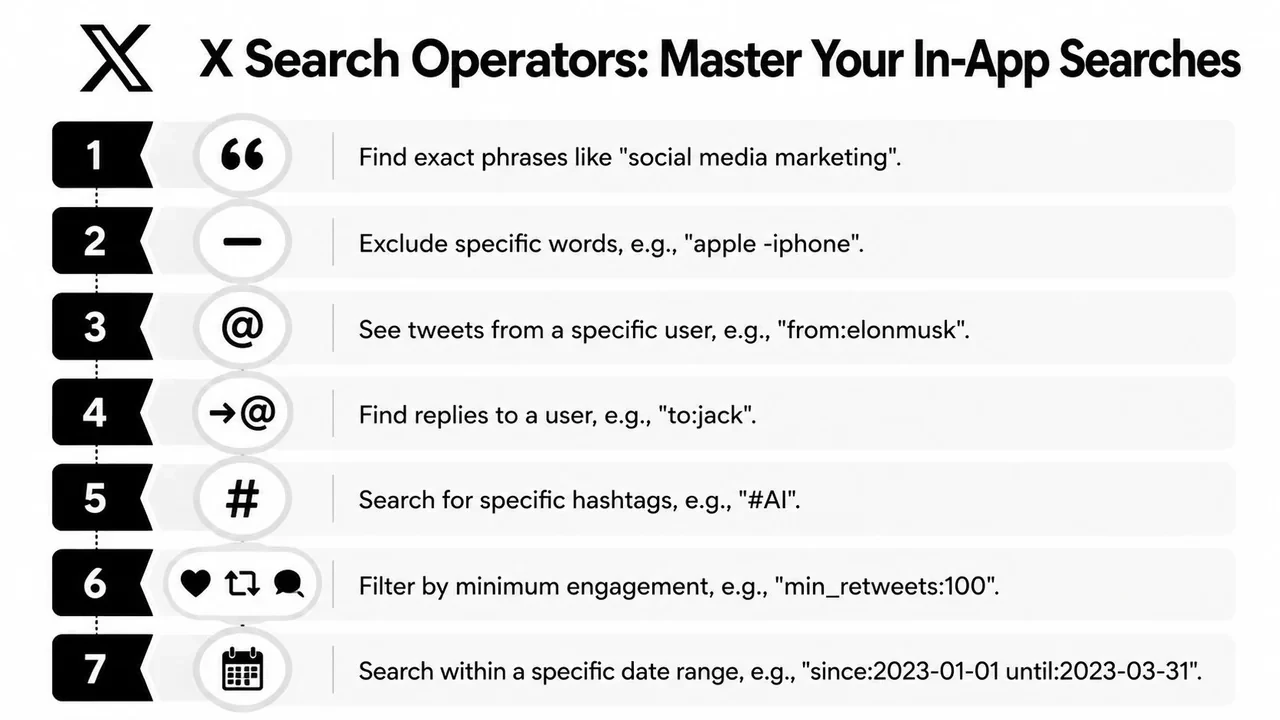
The Operator Cheat Sheet I Actually Use
These are the operators that matter most on mobile:
-
"exact phrase"for exact wording Example:"product marketing" -
from:usernamefor posts from one account Example:from:yourcompetitor -
to:usernamefor replies sent to an account Example:to:yourbrand -
@usernamefor mentions Example:@yourbrand -
since:YYYY-MM-DDfor newer posts Example:since:2026-01-01 -
until:YYYY-MM-DDfor older posts Example:until:2026-03-31 -
min_faves:min_retweets:min_replies:for engagement thresholds Example:min_faves:500 min_retweets:100 -
-wordor negative filters for removing noise Example:AI -job -hiring
A lot of mobile search power comes from the numeric filters. Guides explicitly show combinations like "keyword" min_faves:500 min_retweets:100 since:2026-01-01 lang:en, which is a good example of using engagement cutoffs plus a date window to narrow results into something research-ready (Tweet Archivist advanced search guide).
Here’s a useful video if you prefer seeing queries built live:
How to Combine Operators Without Breaking the Query
Most bad searches fail because people make them too broad or too clever. Good mobile queries are compact. Start with one topic, then add one filter for source, one for time, and one for quality.
A clean pattern looks like this:
"topic" from:username since:2026-01-01 min_faves:500
That tells X four things at once:
- the exact topic
- who posted it
- the time window
- the minimum level of visible traction
Search operators are less about advanced search and more about reducing wasted attention.
A Simple In-App Research Example
Say you want to find strong posts about positioning from English-language accounts, but only the ones that clearly got attention. You could search:
"positioning" min_faves:500 min_retweets:100 since:2026-01-01 lang:en
That query is useful because it filters out weak, old, or off-topic results fast. It also gives you a cleaner sample when you’re studying what angles, hooks, and formats tend to win in your niche.
If you also want to inspect how another account is performing from the outside, Twitter analytics for another account helps connect search-based research with competitive analysis.
Actionable Search Recipes for Growth and Research
Knowing operators is table stakes. What matters is having repeatable searches you can paste into your phone and use immediately. That’s where mobile advanced search becomes a growth tool instead of a neat trick.
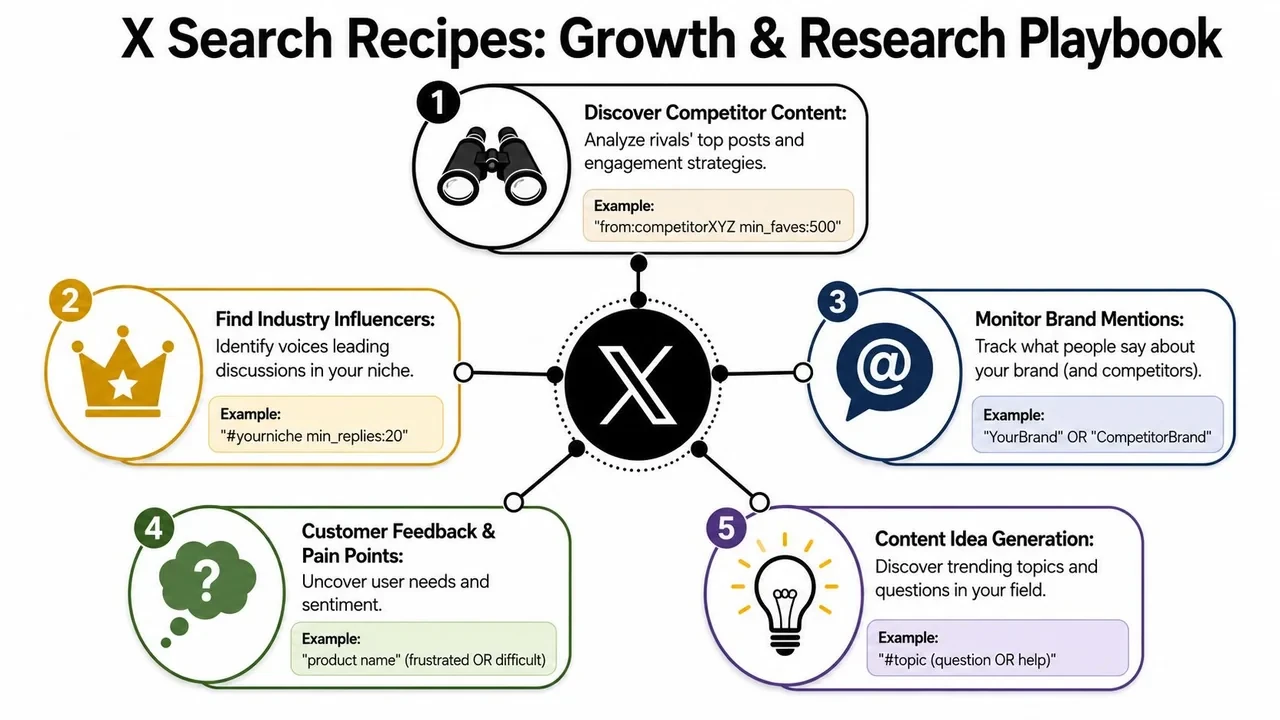
Recipe Set for Creators and Solo Operators
Find unanswered questions for content ideas
Query:
"your niche" (how OR why OR what) min_replies:5
Why it works: you’re looking for demand in plain language. Questions are often better content prompts than viral post examples because they show what people are already trying to understand.
Find posts worth replying to before they get crowded
Query:
"your topic" -filter:replies min_replies:10 since:2026-04-01
Why it works: original posts with active replies are often better reply targets than fully saturated viral posts. You want momentum, not chaos.
Study a creator’s strongest ideas
Query:
from:creatorname min_faves:500 -filter:replies
Why it works: this strips out most conversational clutter and leaves you with posts that likely carried the account’s public positioning.
Don’t just save the post. Save the angle. The topic is reusable, but the angle is what makes the post worth studying.
Here’s a practical example for a founder building in public.
Sample post you might discover:
We kept adding features when the actual problem was onboarding friction.
Why save it? Because it contains a proven structure:
- tension
- a mistaken assumption
- a sharper insight
- a product lesson
That’s a format you can adapt across launches, postmortems, and product updates.
Recipe Set for Founders and Growth Marketers
Find customer pain points around a category
Query:
"product category" (frustrated OR difficult OR "doesn't work")
Why it works: people rarely write polished feature requests. They write messy frustration. This query pulls you closer to the language customers use.
Monitor your brand and a competitor together
Query:
"YourBrand" OR "CompetitorBrand"
Why it works: this gives you a shared result stream for positioning, sentiment, and feature comparisons. It’s rougher than a dedicated monitoring tool, but very usable on a phone.
Find competitor content that clearly resonated
Query:
from:competitorXYZ min_faves:500
Why it works: you can reverse-engineer what they repeat, what themes perform, and which claims triggered conversation.
Surface niche influencers who create discussion
Query:
#yourniche min_replies:20
Why it works: replies are often a better signal of audience involvement than simple passive approval.
If your goal is follower growth rather than just idea discovery, how can you get Twitter followers is a good next read because it connects these searches to profile clicks, replies, and posting habits.
From Manual Search to a Systematic Workflow
You find a sharp founder post on your phone, mean to use it later, and lose it by the next morning. That is the limit of manual search. It works for one-off research. It breaks down when you need a steady pipeline of posts to study, reply to, and turn into content ideas.

What Native Search Is Good At
Native search is still useful on mobile because it is fast and flexible. I use it for checks I need to do right now, not for building a long-term research system.
It works well for:
- Spot checks when a topic starts getting traction and you want examples fast
- Historical scans across a date range to see how a conversation developed
- Account review when you want to study one founder, creator, or brand in context
- Quick reply hunting when you need active threads, not passive impressions
The weakness is memory. X can help you find a post. It does much less to help you keep the post, label why it mattered, and turn that insight into a repeatable playbook.
When a Workflow Beats Raw Search
A useful workflow has three layers:
| Layer | Native search behavior | Better workflow behavior |
|---|---|---|
| Discovery | You run a query manually | You keep a short set of recurring searches tied to goals like replies, hooks, or competitor research |
| Storage | You bookmark or paste links somewhere | You save posts into themed collections |
| Reuse | You try to remember why a post mattered | You tag hooks, formats, objections, and reply angles for later |
This is the shift growth marketers and founders usually need. Stop treating search as a one-time action. Treat it as input for a content and research system.
For example, a founder tracking customer language might run the same three queries every morning, save the strongest posts into a “pain points” collection, and tag each one by theme such as onboarding, pricing, or retention. A growth marketer can do the same with competitor launches, high-reply threads, and proof points worth reusing in future posts. That is how copy-paste search recipes turn into a workflow instead of a pile of forgotten tabs.
X offers saved searches, which helps with repeat queries. But if your process depends on finding patterns across many posts, storing examples, and returning to them during content planning, you usually need more than the native app. A stack of Twitter growth tools can fill that gap.
One example is Xholic AI. It adds semantic discovery across a large tweet index, a Chrome extension inside the X feed, Saved & Collections for organizing research, and an Engage workspace for surfacing active conversations. The habit changes from “search when I remember” to reviewing a queue of relevant opportunities.
If you want a cleaner reference for syntax while building that system, bookmark this guide to mobile Twitter search operators.
The upgrade is not more searches. It is fewer repeated searches, better tagging, and faster reuse of what you already found.
Common Mobile Search Mistakes
Most mobile search problems come from small syntax issues, not from the platform not working. Once you know the failure patterns, debugging gets much easier.
Mistakes That Cause Empty or Messy Results
Wrong date format
Use YYYY-MM-DD. If the date format is off, your result set can collapse or behave unpredictably.
Too many filters at once A query can be technically correct and still return almost nothing because you narrowed it too hard. Remove one filter at a time and test again.
Forgetting noise filters If you want original posts, remove reply clutter or obvious unwanted terms. Otherwise the result stream gets messy fast.
Expecting every operator to behave the same on every surface
Operator nuance matters. Documentation from the operator reference notes that while many operators work across web, mobile, and TweetDeck, special cases like near:me, within:, and more complex boolean combinations can behave differently or have limited support on mobile (operator reference on GitHub).
For a practical comparison of what tends to work well in mobile syntax, this guide to mobile Twitter search operators is worth bookmarking.
FAQ: Mobile Advanced Search Questions
Why are my results empty?
Usually because your query is over-filtered, your date format is wrong, or the exact phrase is too narrow. Start broad, confirm results exist, then tighten the search.
Can I search by location on mobile?
Sometimes, but this is one of the areas where support can be inconsistent. If location matters, test the query in both the app and browser.
Can I search for posts with links or media?
Yes, operator-based searching supports filters for things like links and media. These are useful for finding product launches, tutorials, or source-heavy posts.
Is the browser method better than in-app operators?
Better for setup, worse for speed. The browser form is easier when you’re building a query from scratch. Operators are better once the query becomes part of your routine.
What’s the biggest mistake growth teams make with advanced search?
They search for broad topics instead of search intent. “AI” is broad. "how do I automate reporting" is intent. Intent gives you better content ideas, sharper replies, and stronger customer language.
If you want to move from ad hoc searching to a cleaner X workflow, try Xholic AI. It helps with discovery, saving posts, replying from the feed, remixing proven structures, and turning search insights into a repeatable growth habit.