140 seconds, or 2 minutes and 20 seconds, is the maximum Twitter video length for most users on any platform. X Premium subscribers can upload videos up to 4 hours on x.com and iOS, or up to 10 minutes on Android, with file caps of 512 MB for non-Premium accounts and 16 GB for Premium accounts.
But if you’re asking how long can a Twitter video be because you want more views, replies, or product interest, the maximum isn’t the most useful answer. A video can fit the upload rules and still lose viewers before it reaches the point. Your account tier, upload surface, file size, opening hook, and intended action all matter.
X, formerly Twitter, now has a tiered video system. The practical workflow is simple: identify the account and device limit, export a compatible file, verify the duration before publishing, then choose a length that suits the post rather than automatically filling the available time. If you’re comparing short-form platforms too, this guide to optimal TikTok video duration is useful because it makes the same distinction between a technical ceiling and a practical publishing choice.
How Long Can a Twitter Video Be on X Right Now
How long can a Twitter video be on X? The answer depends on two settings working together: your account tier and the surface used to upload. For a non-Premium X account, the ceiling is 140 seconds, or 2 minutes and 20 seconds, across x.com, X for iOS, and X for Android. Switching devices does not extend that limit. X’s official Premium video documentation confirms this account and platform split.
Premium creates a wider gap between surfaces. A Premium subscriber can upload up to 4 hours on x.com and iOS, while Android permits up to 10 minutes. The four-hour limit is therefore conditional, not a universal Premium allowance. The account, device, and upload route must all qualify.
A quick check before editing:
- Non-Premium: maximum 140 seconds on any platform.
- Premium on x.com or iOS: maximum 4 hours.
- Premium on Android: maximum 10 minutes.
- File-size limits vary by tier and are detailed in the next section.
Use these figures as an upload boundary, not a recommended runtime. A product walkthrough, reaction, reply, or quote post may need different pacing and structure. The question is not only whether X can accept the file. It is where the viewer should arrive, and how much time the idea needs to get there.
Practical rule: Treat the platform limit as a boundary, not a target. Record the full idea, then edit for the viewer’s reason to keep watching.
X’s earlier native video format favored short clips. Industry summaries describe the early experience as beginning around 30 seconds, before the platform extended the limit to 140 seconds in 2016. That history helps explain why concise, self-contained videos still suit the main feed, even though Premium now allows much longer uploads. DMPro’s history of the Twitter video length limit provides that historical context.
Before publishing, verify three things: which account tier you have, which device or surface you’re using, and whether the file meets the size and encoding requirements. A file can satisfy the duration rule and still fail because its size, format, or codec is unsupported.
Video Length and File Size Limits by Account Type
The easiest way to avoid confusion is to separate post uploads, Media Studio uploads, API workflows, and direct messages. They don’t all use the same boundary, and a limit that applies to one surface shouldn’t be copied into another.
| Account and Surface | Max Duration | Max File Size | Resolution Note |
|---|---|---|---|
| Non-Premium post on any platform | 140 seconds | 512 MB | Standard upload boundary |
| Premium post on x.com or iOS | 4 hours | 16 GB | Up to 1080p under 2 hours; longer uploads may require 720p |
| Premium post on Android | 10 minutes | 16 GB | Android has the shorter duration ceiling |
| Premium Media Studio upload | About 3 hours | 8 GB | Under 2 hours can be 1080p; videos over 2 hours and up to 3 hours require 720p |
| Default direct message video | 140 seconds | 512 MB | Applies to dm_video files |
| Premium or verified direct message video | 10 minutes | 1 GB | Applies to dm_video files |
The first three rows come from X’s official Premium documentation, which states that non-Premium uploads are capped at 140 seconds and 512 MB, while Premium uploads can reach 4 hours and 16 GB on supported surfaces. The Media Studio figures come from X’s Media Studio FAQ summary, and the direct-message boundaries are documented in RouteNote’s coverage of X’s increased video length.
Why the device check matters
A Premium account doesn’t create one universal limit. If you upload a long recording through Android, the app can reject it even though the same account could upload it through x.com or iOS. This is the most common reason someone says, “I have Premium, so why is my video still too long?”
For a long interview, tutorial, or event recording, use x.com or iOS when the file fits the supported rules. For Android, keep the post within 10 minutes, or edit the recording into separate clips. Don’t wait until publishing day to discover that the account entitlement and upload surface disagree.
What Media Studio changes
Media Studio has its own practical profile. Premium uploads can reach about 3 hours and 8 GB, with videos under 2 hours allowed at 1080p and videos from over 2 hours through 3 hours requiring 720p, according to the linked FAQ summary. That makes Media Studio relevant for teams managing longer assets, but it isn’t interchangeable with the standard composer.
A useful decision matrix is:
- Need a normal feed post: Check account tier, device, duration, and file size.
- Need to distribute a long Premium video: Prefer x.com or iOS, then verify resolution and size.
- Need a direct message: Use the shorter DM-specific rules, not post rules.
- Need a programmatic upload: Validate against the API category and account status before sending the file.
Supported Formats Codecs and Encoding Specs
Duration is only one gate. A file can be short enough and still fail because its container, codec, audio track, resolution, or size doesn’t match what the upload workflow accepts.
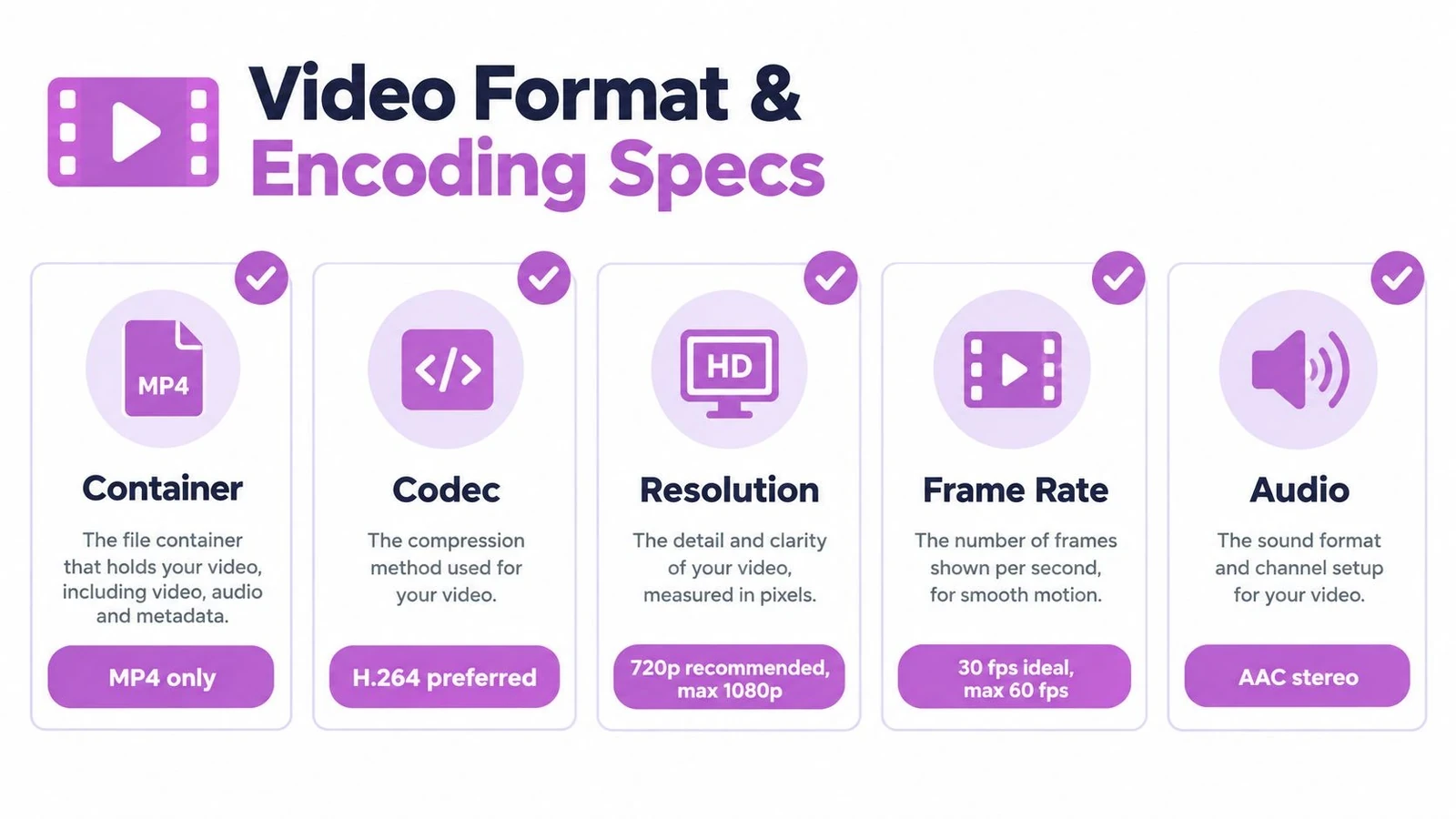
For the safest general export, use an MP4 container, H.264 video, and AAC stereo audio. These settings are widely compatible with social publishing workflows and give editors a predictable starting point. The visual guide below summarizes a practical export profile.
Export for the destination, not the source
A camera original may be far larger than the finished post needs. Exporting a long recording at a high bitrate can push the file over the account’s size cap even when the duration is allowed. Compression reduces that risk, but aggressive compression can create blurry text, blocky motion, or muddy audio.
Use this sequence in your editor:
- Choose MP4: It gives the upload workflow a common container.
- Select H.264: This is the preferred video codec for a broadly compatible export.
- Keep audio as AAC stereo: Make sure the file contains an audio track if sound carries the message.
- Match resolution to duration: Premium uploads under 2 hours can use 1080p, while longer Premium uploads through 4 hours may need 720p on supported surfaces, based on X’s published guidance.
- Review frame rate: A practical target is 30 fps, while the referenced guidance identifies 60 fps as the maximum for standard video uploads.
The key tradeoff is straightforward. Higher resolution and bitrate usually create a larger file, while a smaller export is easier to upload but may lose detail. For a talking-head clip, screen recording, or product demo, readability matters more than preserving every camera-original detail.
Before uploading, check the finished file rather than trusting the project timeline:
- Confirm the displayed duration.
- Confirm the file size in your operating system.
- Open the exported file and watch the beginning, middle, and end.
- Check that captions, audio, and the final frame are present.
- Verify whether the destination is a post, DM, Media Studio upload, or API workflow.
If the file is close to the limit, leave room for a clean re-export. Trimming a few seconds or reducing the bitrate is safer than repeatedly submitting a file that sits exactly at the boundary.
How to Upload and Verify Your Video Length in App
The upload process is simple, but verification needs to happen before you spend time writing the post around a file that X won’t accept. Start with the final exported video, not the unedited recording.
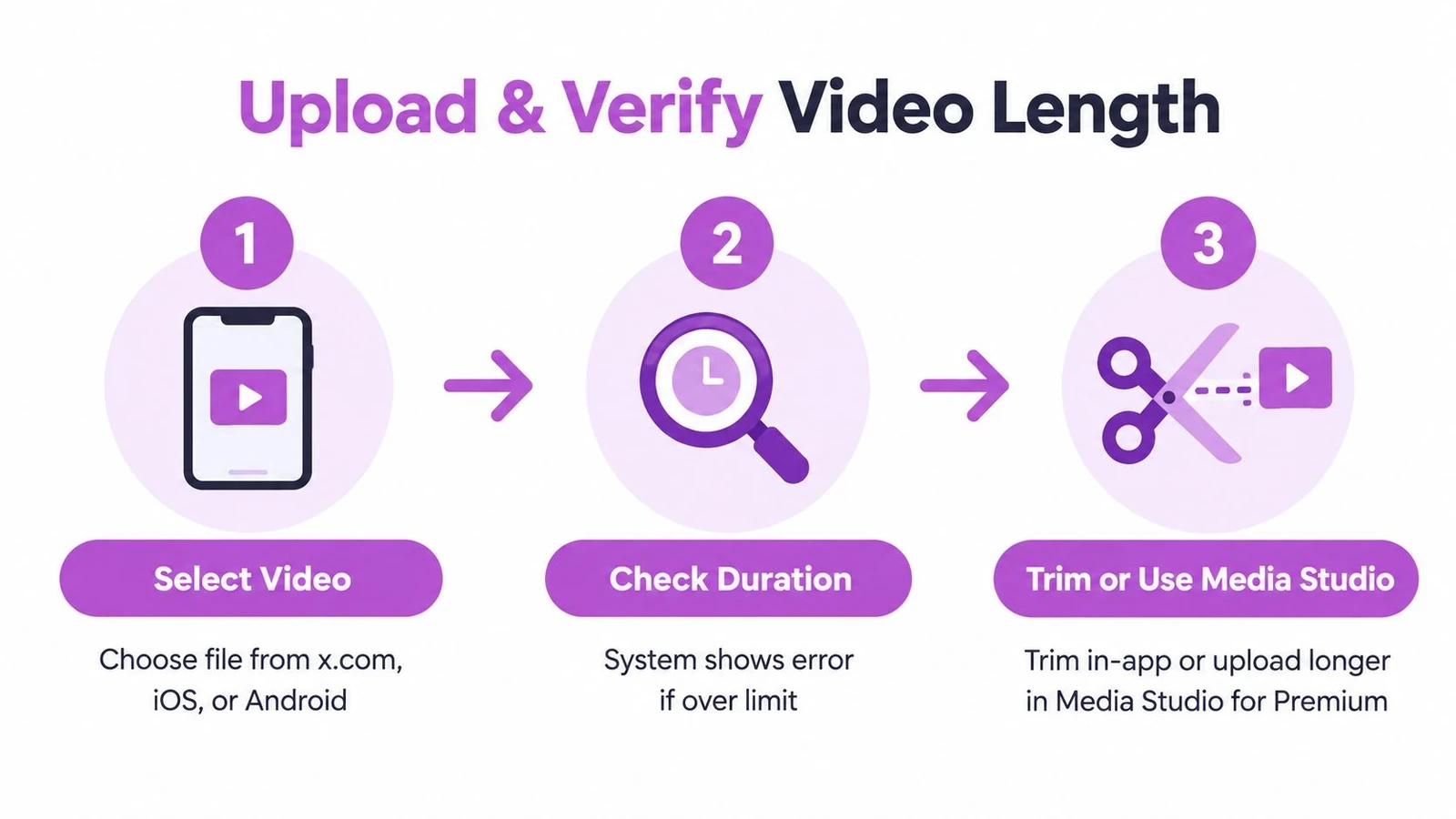
On x.com
- Open the post composer on x.com.
- Select the media option and choose the exported video.
- Wait for X to process the upload.
- Check the preview for duration, cropping, audio, and visible quality.
- If X reports that the video is too long or too large, stop before publishing. Trim or re-encode the source file.
- Add the post copy, then review the preview again.
For Premium users with long videos, x.com is the important surface because the supported ceiling is higher there than on Android. Your account must still qualify, and the file must fit the size and resolution rules described earlier.
On iOS and Android
On iOS, the workflow follows the same basic pattern: open the composer, select the video, wait for processing, and inspect the preview. Premium users can use the longer supported upload ceiling on iOS, subject to the account and file requirements.
Android needs an extra check. Premium users remain limited to 10 minutes in the Android app, so a file that works on x.com or iOS can fail there. If you need to publish a longer Premium video, move the upload to x.com or iOS instead of repeatedly trimming random sections in the Android app.
Trim only after you identify the failure
If X flags the duration, use the in-app trim control when the edit is simple. For a more deliberate cut, return to your editor and remove the slow opening, repeated explanation, or end screen that adds time without advancing the message.
Teams that schedule their approved posts can use X’s post scheduling workflow after the media file passes validation. Scheduling doesn’t bypass duration or file-size rules, so verify the asset before attaching it to a planned post.
For broader social publishing context, LesFM’s Instagram upload guide is a useful comparison for export quality and upload preparation, although Instagram’s rules shouldn’t be substituted for X’s rules.
A safe test is to save the post as a draft and reopen it on the same surface you’ll use for publishing. If a team member owns the Premium account or will publish from another device, have that person perform the final check. Account status and platform are part of the validation, not administrative details you can assume away.
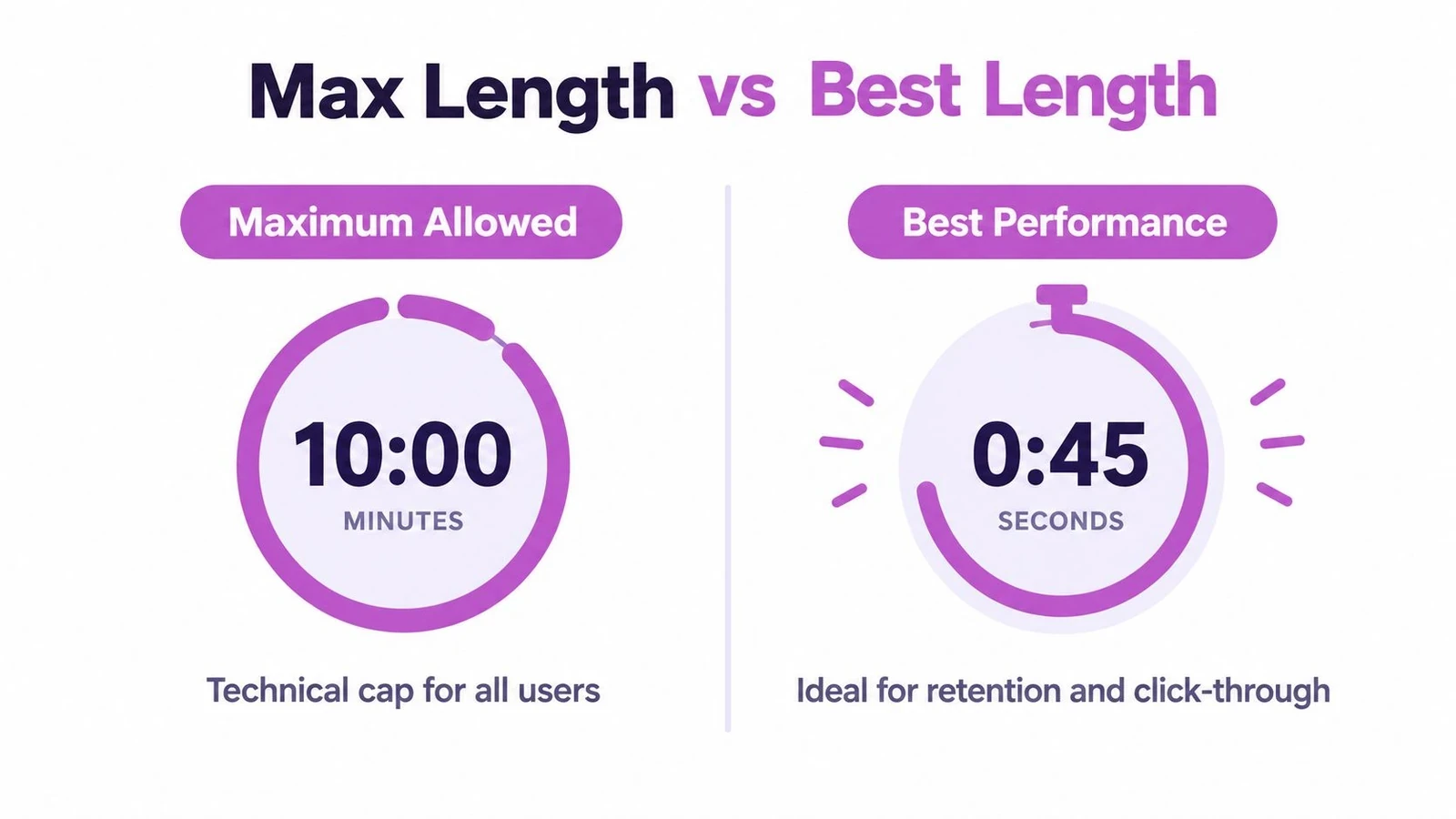
Maximum Allowed Versus Best Performing Length
The answer to how long can a Twitter video be is a compliance question. The answer to how long should my video be is an editorial question, and the second one usually matters more.
One widely cited guide recommends 15 to 45 seconds for non-Premium posts, even though the technical ceiling is 140 seconds. For longer Premium uploads, it suggests roughly 1 to 5 minutes as a practical range. OmniSocials’ guide to Twitter video lengths makes this distinction directly.
Match length to the job
A short clip works when the viewer needs one clear idea:
- Product teaser: Show the problem, the product action, and the next step.
- Founder update: Lead with the decision or lesson, then give only the context needed to understand it.
- Reply video: Answer the specific post you’re responding to instead of rebuilding the entire background.
- Data or market observation: Put the conclusion on screen early, then support it with the relevant evidence.
A longer video earns its place when removing context would make the idea misleading or incomplete. A product walkthrough, technical tutorial, interview answer, or event excerpt may need several minutes, but it still needs a clear opening and visible progress.
Use the cap as an editing question
Ask three questions before keeping another section of footage:
- Does this introduce a new idea?
- Does the viewer need it to understand the claim?
- Does it move the viewer toward the intended action?
If the answer is no, cut it, turn it into a separate post, or use it as a reply in a thread. A long interview often produces several focused clips that can start different conversations, while one unedited upload asks the viewer to wait for the useful part.
The maximum length tells you what X may accept. The opening seconds and the clarity of the payoff determine whether viewers have a reason to continue.
Don’t treat engagement as a guaranteed result of shortening. Audience fit, topic, delivery, timing, and the strength of the idea still matter. The useful habit is to compare retention and replies for your own formats rather than assuming that every audience wants the same duration. For a broader explanation of how X distributes and ranks content, see this guide to the X algorithm, while keeping algorithm claims separate from your own observed analytics.
Edge Cases for Ads Subscribers Live and API Workflows
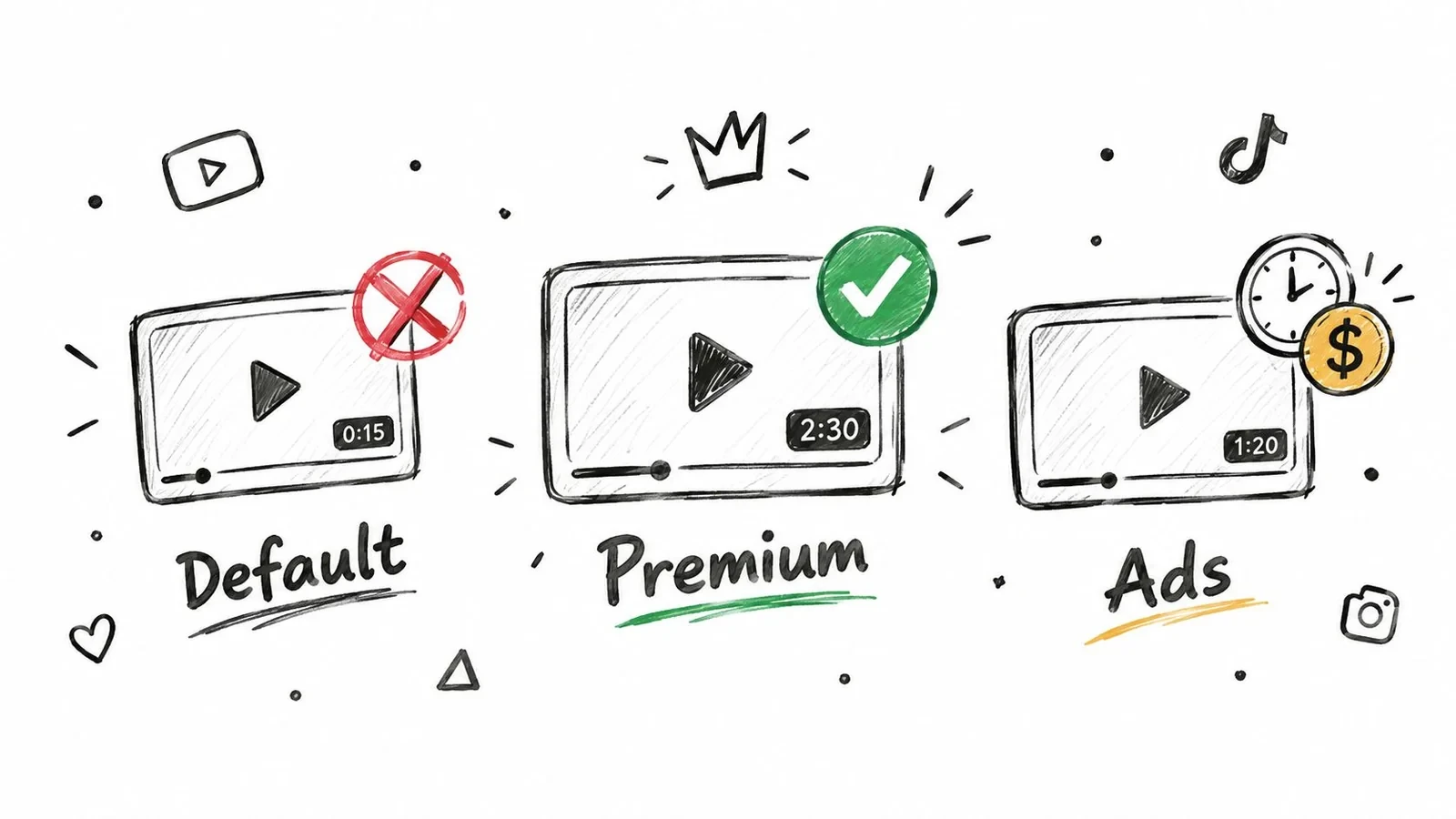
The standard composer isn’t the whole X video system. Direct messages, API uploads, Media Studio, advertising workflows, and live content can follow different rules, so teams shouldn’t build one validation rule and apply it everywhere.
Direct messages
For dm_video files, default accounts can send videos up to 140 seconds and 512 MB. Premium or verified accounts can send DM videos up to 10 minutes and 1 GB, according to X’s Media API quickstart best practices.
That means a file accepted as a Premium post may still be unsuitable for a direct message. If a sales or support workflow sends video privately, validate the DM category separately rather than reusing your public-post settings.
API post uploads
X’s API documentation sets a minimum post-video duration of 0.5 seconds. It lists 20 minutes by default for post video and 125 minutes for Premium or verified post video, with file-size caps of 8 GB and 16 GB respectively. These API boundaries don’t map perfectly to every visible composer rule, so engineering teams should use the API category and account status as the source of truth for their upload implementation.
Before a programmatic upload, validate:
- The media category, post video or
dm_video. - Account status and verification or Premium eligibility.
- Duration, including the 0.5-second minimum.
- File size.
- Platform or endpoint behavior.
- Resolution and encoding.
Teams building a content pipeline should reject invalid files before sending them to X. A clear error such as “Premium API post video exceeds the allowed duration for this account” is more useful than a generic failed upload.
Ads, live, and subscriber content
Advertising and live workflows can have their own product requirements, review steps, and limits. Don’t infer an ad limit from a regular organic post, and don’t assume that a live recording can be uploaded as a normal post without editing or processing it first. The same principle applies to subscriber-only distribution, where access and publishing context can affect the available workflow.
For marketers turning scripts into campaign assets, ShortGenius AI video ad maker can help assemble video ad concepts before you check them against the specific X advertising workflow. The output still needs a human review, a compliant export, and verification in the destination surface.
Teams using API integrations can also consult these Twitter API examples for workflow context, then confirm the current media rules in X’s own documentation before shipping code.
The safe operating model is to maintain separate presets for public posts, DMs, ads, and API uploads. Label each preset with its account assumptions, maximum duration, file-size ceiling, and supported resolution so a teammate doesn’t attach a post asset to a DM or ad workflow by mistake.
Common Upload Failures and How to Fix Them
Most failed uploads don’t require a new strategy. They require identifying which rule the file violated.
The fast diagnosis
- Duration error: Compare the file with the limit for the account and upload surface. A Premium file over 10 minutes can fail on Android even when it may work on x.com or iOS.
- File-size error: Check the exported file size, not the project size. Compress, reduce bitrate, lower resolution, or split the video if it exceeds the applicable cap.
- Unsupported file: Re-encode into an MP4 using H.264 video and AAC audio. Don’t assume that changing the filename extension changes the underlying format.
- Long-video quality rejection: Re-export a longer Premium upload at 720p when the applicable rule requires it. Higher resolution isn’t always available for the longest uploads.
- Unexpected trimming: Watch the uploaded preview from the beginning through the final seconds. If X trims the asset, confirm whether the source exceeded the surface limit or whether the app applied an editing choice.
A useful decision tree starts with duration. If the file is over the account or device cap, trim or split it. If the duration is allowed but the file is too large, compress or re-encode it. If both pass, inspect the container, codec, audio track, and resolution. If the file only fails on one device, switch to the supported upload surface instead of changing the content unnecessarily.
Don’t troubleshoot by changing five variables at once. Confirm duration, then size, then encoding, so you know which fix solved the problem.
After each adjustment, open the new export and compare its duration, size, audio, and final frame with the previous version. If the upload is part of a customer-facing workflow, keep the approved master file and create a separate platform export. That prevents a compressed social version from replacing the high-quality source.
For teams handling complaints about missing or truncated media, a documented support workflow such as this Twitter customer support guide can help separate an upload failure from a playback or account issue.
Quick Reference Lookup and Verification Checklist
Which limit applies to your next X video? Start with the upload path, not only the account. The maximum allowed duration can change by account tier, app, surface, and context, while the best-performing version may be shorter.
Fast lookup
Use the earlier limit tables as the source of truth. Before exporting, verify three items together: account tier, publishing surface, and file size.
- Standard public posts: Check the non-Premium limits listed above.
- Premium uploads: Confirm whether you are using x.com, iOS, Android, or Media Studio. These paths do not share one identical ceiling.
- API posts and direct messages: Apply the API or DM rules from their respective sections, rather than borrowing public-post limits.
- Ads and live workflows: Check the rules for that specific product and workflow before preparing the final file.
The same video can pass in one context and fail in another. Record the intended path in the upload brief, including the account, device or tool, and destination.
Pre-publish checklist
- Identify the context. Mark the upload as a public post, reply, quote post, DM, ad, Media Studio asset, live workflow, or API upload.
- Confirm the account tier. Check whether the publishing account is non-Premium, Premium, or verified where the workflow requires it.
- Confirm the surface. Note whether the file will go through x.com, iOS, Android, Media Studio, or an API endpoint.
- Check duration. Read the exported file’s actual runtime. Do not rely on the editor timeline or intended runtime.
- Check file size. Compare the finished export with the cap for that account and context.
- Check resolution. For longer Premium files, confirm which resolution rule applies to the selected surface.
- Check encoding. Use a compatible MP4, H.264, and AAC export as a dependable baseline.
- Review the preview. Watch for trimming, missing audio, cropped text, broken captions, and an incorrect final frame.
- Check the opening seconds. Make sure the viewer understands the point before the video asks for more attention.
- Test the publishing path. A file that works in one app or account context may fail in another.
Save the approved export, its duration, file size, and upload path. That record makes a later failure easier to diagnose and prevents a platform version from replacing the high-quality master.
Maximum allowed duration answers whether X can accept the file. Best-performing duration answers whether viewers will stay. Choose the shortest cut that delivers the idea, then verify it against the exact path your team will use.
If you publish video regularly, Xholic AI can help turn saved posts, audience context, and product knowledge into X content ideas and drafts while you review each suggestion before publishing. Use it to study hooks, organize inspiration, plan approved posts, and keep your publishing process consistent.