You can schedule posts for free directly on the X.com website and in X Pro, or use third-party tools for more advanced workflows like queues, analytics, and approval-based publishing. On X’s native scheduler, you can set posts up to 18 months ahead, so scheduling works for both tomorrow morning’s post and a launch calendar months out.
The impetus for scheduling often emerges after missing a good posting window. You write a strong post at night, your audience is active the next morning, and you either stay up to publish it or let the idea sit in drafts. That gets old fast. A better approach is to treat scheduling as one part of a complete workflow: find ideas, draft them while they’re fresh, queue the best ones, then stay available for live replies and trending conversations.
If you’re searching for how to schedule twitter posts on X (Twitter), there are really four paths: native scheduling on the website, X Pro for heavier desktop use, third-party schedulers for better planning, and API-based workflows for developers or ops-heavy teams.
Why You Should Schedule Posts on X
The simplest reason to schedule posts is that good ideas rarely happen at the perfect publishing time. If you only post live, your feed depends on your availability instead of your strategy.
Scheduling fixes that. It lets you batch your writing, maintain a steady cadence, and reach people in different time zones without babysitting the composer. That matters whether you’re a solo creator posting insights, a founder building in public, or a social media manager handling campaign timing.
The strategic upside
A scheduled post isn’t just a delayed post. It’s a post that has already survived basic review. You’ve had time to tighten the hook, remove fluff, add media, and make sure the timing supports the goal.
That changes how you work:
- Batching saves decision energy: Write several posts in one sitting instead of scrambling every few hours.
- Consistency becomes realistic: Your account stays active even when you’re in meetings, shipping product, or offline.
- Campaign planning gets easier: Product launches, event reminders, and recap threads can sit in a queue ahead of time.
- Time-zone coverage improves: You can publish for your audience’s schedule, not just your own.
Practical rule: Schedule your planned content so you can spend your live time on replies, quote tweets, and fast reactions.
There’s also a quality benefit. Scheduled content is usually calmer content. You’re less likely to post something rushed, repetitive, or badly timed.
If your goal is audience growth, not just convenience, scheduling should sit inside a broader system. That’s the same logic behind strong organic Twitter growth workflows. The post itself matters, but so do timing, repetition, and what you do after it goes live.
What scheduling does not fix
Scheduling won’t rescue weak content. If the post is generic, overpromotional, or disconnected from your audience, putting it on a calendar doesn’t help.
It also won’t replace real participation. X still rewards people who show up in conversations, reply quickly, and react while a topic is gaining momentum. Treat scheduling as infrastructure, not autopilot.
Scheduling with X’s Native Tools Website and X Pro
If you want a free way to schedule posts, start with X’s own tools. For many users, the native setup is enough.
When the native scheduler is enough
The built-in scheduler is a solid fit if you:
- Run one account: You don’t need cross-platform planning or team approvals.
- Schedule selectively: You’re queuing a few posts a day or planning around a launch.
- Prefer simple tools: You want to write inside X and schedule without another dashboard.
According to Sprout Social’s guide to scheduling X posts, X’s native workflow lets you schedule posts up to 18 months in advance. That’s much more useful than commonly understood. It means you can schedule event reminders, campaign beats, and editorial content far beyond the current week.
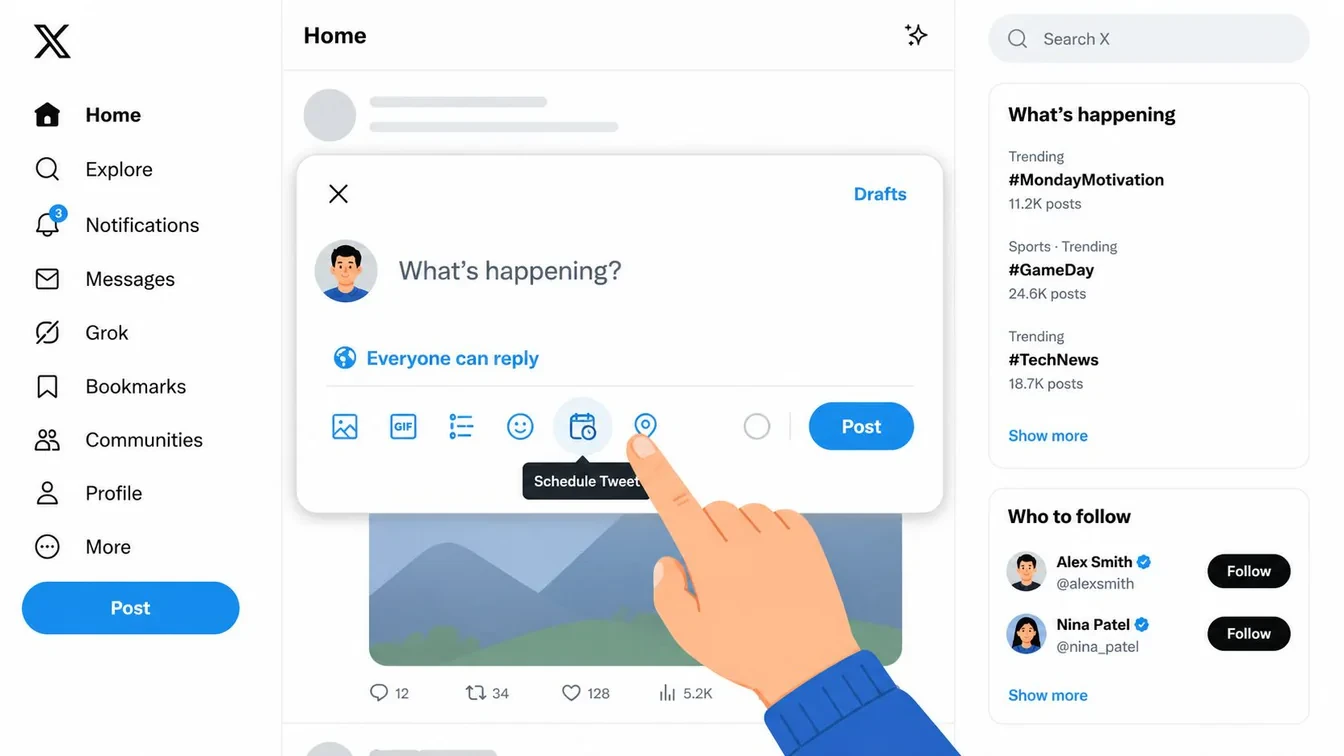
How to schedule a post on X.com
The native desktop workflow is straightforward. Onlypult’s walkthrough of X scheduling outlines the same basic path social managers already use in practice.
- Open X on desktop: Start from the regular post composer on X.com.
- Write the post: Add text, media, links, or a poll if needed.
- Click the schedule icon: Look for the calendar option in the composer.
- Choose date and time: X uses a specific date and time selection flow.
- Confirm and schedule: Double-check the time, then click Schedule.
That’s the simplest answer to how to schedule twitter posts for free.
How to edit or delete scheduled posts
This is the part many guides gloss over, but it matters more than the initial scheduling step. A scheduled post often needs changes because a typo slipped through, news changed the context, or you wrote a stronger version later.
In the native desktop workflow, scheduled items can be found under Unsent Tweets -> Scheduled, where you can edit, reschedule, or delete them. That makes the native scheduler usable for real planning, not just one-off delayed posting.
Scheduled content should always be reviewable. If you can’t easily inspect tomorrow’s queue, you’ll eventually publish something you should have paused.
Here’s a good habit to adopt before logging off:
- Check tomorrow’s queue: Make sure nothing feels stale or tone-deaf.
- Look for collisions: Two posts too close together can cannibalize attention.
- Review calls to action: If two posts ask for the same action, space them out.
Later, if you want deeper calendar workflows, the X scheduling articles in this tag archive are worth browsing for adjacent tactics.
Where X Pro fits
X Pro makes more sense when you live on desktop and watch multiple timelines or accounts throughout the day. It’s less about fancy automation and more about operational visibility.
Use X Pro if you:
| Use case | Native website | X Pro |
|---|---|---|
| One account, occasional scheduling | Good fit | Usually unnecessary |
| Multiple columns and monitoring | Limited | Better fit |
| Managing several streams at once | Clunky | More practical |
| Fast editorial work from desktop | Fine | Better for power users |
A social media manager covering multiple brands, for example, might keep lists, notifications, search columns, and planned posts visible in one place. A solo creator probably doesn’t need that complexity.
This walkthrough shows the interface flow in action:
The trade-off is simple. Native tools are free and direct. They’re also narrow. Once you want queues, reusable slots, or a stronger planning system, you start looking outside X.
Using Third-Party Schedulers for a Smarter Workflow
Third-party schedulers matter when posting stops being a one-post-at-a-time activity and starts becoming a system. That usually happens when you’re publishing regularly, testing themes, or managing a backlog of drafts.
What third-party schedulers solve
Native scheduling handles the moment of publication. Third-party tools usually help with the work before and around that moment.
That means features like:
- Queues instead of one-off dates: You create posting slots and drop content into them.
- Calendar visibility: You can see how your week looks at a glance.
- Approval workflows: Useful when more than one person touches content.
- Analytics context: Timing decisions get better when paired with performance review.
- Draft management: Ideas don’t get lost across notes, docs, and browser tabs.
Buffer is a good example of a traditional scheduler with timing research behind it. Hootsuite is another familiar option for teams that need a broader social media stack. Both are less about writing the content and more about organizing distribution.
A practical workflow from idea to scheduled post
The biggest mistake people make is treating scheduling like the whole job. It isn’t. Scheduling is the final step in a chain.
A stronger workflow looks like this:
- Discovery: Find posts, hooks, or conversations worth learning from.
- Drafting: Turn those observations into original posts, not copies.
- Review: Cut weak phrasing, sharpen the first line, and check context.
- Queueing: Place approved posts into exact times or recurring slots.
- Live follow-up: Reply when the scheduled post starts getting traction.
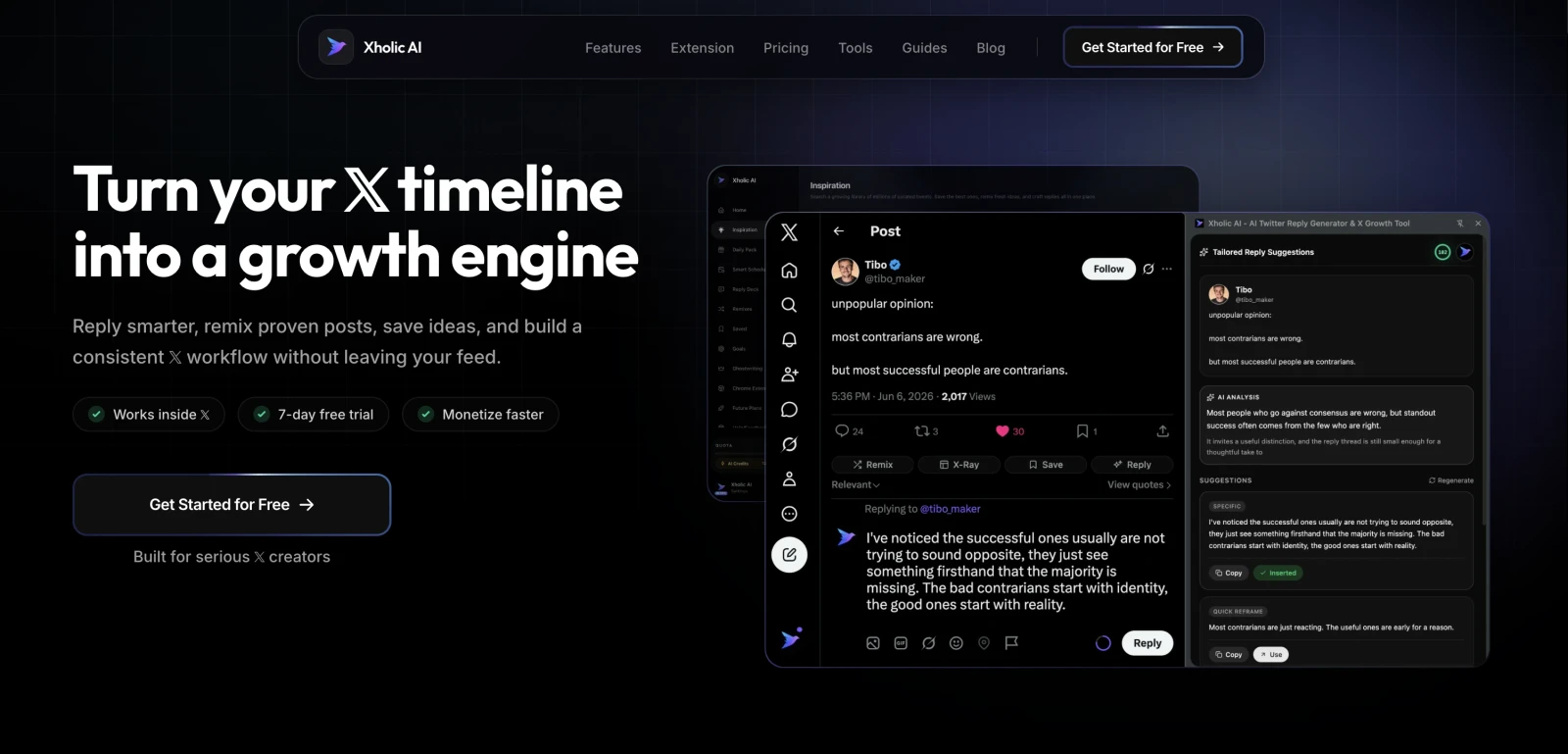
That’s where an integrated tool can be useful. For example, Xholic AI combines semantic tweet discovery, remixing, saved collections, Daily Pack drafting, a Chrome extension, and Smart Scheduler so approved posts can move from research to queue without leaving the same workflow. That setup fits users who don’t just need a calendar. They need a repeatable content engine.
The strongest scheduling setup is the one that reduces friction between “that’s a good idea” and “that post is ready to publish.”
Who should use which setup
Not every user needs the same tool. Here’s the practical split.
| User type | Best fit |
|---|---|
| Solo creator testing consistency | Native scheduler or a lightweight third-party queue |
| Founder building in public | Tool with drafts, idea capture, and recurring posting slots |
| Agency or in-house team | Calendar view, approvals, account management |
| Power user posting daily | Tool that connects inspiration, drafting, queueing, and review |
If you want broader context on how scheduling tools fit into an actual growth stack, this guide on social media management tools for going viral on Twitter X is a useful companion.
What works and what doesn’t
What works:
- Predefined posting slots: Fewer timing decisions every day.
- A draft bank: You always have something to refine instead of starting from zero.
- Manual approval before publishing: Prevents AI or stale drafts from going out unreviewed.
What doesn’t:
- Endless auto-filled queues: They make accounts feel detached.
- Purely recycled templates: Audiences notice repetition quickly.
- Scheduling without a reply plan: You publish, disappear, and miss the compounding effect of conversation.
Advanced Scheduling with the API and Custom Scripts
API-based scheduling is for people who don’t want a calendar tool at all. They want programmable publishing.

Who this is for
This route fits:
- Developers: They want posts generated from internal tools, product databases, or alerts.
- Analysts: They publish recurring charts, market notes, or dataset-driven updates.
- Ops teams: They need bulk workflows, templated publishing, or triggers tied to events.
A custom script can pull approved content from a spreadsheet, CMS, Airtable-style database, or internal queue, then publish on schedule through a controlled workflow. The value isn’t convenience. It’s integration.
What custom scheduling looks like
A common setup works like this:
- Content source: Drafts live in a database or structured document.
- Approval state: Only approved rows move forward.
- Scheduler job: A script checks for posts due at a certain time.
- Publishing log: Each sent post is recorded so the team can audit failures or duplicates.
This method is useful when the content itself is dynamic. Think product updates, event-driven alerts, recurring summaries, or a daily market snapshot assembled automatically from fresh inputs.
For power users comparing automation-heavy options, this roundup of Twitter growth tools helps frame where API workflows sit relative to creator tools and planning platforms.
The trade-offs
Custom scheduling sounds powerful because it is. It’s also fragile if nobody owns the workflow.
Build custom scheduling only when the publishing logic itself is custom. If your needs are mostly editorial, a normal scheduler is easier to maintain.
The trade-offs are straightforward:
- More control: You define logic, approvals, formatting, and triggers.
- More maintenance: Someone has to monitor edge cases and platform changes.
- Less friendly editing: Non-technical teammates usually prefer a calendar UI.
- Higher failure cost: If a script breaks without warning, the content will not be posted.
For most creators and marketers, API workflows are overkill. For teams with structured content pipelines, they’re sometimes the cleanest option.
A Winning Scheduling Strategy Best Practices and Timing
The mechanics are easy. The strategy is where most accounts either get disciplined or get robotic.
Use timing data as a default not a rule
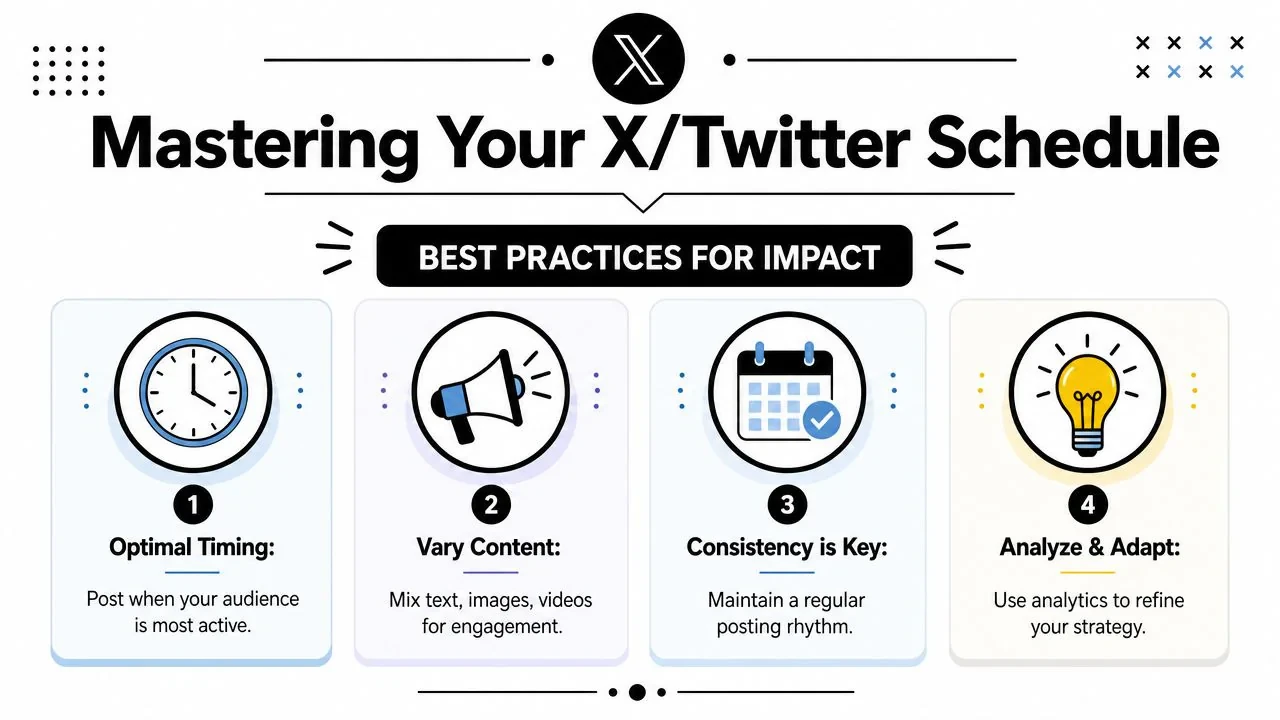
If you need a starting point, use broad platform timing data, then refine it with your own account performance. Buffer’s 2026 analysis of 1 million posts found that Tuesday at 9 a.m. was the strongest engagement window, with Wednesday at 10 a.m. and 9 a.m. close behind. The same analysis found Wednesday, Tuesday, and Thursday were the strongest overall days, while Saturday and Friday were the weakest, and 9 a.m. to 11 a.m. on weekdays was the most reliable engagement window according to Buffer’s best time to post on X research.
That gives you a sensible default. It does not give you your personal best schedule. Your audience may be niche, global, or unusually active at times broad studies won’t catch.
A practical method:
- Start with weekday morning slots: Especially if you have no data yet.
- Tag posts by type: Opinion, educational, promo, personal, or reply-led thread.
- Review by theme, not just time: Sometimes the topic explains performance more than the slot.
Keep part of your activity unscheduled
This is the part many scheduling guides miss. A full queue can make your account look active while reducing your participation.
One independent guide recommends keeping roughly 30% of activity real-time so you can reply to mentions, join trending discussions, and react to current events, as noted in Tweet Archivist’s scheduling guide. That advice aligns with how X works. Scheduled posts create presence. Real-time engagement creates momentum.
Build a weekly rhythm that doesn’t feel robotic
The healthiest setup is planned but flexible. You want a rhythm, not a script.
Try this structure:
- Anchor posts: Your main educational or perspective-driven posts go into scheduled slots.
- Reactive posts: Leave open room for commentary, news, and spontaneous ideas.
- Replies and quote tweets: Do these live whenever possible.
- Thread scheduling: Schedule only after checking each post for flow and context.
If you want to plan how a visual post, quote tweet, or reply chain should look before scheduling it, a mockup tool can help. Xholic’s Quote Tweet Generator is useful for internal review, design planning, or content approvals. Mockups should always be labeled clearly when needed and shouldn’t be used to impersonate people or mislead viewers.
A good X schedule feels consistent to you, not automated to your audience.
A simple X content calendar example
Here’s a lean weekly pattern for a founder or creator:
| Day | Scheduled content | Live activity |
|---|---|---|
| Monday | Insight post | Reply to niche discussions |
| Tuesday | Product or case-based post | Follow-up replies after publish |
| Wednesday | Educational thread | Quote tweet an industry take |
| Thursday | Personal lesson or contrarian opinion | Jump into trending conversations |
| Friday | Light post or recap | Community replies and DMs |
Sample scheduled post:
Most founders don’t need more content ideas. They need a tighter system: save strong posts, remix the structure, schedule the cleanest draft, then stay around to reply when it lands.
That’s a realistic post to schedule for a known audience window. The live work starts right after it goes out.
FAQ and Troubleshooting Common Scheduling Issues
Can you schedule posts on X for free
Yes. The desktop website gives you a free native scheduling option. For many individual users, that’s enough to get started.
Can you schedule posts from the X mobile app
The reliable native workflow described in the sources is desktop-based. If mobile scheduling is a must-have, many people use a third-party scheduler instead of relying on the native app experience.
Does scheduling hurt engagement
Not by itself. What hurts engagement is publishing bland posts, choosing weak timing, or disappearing after the post goes live.
Scheduled content often performs perfectly well when it’s paired with active follow-up. The bad version of scheduling is “queue it and forget it.” The good version is “queue it, then show up when replies start.”
What if a scheduled post should not go out anymore
Edit it, reschedule it, or delete it before publish time. This is especially important during breaking news, sensitive events, or sudden campaign changes.
A quick pre-publish checklist helps:
- Check relevance: Does the post still make sense today?
- Check tone: Could it read badly in the current news cycle?
- Check links and media: Make sure assets still load and CTAs still match.
- Check overlap: Avoid posting two near-identical ideas too close together.
For more workflow and publishing ideas around X content systems, the Xholic blog is the most relevant place to keep reading.
What if a scheduled post fails
First, confirm whether the post sent. Then review the draft, media, and timing in your scheduler. If you’re using a third-party tool, check its publishing status or error log.
If this happens often, simplify the setup. The more moving parts you add, the more you need a clear review process before posts enter the queue.
The durable takeaway is simple. Scheduling works best when it supports a larger habit: capture ideas, draft when you have clarity, schedule the posts worth publishing, and stay active enough to turn publication into conversation.
If you want one workflow for discovery, drafting, organizing, and scheduling approved posts on X, try Xholic AI. It’s built for people who want a more repeatable X publishing system without living in the composer all day.
Native Scheduling Checklist
Before confirming a scheduled post on X.com:
- Open the composer and finish the text, media, and accessibility text.
- Select the calendar control and confirm the date, time, and timezone.
- Preview links and media before saving the schedule.
- Review the scheduled-posts queue to confirm the item appears once.
- If a major edit changes the hook, media, or thread order, replace the scheduled item and verify the new version.
Native scheduling is best for straightforward one-off posts. A third-party scheduler becomes useful when the workflow needs approvals, reusable queues, multiple networks, or team reporting.