You’ve found a useful video on X (formerly Twitter), tapped the share icon, and saved something that seems to have disappeared. On Android, the download itself is usually simple. The friction comes afterward, finding the MP4, choosing the right resolution, dealing with browser redirects, and knowing whether you’re allowed to repost the clip.
For most public posts, the dependable way to download a Twitter video on Android is to copy the post’s direct link, paste it into a downloader in Chrome, select an available video variant, and then check your Downloads or Files app. Dedicated Android apps can shorten that process, but the browser workflow remains the clearest baseline.
The Universal Two-Step Handoff Method
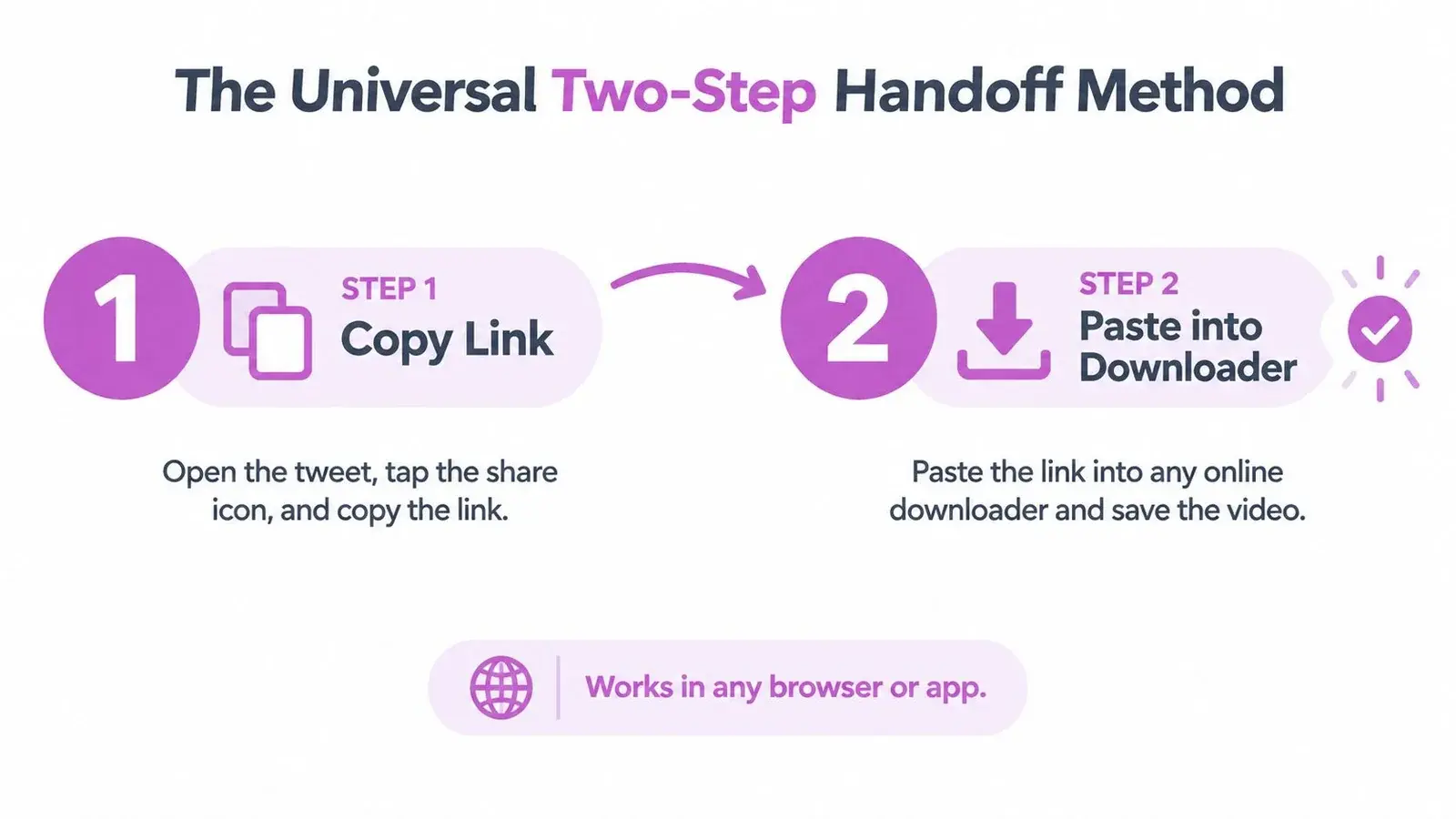
Most Android users don’t need complicated software to save a public X video. The core process is a two-step handoff between the X app and a browser-based downloader.
Step 1: Copy the direct post link
Open the post containing the video in the X app. Tap the Share icon, then choose Copy link. If you’re using a browser, copy the URL from the address bar, but make sure it points to the individual post rather than a profile, search page, notification, or quote preview.
The downloader needs the post URL because that link identifies the media attached to the post. Copying the visible caption, selecting text from the post, or sharing a general profile address won’t give the downloader a video source to resolve.
Step 2: Paste the link into Chrome
Open Chrome on Android and visit a reputable web-based downloader. Paste the copied URL into its input field, submit it, and wait for the available MP4 variants to appear. Android-focused guidance describes this fetch step as typically taking about 5–10 seconds before quality options become available (Android download workflow).
Choose the download control attached to the actual video result, not a large unrelated advertising button. Chrome should then handle the file download through its normal download manager.
Practical rule: Copy the direct post URL first. Almost every failed mobile download starts with the wrong link, not the video itself.
For a more detailed walkthrough of the same process, use this Twitter video downloader guide. It’s also useful to remember that the browser approach avoids installing an app, granting extra permissions, or troubleshooting a separate interface.
Using Trusted Online Downloaders in Chrome
Chrome is often the cleanest choice when you only need to save an occasional clip. You can copy the post link, use the downloader in a browser tab, and let Android manage the resulting file without adding another app to your device.
A careful Chrome workflow
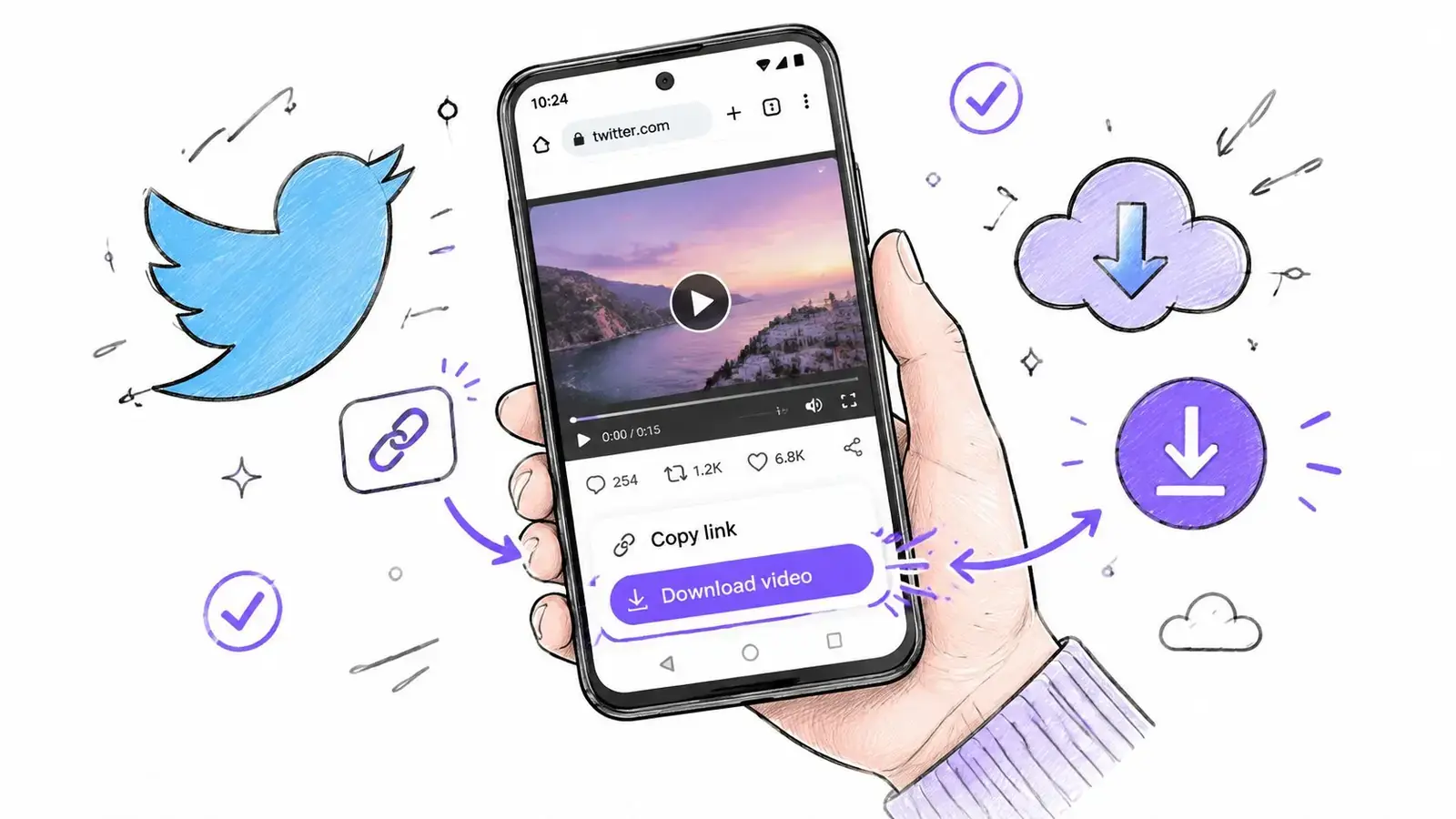
- Open the public post: Confirm that the page shows the specific video you want to save.
- Copy the link: Use X’s Share menu and select Copy link. Don’t manually retype or edit the URL.
- Open a downloader: Paste the link into the downloader’s field and submit it.
- Wait for the results: The service may show more than one rendition, depending on what the original post contains.
- Select the download button: Check that the button is associated with an MP4 result. Free utility sites can place misleading buttons near the result.
- Confirm the browser prompt: Approve the expected file-save action, then watch for Chrome’s download notification.
If a new tab opens, redirects you to another page, or asks you to install unrelated software, close it and return to the result page. You shouldn’t need to install an APK, enter your X password, or grant access to private account data to save a public post.
The Xholic Twitter video downloader provides a direct browser workflow for pasting a public post URL and fetching available MP4 variants. If your next step is turning a saved post into a visual concept rather than reposting the video, you can also explore how to convert social posts to AI visuals.
What to check before leaving the page
Don’t close Chrome immediately after tapping Download. Check the notification tray or Chrome’s Downloads list and confirm that a file has started saving. If nothing appears, inspect available storage, browser permissions, VPN filtering, and strict content blockers. A private browser tab can help reveal whether stored browser state or an aggressive blocker is interfering.
A downloader can only return media variants that the source post makes available. It can’t create a sharper version than the uploader supplied, and it can’t repair a post that’s deleted, restricted, or inaccessible to the public.
Dedicated Android Apps for One-Tap Saving
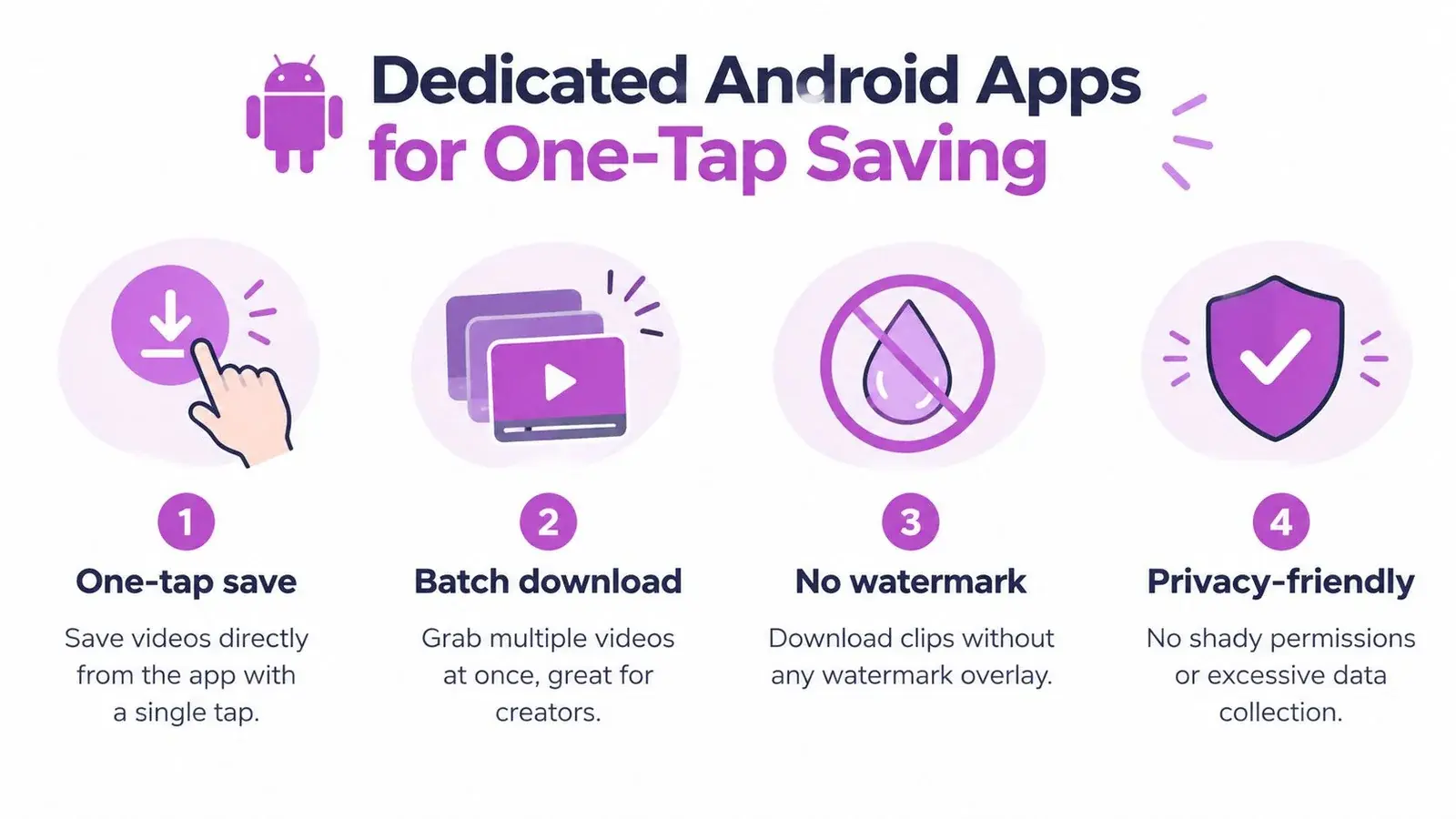
A dedicated Android downloader makes sense when you save clips repeatedly for content research, campaign references, or editing. The main advantage isn’t mysterious extraction technology. It’s the Android share sheet, which can pass a post directly from X into a compatible app.
Google Play currently hosts multiple dedicated apps for X and Twitter video saving, including listings updated in 2026 and apps advertising one-tap sharing, copy-link workflows, GIF saving, and optional output choices such as 360p, 720p, and 1080p (example Play Store listing). At least five distinct Play Store listings were actively promoting related X or Twitter media-saving features by 2026, which indicates sustained demand for mobile-first saving rather than a one-off niche use case (Android downloader listing).
Browser versus dedicated app
| Workflow | Best fit | Main advantage | Main trade-off |
|---|---|---|---|
| Chrome downloader | Occasional saves | No installation and fewer app permissions | Requires copy and paste |
| Share-to-app flow | Frequent saves | Sends the post directly from X | Adds another app to your device |
| Manual screen recording | Personal reference only | Doesn’t depend on a downloader | Can reduce quality and capture interface elements |
Look for an app that explains what it does, keeps permissions reasonable, and clearly states that it’s independent from X. Play Store listings also warn users to respect ownership and intellectual-property rights, so treat those notices as practical compliance guidance, not boilerplate to ignore (Play Store ownership guidance).
How the share shortcut works
From the X post, tap Share, choose Share via, and select the downloader app. The app receives the post link, parses it, and presents a download option. Some tools expose quality choices before saving, while others immediately choose an available rendition.
Avoid apps that request your X password, demand broad access unrelated to downloading, or hide the destination folder. Android’s flexible file handling makes these tools convenient, but convenience shouldn’t replace permission checks or ownership awareness.
For additional workflows involving saved X media, see this guide to downloading Twitter videos, GIFs, and photos.
Finding Your Downloaded Files and Managing Quality
A successful download doesn’t always appear immediately in Gallery. The first place to look is Android’s Downloads folder, because browser-based tools commonly save MP4 files there. Open Chrome’s download list, tap the file, or use the Files app and check Downloads, Recent files, and the Videos category.
If you used a dedicated app, its destination may be different. Some apps save directly into Gallery or Files, while others place the MP4 in an app-specific folder. If the file plays correctly but isn’t visible in your preferred photo app, use Files to move it into a media folder that Gallery indexes.
Choosing a resolution
Downloaders commonly expose 1080p, 720p, 480p, and 360p variants (quality guidance). The right choice depends on what you’ll do with the clip:
- 1080p: Choose it for editing, archiving, or large-screen playback when it’s available.
- 720p: A practical middle ground for most social references and everyday viewing.
- 480p: Useful when file size and transfer speed matter more than detail.
- 360p: Suitable for quick reference, but text and fine visual details may be harder to read.
These labels describe returned source variants, not a promise that every post contains HD media. The downloader can’t add detail that wasn’t present in the original upload, so a 1080p option may still look soft if the source was compressed.
File check: Play the MP4 before downloading it again. Confirm the picture, sound, duration, and destination so you don’t create duplicate files.
For creators who need a higher-quality reference workflow, this HD Twitter video downloader guide explains why available quality depends on the source post. Also check whether the clip is intentionally silent. An animated GIF-style MP4 may have no audio, while a standard video can be muted by the uploader or source post.
Troubleshooting Common Android Download Failures
A downloader can’t bypass access restrictions. Public posts are the normal use case, while private, deleted, restricted, and direct-message videos generally won’t resolve through public URL tools. Don’t enter your X credentials into a downloader that claims it can authenticate into a private account.
Start with the link when a download fails. Reopen the exact post, tap Share, choose Copy link, and paste that fresh URL into Chrome. Malformed links often come from copying surrounding text, using a shortened URL, or sharing a profile or notification page instead of the post itself.
Fixes for the problems you’ll see most often
- No result appears: Confirm the post is public and still available, then retry with a freshly copied link.
- The page loops or redirects: Close unexpected tabs, return to the result page, and avoid unrelated download buttons.
- The file doesn’t show up: Check Chrome’s Downloads list, Android notifications, Files, Recent files, and Videos.
- Only lower quality appears: Use the highest available variant. The source may not include an HD rendition.
- There’s no sound: Check whether the original post or animation is silent before assuming the download is damaged.
X doesn’t provide a universal official save-to-device option for every user. An independent guide says the native Download video command is limited to eligible posts and Premium subscribers, and videos uploaded before July 25, 2023 aren’t eligible through that feature (X download eligibility guide). That’s why Android users often rely on third-party browser tools or apps for public media.
Legal and Ethical Rules for Reposting Saved Clips
Saving a video and owning the right to republish it are different things. A downloader gives you a local copy of an MP4. It doesn’t transfer copyright, erase the creator’s attribution, or grant permission to use the clip in a brand campaign, monetized video, or promotional post.
The safest approach is to save your own work, use media you’ve received permission to use, or ask the original creator before reposting. Keep the creator’s context attached to the clip, and credit the original account clearly when permission or platform norms support sharing.
Reposting choices that protect your reputation
- Ask first: Direct permission is the clearest path when you want to publish the full clip.
- Credit accurately: Tag the original creator and identify the source instead of presenting the clip as your own.
- Add meaningful context: Commentary, analysis, or reaction should contribute a distinct point of view. It shouldn’t disguise a copied upload as original work.
- Don’t remove ownership signals: Avoid cropping out watermarks, handles, or other attribution elements.
- Use downloads for research: Study the hook, pacing, framing, or audience response, then create an original post in your own voice.
For X creators, saved clips can support a stronger content system when they become research inputs rather than a queue of material to rip and repost. Organize useful examples by topic, hook, format, or campaign, then use them to develop original replies, quote posts, or video concepts.
If you want help turning saved research into consistent X content, Xholic AI uses personalized context and memory to support relevant post ideas, replies, remixes, and research workflows while keeping the user in control of what gets published. Visit Xholic AI to explore a human-reviewed way to study X content and decide what to say next.