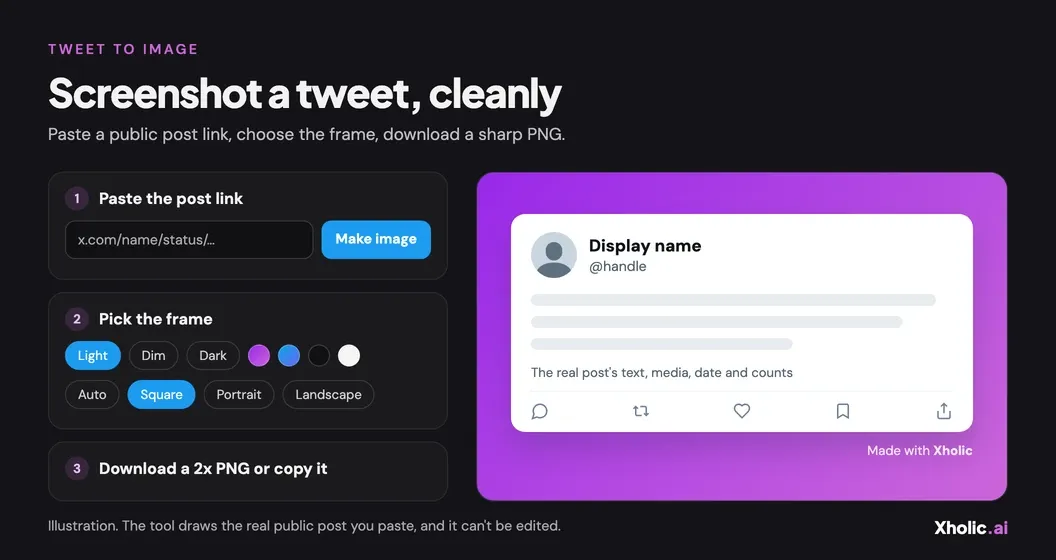
A screenshot is still the easiest way to share a post outside X: in a slide, a newsletter, an Instagram carousel or a LinkedIn post. The trouble is that a phone screenshot brings everything else with it, like the status bar, the reply box and half of the next post. This guide covers the quick ways to screenshot a tweet, how to crop one cleanly, and how to get a framed image of the post from just its link with Xholic’s free Tweet to Image tool.
Copy the post’s link from X
Every method below starts from the post itself, and the cleanest ones start from its link.
- On a phone: tap the share icon under the post, then Copy link to Post.
- On a computer: click the share icon under the post, then Copy link to Post.
The link looks like https://x.com/name/status/1234567890. Links that start with twitter.com, mobile links and links with ?s=20 on the end all point to the same post.
Take a quick screenshot with your device
If you only need a rough capture for a chat, your device’s own screenshot is fine:
| Device | Shortcut |
|---|---|
| iPhone with Face ID | Press the side button and volume up together |
| Android (most phones) | Press power and volume down together |
| Mac | Press Shift + Command + 4, then drag over the post |
| Windows | Press Windows + Shift + S, then drag over the post |
Open the post on its own page first (tap it), so the replies and the next post aren’t in the way. On a computer, zoom the browser in so the text is sharper before you capture.
Crop a phone screenshot cleanly
A phone screenshot usually needs three cuts before it looks deliberate:
- Crop off the status bar (time, battery, signal) at the top.
- Crop off the reply box and anything under the counts at the bottom.
- Leave an even margin on both sides, or none at all. A ragged edge is what makes a screenshot look careless.
Photos’ and Gallery’s crop tools are enough. If the post is long, take the screenshot with the post scrolled to the top so the author’s name stays in the picture.
Make a clean image from the link with Tweet to Image
Cropping still leaves you with the phone’s resolution and your own theme. Tweet to Image skips the screenshot entirely: it reads the public post from its link and draws it again in X’s layout, at twice its normal size.
- Open Tweet to Image and paste the post link.
- Press Make image. The tool loads the author’s name, handle, photo and badge, the text, images (videos and GIFs show their preview frame with a play button), a quoted post’s text, the date and the counts.
- Choose the frame with the options under the preview.
- Press Download PNG, or Copy image to paste it straight into a deck, doc or chat.
The post itself can’t be edited in this tool. That’s deliberate: the image is a record of what was actually posted. If you need to mock up a post, use the fake tweet generator and label the result as a mockup.
Only public posts work. A deleted post, or one from a protected account, can’t be loaded, and the tool tells you so.
Pick a theme and background
- Theme: Light, Dim or Dark, in X’s light, dim and dark styles. Dark reads well on dark slides and in Instagram’s dark mode; light suits documents and most decks.
- Background: None gives a transparent PNG you can place on any color. Solid offers graphite, paper, sky blue and plum. Gradient offers five, from Xholic violet to a soft mist.
- Padding: None crops tight to the card; S, M and L add space around it. Medium is a good default for social posts.
Match the card to the background: a light card on a dark gradient, or a dark card on a light one, gives the clearest edge.
Size it for Instagram, LinkedIn or slides
| Where it’s going | Shape to pick | Why |
|---|---|---|
| Instagram feed | Square or Portrait | 1:1 and 4:5 are Instagram’s standard feed shapes; portrait takes more of the screen |
| LinkedIn feed | Square or Portrait | Both suit LinkedIn’s mobile feed |
| Slides and video | Landscape | 16:9 fills a standard slide or video frame |
| Docs, newsletters, chats | Auto | Hugs the post with no extra space |
The tool never crops or squashes the post to fit a shape. It adds background around the card instead, so long posts simply get a taller or wider frame. The exact pixel size of the PNG is shown under the preview, and every download is at 2x, so it stays sharp when a platform scales it down.
Choose what to show
Under Show you can switch off:
- Metrics: the views, replies, reposts, likes and bookmarks. Hide them when the words are the point, or when the numbers will be out of date by the time people see the image. Counts can be up to about an hour behind the live post.
- Date and time: shown in your own time zone, the way X shows it to you.
- Made with Xholic: a small mark under the card, on by default. Untick it and it’s gone from the preview and the download.
Share it responsibly
A screenshot of someone else’s post is their words. Credit the author (their handle is in the image), don’t crop away context in a way that changes the meaning, and respect their rights to any photos in the post. Xholic AI is not affiliated with X Corp.
Frequently asked questions
How do I screenshot a tweet without the phone clutter?
Copy the post’s link, paste it into Tweet to Image and download the PNG. You get the post on its own, in the theme and frame you choose, with no status bar or reply box.
Can I edit the text or numbers in the image?
No. Tweet to Image only shows the real post as it was published. To mock up a post, use the fake tweet generator and label the image as a mockup.
Why won’t my post load?
Only public posts can be shown. The post may have been deleted, or it’s from a protected account. Check that the link opens the post on X while you’re logged out.
What size is the image?
The card is 744 pixels wide at 1x and every download is 2x, so the PNG is at least 1,488 pixels wide. Padding and the square, portrait or landscape shapes add space around it. The tool shows the exact size under the preview.
Can I get a transparent background?
Yes. Set the background to None and the PNG keeps a transparent background around the card.
Does it show videos and GIFs?
It shows their preview frame with a play button, like a paused video on X. A single photo shows in full; two to four photos are cropped into a grid, the way X shows them.
Do I need an X account?
No. Tweet to Image reads public data only, never asks for your X password and never posts anything.
Related tools and guides
- Fake tweet generator: mock up a post that doesn’t exist yet, clearly labeled.
- Quote tweet generator: mock up a quote tweet with an editable parent post.
- Blank tweet template: an empty X post card for slides and templates.
- Twitter image downloader: save a post’s original photos instead of a picture of the post.
- Twitter image size guide: the sizes X shows in full if you post the image back on X.