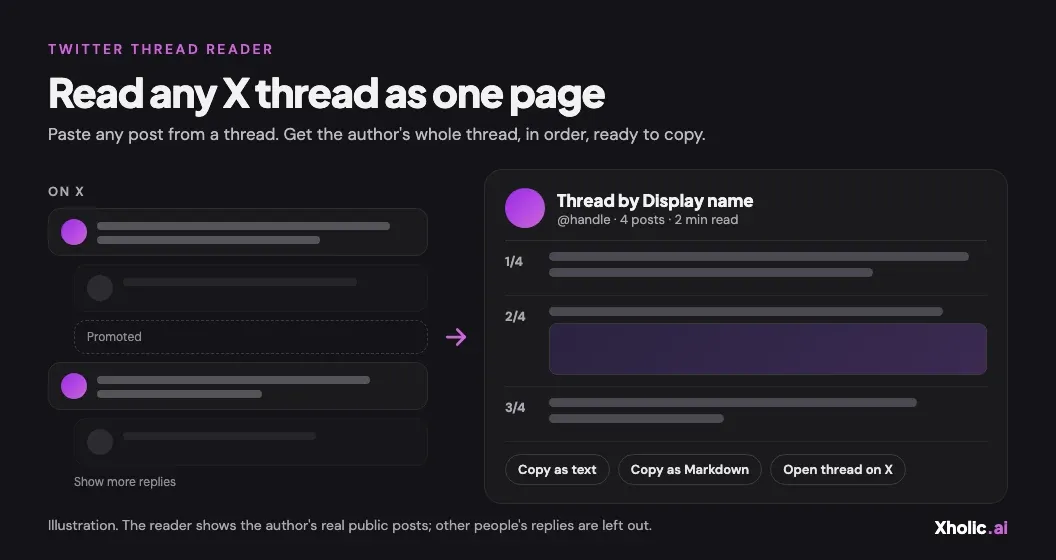
X doesn’t show a thread as one piece of writing. The author’s posts are split up by other people’s replies and “Show more replies” links, and if someone shares a post from the middle, you may not even know there’s a start to scroll back to. This guide covers the ways X itself lets you follow a thread, how to unroll a whole thread into one clean page with Xholic’s free Twitter Thread Reader, and how to save a thread you want to keep.
What a thread is on X
A thread is a chain of posts where the author replies to their own post, then to that reply, and so on. Every post in the chain is a normal post with its own link, likes and replies. Two things make threads awkward to read:
- Replies from other people sit in between. Under each post, X shows replies from anyone, ranked by X, so the author’s next post can be several replies down.
- Each post can be shared on its own. A link to post 7 opens post 7. The earlier posts are usually above it, but you have to know to scroll up.
Unrolling a thread means pulling just the author’s chain out of all that and laying it out in order.
Read a thread on X itself
You don’t always need a tool. In the X app or on x.com while logged in:
- Open the first post. Tap the post that starts the thread. X usually shows the author’s next posts first, under it, before other people’s replies.
- Keep tapping the author’s next post. When X cuts the chain or shows Show this thread, tap it, or open the last post you can see by the author. Their next reply usually appears right under it.
- Started in the middle? Scroll up. If a shared link opens a later post, the earlier posts are usually shown above it. Scroll up to the first one and read down from there.
- Bookmark the first post. Bookmarks keep the start of the thread, so you can come back and read the rest later.
On your timeline, X shortens threads of four or more posts and shows Show this thread. The same option appears when someone sends you a single post from a thread in a DM, and on reposts and quote posts of a thread. Tap it to open the chain.
This works for short threads. For long ones, or when you want the text somewhere else, it gets slow.
Logged out, x.com only shows a single post with a few replies and then asks you to log in, so following a long thread without an account mostly doesn’t work.
Unroll a thread with the Twitter Thread Reader
The free Twitter Thread Reader turns a thread into one page. You don’t need an X account or an extension.
- Copy the link to any post in the thread. On X, tap the share icon under the post and choose Copy link to Post. It can be the first post, the last one or any post in between.
- Paste it and press Read thread. The reader finds the first post of the thread, then follows the author’s own replies in order, up to 50 posts.
- Pick a layout. Numbered posts numbers each post, like 3/12, so you can see where you are. X doesn’t number thread posts; the reader adds the numbers. Flowing paragraphs drops the numbers so the thread reads like an article.
- Look at the images. Photos and video thumbnails stay under the post they came with. Videos and GIFs play on X, so their thumbnails link there.
- Copy it or open it. Copy as text gives you plain text with each post numbered. Copy as Markdown adds a heading, images and a link to every post. Open thread on X takes you to the first post.
The page address keeps the post link as ?url=, so you can bookmark the unrolled thread or send it to someone.
What the reader leaves out
- Other people’s replies. Only the author’s chain is shown.
- The author’s replies to other people. If the author answered a commenter halfway through, that answer isn’t part of the thread.
- Protected accounts. Posts from protected accounts are only visible to the account’s followers, so the reader never shows them.
If the author replied to one of their own posts twice, the thread splits in two. The reader follows the branch with the post you pasted, or the earlier reply if you pasted a post above the split.
Tips for reading and saving threads
- Save the Markdown, not a screenshot. Markdown keeps the words searchable and the links working in Notion, Obsidian, Google Docs or a newsletter draft. Each post links back to X, so you can always find the original.
- Credit the author. When you quote or share a thread, name the author and link to the first post. Ask before republishing a whole thread.
- Long threads stop at 50 posts. The page says so when a thread is longer. Use Open thread on X to read the rest.
- “Some posts may be missing” means just that. If X couldn’t be reached or the day’s shared allowance for new threads ran out, and the reader already has at least two posts of the thread stored, the page shows those and says so. If it has fewer, you get an error instead. Either way, try again later or open the thread on X.
- Study the structure. Seeing a whole thread on one screen makes it easy to spot the hook, how long each post is and how it hands off to the next. To check where your own readers drop off, use the Thread Retention Calculator.
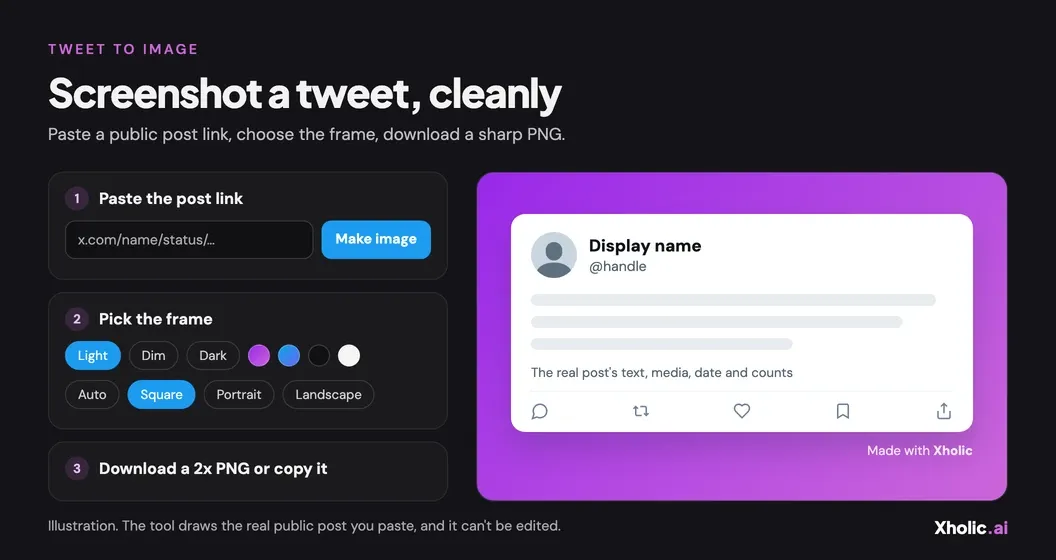
- Share a single post as an image. To show one post from the thread in a slide or on Instagram, turn it into a clean picture with Tweet to Image.
Limits to know about
- Public threads only. Protected accounts and deleted posts can’t be read.
- Up to 50 posts per thread, from the first post.
- 10 threads every 10 minutes per visitor. Threads someone else read in the last hour load straight away (they still count toward your 10).
- A shared daily allowance for new threads. At busy times the free reader can hit its daily limit for threads it hasn’t read before. If it says so, try again after 00:00 UTC, when the allowance resets, or open the thread on X.
- Saved for an hour. An unrolled thread is kept for an hour. Once a finished thread has been read a day or more after its last post, later reads use the posts already stored, so a post the author adds after that may not show up. Use Open thread on X to check.
Frequently asked questions
How do I unroll a Twitter thread?
Copy the link to any post in the thread from X’s share menu, paste it into the free Twitter Thread Reader and press Read thread. You’ll get the author’s whole thread from the first post, in order, with images and a link to every post.
Do I need the first post of the thread?
No. Paste any post from the thread. The reader walks back to the first post and reads forward from there.
Can I read a Twitter thread without an account?
Yes. The Thread Reader needs no X account, login or extension, only the link to a post. On x.com itself, logged-out visitors see a single post and a few replies before a login prompt.
Are replies from other people included?
No. The reader shows only the author’s own chain, the posts where they replied to themself. Replies from other people, and the author’s replies to those people, are left out.
How do I save a Twitter thread as text?
After the thread loads, press Copy as text for plain text with numbered posts, or Copy as Markdown for a version with images and a link to each post. Paste it into your notes app or document.
Can I read threads from protected accounts?
No. Posts from protected accounts are only visible to the account’s followers, so the Thread Reader can’t show them.
What’s the difference between unrolling a thread and a thread generator?
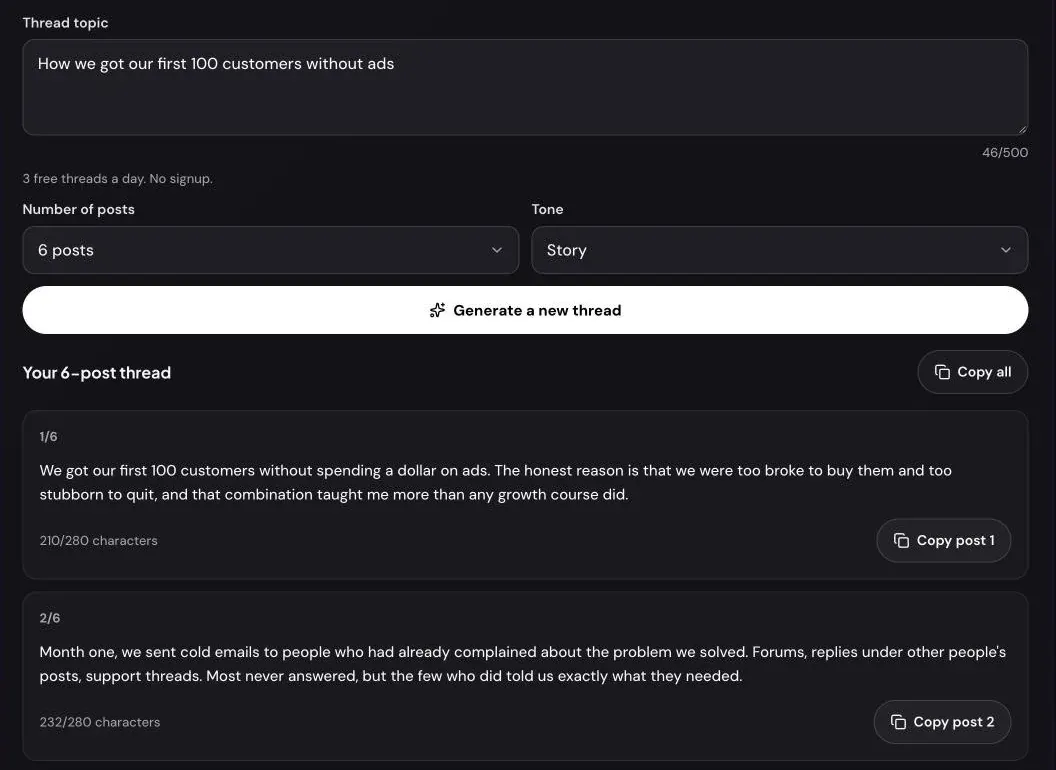
Unrolling reads a thread that already exists on X and lays it out as one page. A thread generator writes a new thread for you. To draft your own, try the free AI Thread Generator.
Related guides and tools
- Twitter Thread Reader: unroll any public thread into one page.
- How to write a viral Twitter thread: the hook formulas and structures behind threads people finish.
- AI Thread Generator guide: turn an idea into a thread draft.
- Thread Retention Calculator guide: see where readers drop off in your own threads.