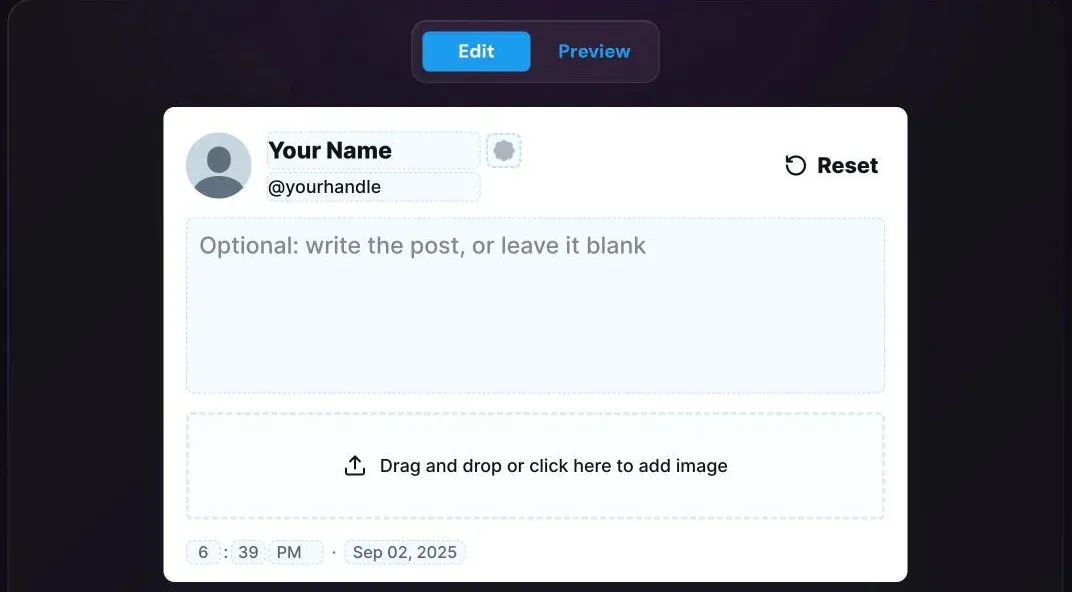
A blank tweet template is an empty X post: the avatar, name, handle and timestamp are there, the post itself is not. People use it as a frame for slides, social graphics and lesson material, or as a quick way to see how a hook reads before writing the rest.
Most “blank tweet” images online are flat PNGs that you then have to edit in a design app. This guide uses Xholic’s free Blank Tweet Template, which renders the real post layout in your browser, so you edit the card itself and download it.
What you can change
| Part | How to change it | Notes |
|---|---|---|
| Display name | Click “Your Name” and type | Up to 50 characters |
| Handle | Click “@yourhandle” and type | Letters, numbers and underscores, up to 15 characters, like X |
| Profile photo | Click the avatar to upload | PNG, JPG, WebP or GIF under 5 MB, read in your browser only |
| Badge | Click the badge slot next to the name | None, blue, gold or gray |
| Post text | Type in the body, or leave it empty | Line breaks and emoji work |
| Images | Click the image area under the text | Up to four, optional |
| Timestamp | Click the time and date | Shown under the post |
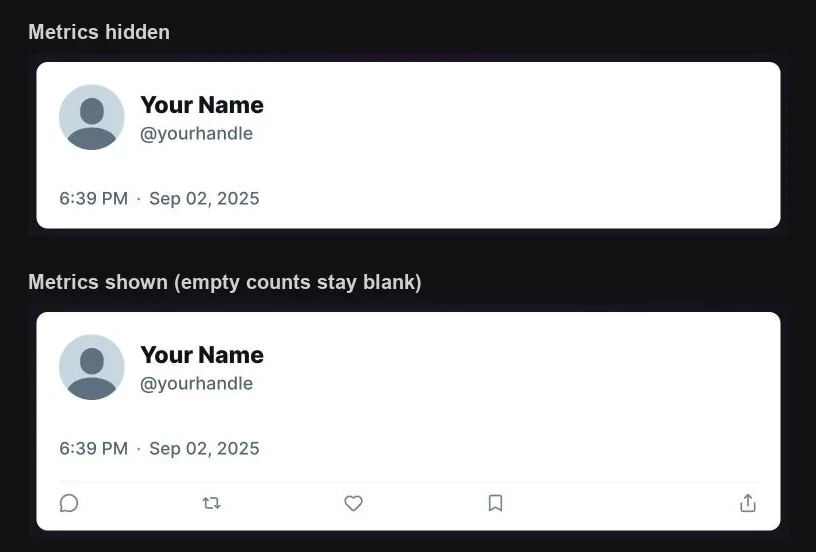
| Metrics | Hide metrics / Show metrics in the toolbar | Zero counts stay blank, like on X |
| Theme | Light, Dim or Dark in the toolbar | The download uses the theme you pick |
| Export size | 1x, 2x or 4x | 2x is the default |
Step 1: Set the name and handle
Click Your Name at the top of the card and type the name you want. Click @yourhandle and type the handle; the @ stays in place and anything X wouldn’t allow in a handle is removed as you type.
If you want a generic template to hand to other people, keep the placeholders. They export exactly as shown.
Step 2: Add a profile photo
Click the round avatar to choose an image. Square photos work best because the avatar is a circle. The file is read by your browser and drawn into the card; it isn’t uploaded to Xholic or anywhere else. To go back to the default initial, use the small remove button on the avatar.
Step 3: Choose a badge and theme
The badge slot next to the name offers no badge, the blue check, the gold check used by businesses and the gray check used by governments. For a personal template, no badge is the safest choice.
Pick Light, Dim or Dark in the toolbar. Light matches most slide decks; dark and dim suit dark-mode graphics and thumbnails.
Step 4: Decide on text and metrics
Leave the body empty for a true blank post, or type a line to see how a hook reads in X’s layout. If you need wording, the Twitter post templates page has 80 fill-in-the-blank posts you can paste straight in.
The toolbar’s Hide metrics button removes the views count and the action bar, which gives the cleanest card. Press Show metrics to bring them back. With metrics shown, click any number to type your own; counts left at zero stay blank in the preview and the download, the way X shows a post nobody has engaged with yet.
Step 5: Preview and download
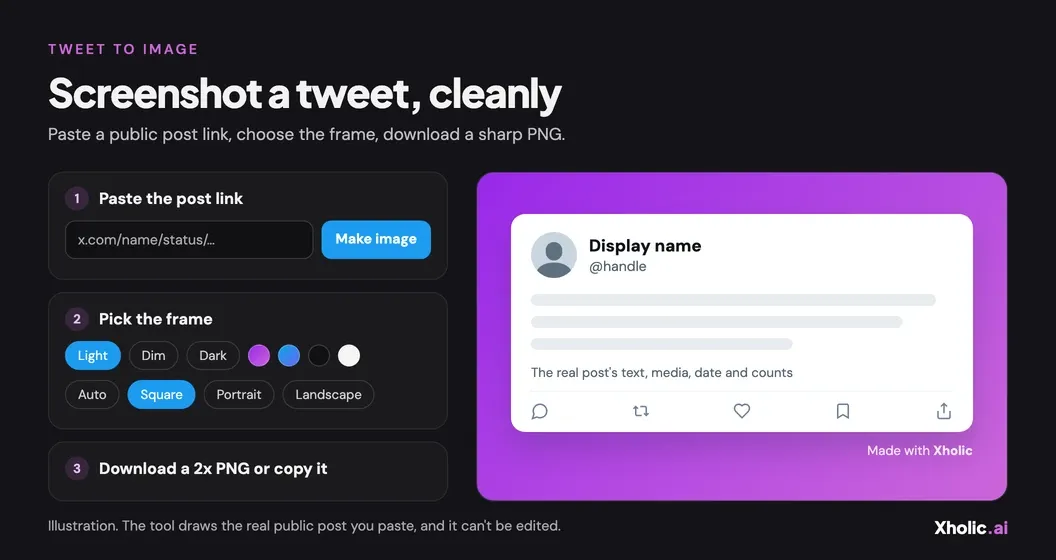
Switch to Preview to see the card without editing controls. Then choose the export size and press Download:
- 1x is 744 pixels wide, fine for chat and docs.
- 2x (default) is 1488 pixels wide, sharp on slides and high-density screens.
- 4x is 2976 pixels wide, for print or heavy cropping.
The PNG is cropped to the card, so there’s no extra margin to trim. The height depends on what the card contains. The copy button next to Download puts the same image on your clipboard instead.
When to use the fake tweet generator instead
The blank template is built for empty or lightly filled cards. If you want a full mockup, like a post filled from a real public profile, a post imported by URL or an AI-drafted post, use the fake tweet generator. It uses the same renderer and adds profile autofill, post import and random metrics.
Use it responsibly
A blank template with your own name is a design asset. Don’t use it, or any mockup tool, to fake a post by a real person, invent evidence or impersonate an account. Label mockups when they could be mistaken for a real post. Xholic AI is not affiliated with X Corp.
Frequently asked questions
How do I make a blank Twitter post image?
Open the Blank Tweet Template, set the name and handle or keep the placeholders, hide the metrics and press Download. You get a PNG of an empty X post with no watermark.
What size is the blank tweet PNG?
744 pixels wide at 1x, 1488 at 2x and 2976 at 4x. The height follows the card’s content because the download is cropped to the card.
Can I make the template in dark mode?
Yes. Choose Dark for X’s black theme or Dim for the dark blue one before you download.
Is my photo uploaded anywhere?
No. The avatar and any post images are read by your browser and stay on your device.
Can I remove the like and repost counts?
Yes. Press Hide metrics to remove the views and the whole action bar, or show them and leave the counts at zero so they appear blank.
Is there a watermark?
No. The download has no watermark and no Xholic branding.
Related tools and guides
- Twitter post templates: 80 fill-in-the-blank posts to paste into the card.
- Fake tweet generator guide: full mockups from a real profile or post.
- Blank Twitter post templates article: visual vs. text templates and when to use each.
- Twitter image size reference: the sizes X shows in full if you post the image on X.