The highest quality you can save is capped by what the original post uploaded. Choosing the highest-resolution, highest-bitrate variant preserves the best available quality, but it cannot guarantee HD when the source itself is lower resolution. In practice, that usually means selecting the best available 720p or 1080p MP4, not trusting a downloader button that says “HD.”
You’ve found the clip, opened the share menu, and saved the file. Then you play it back and discover soft text, blocky motion, or a video that’s clearly lower quality than the version you watched on X, formerly Twitter. The problem usually isn’t the downloader. It’s that the source tweet never exposed a better stream, or the tool selected a smaller variant by default.
This guide focuses on the decision that matters: inspect the available variants, choose the highest resolution and bitrate, and verify the downloaded file before you reuse it. That workflow works for casual saves, creator research, marketing archives, and mobile downloads without requiring a dubious installer.
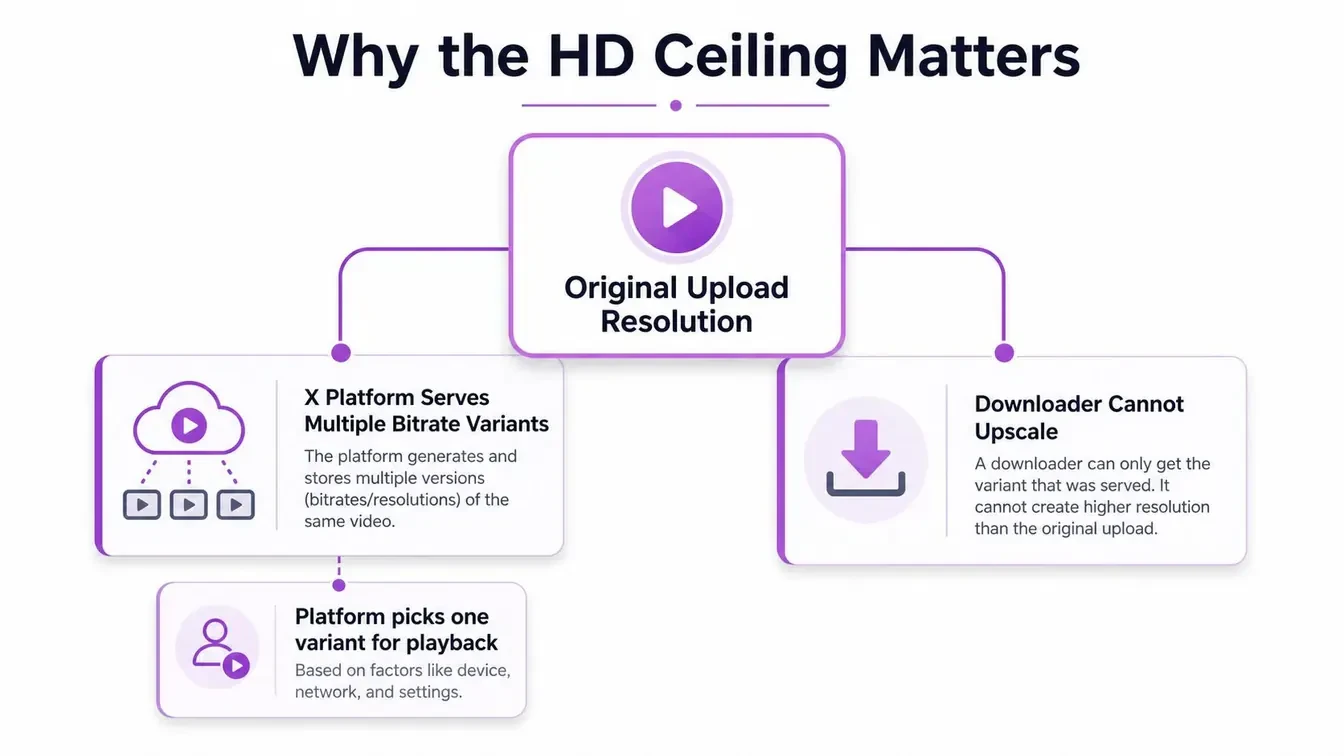
Why the HD Ceiling Matters Before You Start Downloading
A Twitter video downloader HD tool can retrieve an available file, but it can’t create detail that wasn’t present in the original upload. If a creator posted a compressed 720p clip, no downloader can reliably turn it into native 1080p. Upscaling may enlarge the frame, but it won’t restore missing texture, sharp text, or lost motion detail.
X commonly exposes multiple bitrate variants for a video. Bitrate describes how much video data is used over time. A higher bitrate generally preserves more detail, although resolution and bitrate should be considered together. The platform then serves a suitable variant for playback, while a downloader enumerates the versions it can retrieve.
Practical rule: Treat “HD” as a label until you’ve checked the actual resolution and bitrate.
Inspect the source before choosing a tool
Start with the original post, not a repost or screen recording. Look for signs that the source itself is limited:
- Small text looks blurred: Captions, UI labels, or subtitles that already look soft may indicate compression in the uploaded file.
- Motion breaks into blocks: Fast movement with visible macroblocking usually points to compression rather than a downloader failure.
- The clip came through several reposts: Reuploads may have been downloaded and recompressed before reaching X.
- The player looks sharp but the saved file doesn’t: This often means the downloader selected a lower variant instead of the highest available one.
If the tool lists dimensions such as 1280x720 or 1920x1080, use those values as your first quality filter. A 1920x1080 option is Full HD in frame size, while 1280x720 is HD. The bitrate field helps you distinguish between multiple entries with similar dimensions.
Three source-quality realities
A clip may fall into one of three practical categories. First, the uploader may have posted a file that was already compressed to 720p. You can save that cleanly, but you can’t make it native 1080p. Second, the source may include a 1080p rendition, giving you a genuine Full HD option. Third, X may expose several renditions with different bitrates, so the best choice depends on the actual list returned for that post.
X reports more than 8 billion video views per day on average in 2024, and those views were up 35% year over year, according to X’s Media Studio Analytics documentation. X defines a view as at least 2 seconds watched with at least 50% of the player in view, and the metric is logged-in only. That scale explains why clips are frequently saved for review, archiving, and content research, but it doesn’t change the source-quality ceiling.
Creators who want to avoid this problem at upload time can review a practical guide on how to post videos to Twitter easily. For downloaders, the key lesson is simpler: inspect the variants first, then save the best one.
Saving HD Videos With Online Downloaders in Your Browser
Before using a third-party service, check whether X offers its native Download video action. X says Premium subscribers can download videos from eligible public posts when the creator allowed downloads at upload time. Open the post’s three-dot menu and look for that option. If it is unavailable and you have permission to save the clip, a browser tool cannot create resolution that the uploader never posted, so inspect the actual variants instead of trusting a large “HD” button.
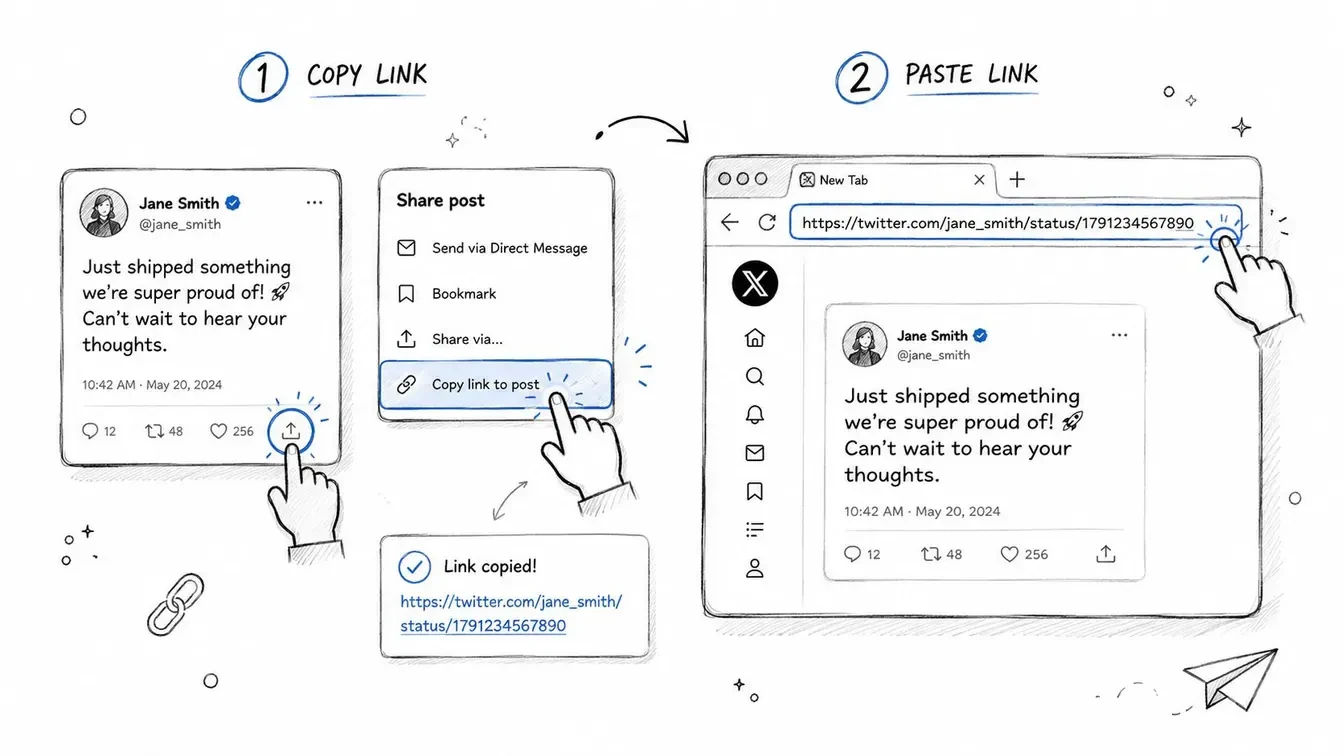
For a one-off public post, the browser workflow is simple: copy the post URL, paste it into a reputable service, compare the returned options, then download the best available MP4.
Choose the variant, not the biggest button
- Copy the post URL. Open X’s share menu and copy the link to the post. Use the original public post when possible.
- Open a reputable downloader in your browser. Reject any page that requests your X password, pushes an unknown extension, or displays several misleading download buttons.
- Paste the URL and submit it. The service should identify the public video and show the media variants it can retrieve.
- Compare dimensions and bitrate. Check entries such as 1280x720 and 1920x1080. If multiple options have the same dimensions, choose the higher bitrate.
- Save the selected MP4. Use the button tied to that variant. If the video opens in a new tab, use the browser’s save command.
MP4 is usually the practical choice because phones, browsers, media players, and common editing software support it. X may also present a silent MP4 through an interface that labels the post as a GIF. That reflects how the media is handled, not a problem with your download.
The public post sets the access boundary. A browser downloader cannot retrieve private posts, direct messages, or unavailable media, and an “HD” label does not change that. For a broader X-specific workflow, see this guide to download Twitter videos, GIFs, and photos.
The same URL-based pattern works for other media tools. If your task is audio rather than X video, this resource explains how to download songs from URLs without mixing that workflow with video retrieval.
Check the file after downloading
Open the saved file in VLC or a media-information utility. Confirm its frame size, codec, container, and bitrate. If you expected 1920x1080 but received a smaller frame, either the source lacked that variant or you selected the wrong entry. A downloader’s label is not proof of the file’s actual properties.
This short walkthrough shows the browser flow and where variant selection belongs.
Using Browser DevTools and Command-Line Tools to Grab HD
If you don’t want to use a third-party downloader page, browser DevTools can expose the media requests made while a public X post plays. This route is more technical, but it avoids depending on a downloader interface that may hide the available variants.
Capture the media request in DevTools
Open the public post in Chrome or Firefox, then open Developer Tools. Select the Network tab and filter requests by terms such as m3u8 or mp4. Start playback after the Network panel is open so the browser records the media requests.
An .m3u8 file is a playlist that can point to multiple stream variants. If you find one, open it and inspect the listed bandwidth or resolution options. Choose the highest available stream, then use a compatible player or command-line utility to retrieve it. A direct MP4 request is simpler, because you can open it in a new tab and save the file.
DevTools can mislead beginners because not every request is the master playlist. Some entries are audio tracks, thumbnails, fragments, or lower-quality renditions. Check the MIME type, dimensions, and bandwidth before assuming you’ve found the source file.
Don’t choose the first
mp4request you see. Identify whether it represents the complete video or just one segment of a streaming workflow.
Use yt-dlp for repeatable downloads
For frequent archival or research work, yt-dlp is more practical than manually copying network URLs. Give it the public post URL and ask for the best available format. A typical workflow also lets you specify a filename template so saved clips are easier to organize by creator, post identifier, or date.
The important distinction is best available, not guaranteed Full HD. The command-line tool can select the highest variant returned by the source, but it can’t recover a higher-resolution file that X doesn’t expose. Keep the utility updated because platform media endpoints can change, which may break older extraction logic.
If you’re building a larger X research workflow, review these Twitter API examples to understand how structured platform data can complement manual media collection. Don’t confuse API access with ownership of media files. Downloading a public file and reusing it commercially involve separate questions.
Saving HD X Videos on iPhone and Android Without Sketchy Apps
You don’t need a downloader app just because you’re using a phone. A browser handoff is usually safer and easier to maintain than installing an app that requests broad permissions, displays aggressive advertising, or asks you to sideload an APK.
iPhone workflow
On iPhone, copy the public X post link, open Safari, and paste it into a browser-based downloader. If you do this regularly, create a Shortcut that accepts a shared URL and opens the downloader page with the link ready to paste or process. Review the Shortcut before using it, especially if it sends links to a third-party website.
Safari may open the selected MP4 in a new tab instead of saving it immediately. Use the share menu and choose the file-saving option, then check the Downloads folder or open the saved file through the Files app. Move a clip to Photos only when you’re comfortable with the file source and its permissions.
On a small screen, variant lists can be easy to misread. Expand the results, compare the displayed dimensions, and select the highest bitrate entry. Don’t assume the first button is the best one.
Android workflow
On Android, copy the post URL and use the system share menu to send it to Chrome. If the downloader’s interface behaves poorly, enable the desktop-site option, then paste the link again. Chrome’s download manager should handle the MP4, after which you can verify the file in Downloads or Gallery.
Avoid cloned downloader apps and sideloaded APKs that promise automatic HD saving. An app that asks for an X login, contact access, accessibility access, or unrelated device permissions has no good reason to be part of this workflow.
For phone-based image and short-video work, you can also review the Twitter GIF downloader when the post is presented as an animated GIF. X generally handles animated GIFs as video files, so the saved result may still be an MP4.
If you’re comparing devices for mobile editing or archiving, a refurbished iPhone 14 may be relevant, but the phone model won’t raise the source-quality ceiling. The best result still depends on the variant you choose.
Comparing Download Methods for the Right Workflow
The right method depends on how often you save clips, how much setup you’ll tolerate, and whether avoiding third-party logging matters more than speed. No option is perfect for every X user.
| Method | Speed | HD Ceiling | Privacy | Setup | Best For |
|---|---|---|---|---|---|
| Online downloader | Fast | Highest variant returned | Depends on the site | Low | One-off public saves |
| Browser DevTools | Moderate | Can expose available streams | Better control, but network requests are visible to your browser | Medium | Users avoiding downloader pages |
| Command-line tools such as yt-dlp | Fast after setup | Best available format returned | Stronger control over the workflow | High | Repeat downloads and automation |
| Mobile browser handoff | Convenient | Highest variant you can identify | Depends on the browser service | Low | iPhone and Android users |
Choose based on your download pattern
For an occasional clip, an online downloader is the least complicated route. Choose one that works from a public post URL, shows the available variants clearly, and doesn’t require credentials or an installer. Read the result list instead of clicking a generic HD button.
DevTools suits privacy-conscious users who want to inspect requests themselves. It avoids handing the post URL to an unfamiliar downloader page, but it requires technical judgment. The Network tab may show fragments, audio, playlists, and thumbnails, so selecting the wrong request is easy.
yt-dlp is the strongest fit for power users, analysts, and teams building repeatable archives. It takes more setup and may require Python or a packaged binary, but it’s better suited to consistent naming and batch-oriented work. Keep in mind that no method reliably retrieves private, deleted, or inaccessible posts.
A browser-based option is available through the Twitter video downloader tool, which is designed around public post URLs and available MP4 variants. If your broader work involves studying X content, Xholic AI also connects saved research with personalized growth workflows, but downloading a clip and deciding how to use it are separate tasks.
Decision rule: Save occasionally with a browser, inspect manually with DevTools when privacy matters, and use a command-line workflow when repetition becomes the problem.
HD Quality Checklist and Privacy and Consent Essentials
A downloader cannot invent detail above the original upload. If X provides only a lower-resolution source, a file labeled “HD” will not restore missing detail. Judge each result by its actual dimensions and bitrate, not by the button text.
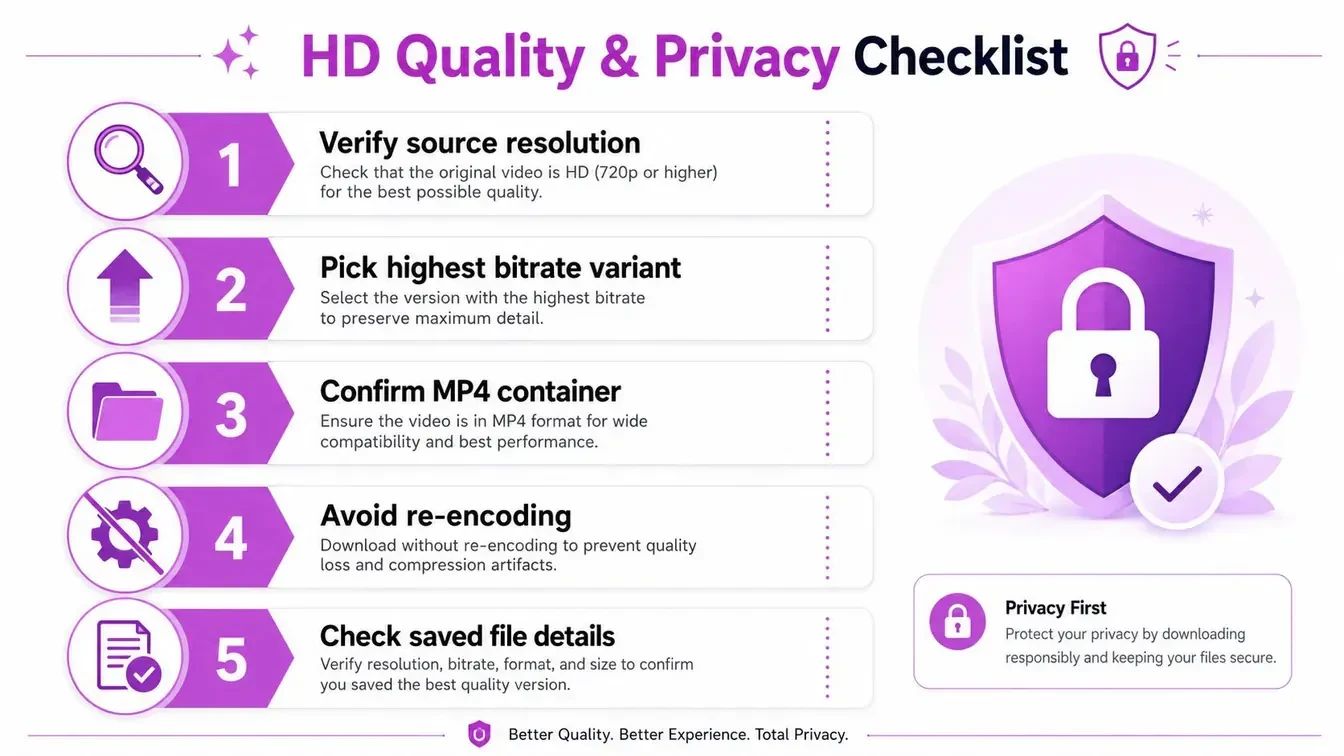
Run this five-step preservation check
- Verify the source resolution. Inspect the original post and the dimensions returned by the downloader. Do not expect native Full HD when the source offers only 720p.
- Pick the highest bitrate variant. If two options share the same dimensions, compare their bitrate and choose the larger available value.
- Confirm the container. Choose a direct MP4 for broad compatibility. An HLS playlist is a streaming reference, not necessarily the finished file for archiving.
- Avoid re-encoding. Each conversion can add another generation of compression. Keep the original download as your master copy.
- Check saved-file details. Open the file in VLC or MediaInfo and verify its resolution, codec, container, and bitrate. A filename that says HD proves nothing.
Separate access from permission
A public file may be technically downloadable, yet that access does not grant reuse rights. Before reposting, consider attribution, permission, licensing, and the context of publication. Private reference is different from use in a paid campaign, product demo, news package, or training dataset.
X prohibits sharing another person’s private information without authorization and prohibits non-consensual intimate media. Review the X Rules on privacy and intimate media before saving or distributing sensitive content.
Private posts and direct messages should not enter public download workflows. Paywalled material, members-only content, and private conversations require particular care. A training dataset also creates separate legal and rights questions.
Downloader services may process technical request data, including an IP address. One service says its files are delivered from X infrastructure through content-delivery URLs and that its primary downloader does not require an account or personal profile, according to its downloader privacy information. Treat that statement as provider-specific. Read the service’s privacy terms, and never enter X credentials into a downloader.
Creators have controls too
Creators may limit whether Premium users can download an uploaded video by disabling Allow video to be downloaded while composing the post. X says that setting cannot be changed after publication without deleting the post. Review X’s official video download guidance before assuming a missing native download option is a technical error.
Creators should also review embedding controls, sensitive-content labels, and alt text. Alt text can communicate accessibility information and, where appropriate, clarify licensing intent. It does not replace a clear permission statement.
Wrapping Up and Your Next Step
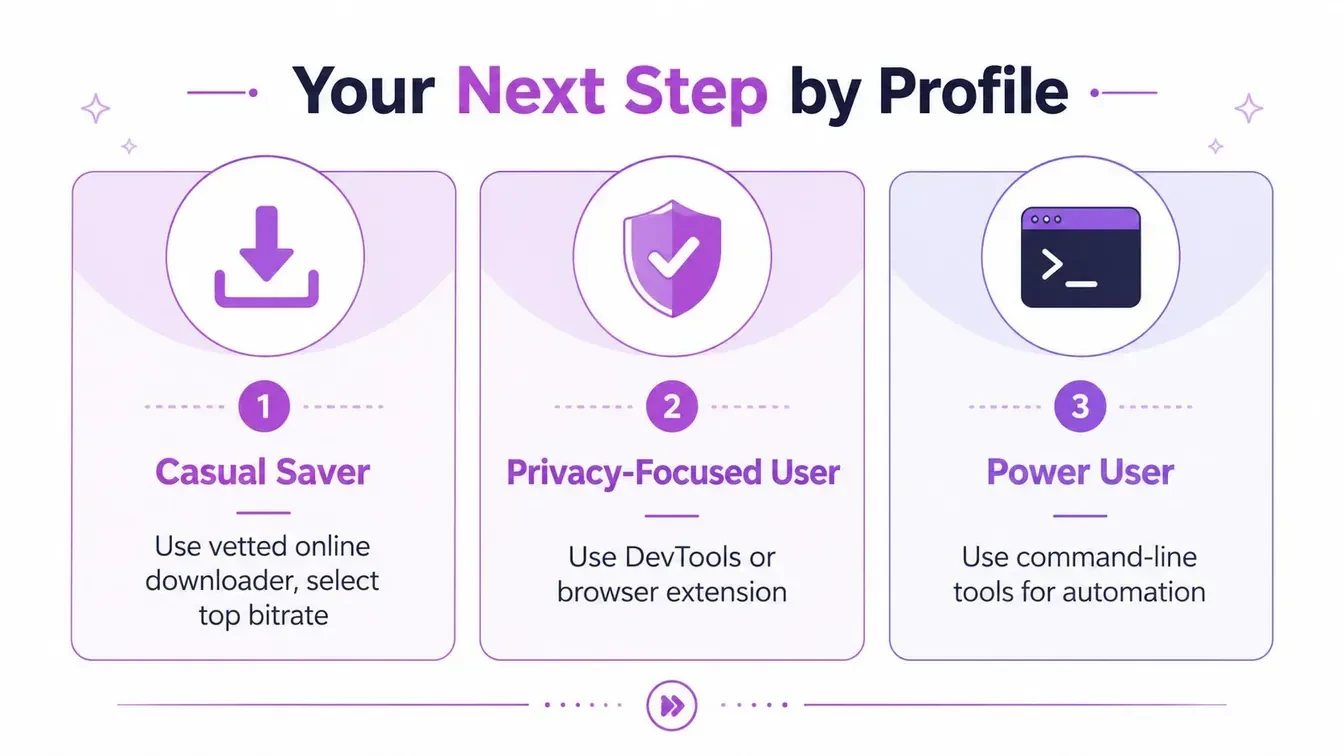
The best method is the one that matches your workflow:
- Casual savers should use a vetted browser downloader, inspect the available list, and select the top bitrate variant.
- Privacy-focused users should use DevTools or a maintained command-line tool, avoiding unnecessary third-party handoffs.
- Mobile-first users should share the post URL to a browser and save the returned MP4 without installing an untrusted app.
- Power users should use
yt-dlpwhen repeat downloads, naming, and batch handling justify the setup.
The quality rule doesn’t change: the original upload sets the ceiling. A downloader can expose the highest variant X makes available, but it can’t create native detail above that source. The decision that matters most happens before you save the file, when you compare resolution and bitrate rather than accepting the first button marked HD.
If you’re troubleshooting quality, return to the source-resolution section. If privacy is your concern, use the DevTools and consent guidance. If you’re working from a phone, stick with the browser handoff and verify the saved file in Files, Photos, Downloads, or Gallery.
Start with one public post now. Copy its URL, inspect every returned variant, select the highest bitrate option, and verify the saved MP4 before adding it to your archive.
Xholic AI helps X users organize saved research, study strong posts, and turn relevant ideas into personalized replies and drafts through human-reviewed workflows. Visit Xholic AI to connect your clip research with a more consistent content and engagement process.