
You share a link on X and it shows up as a bare URL, or with the wrong image, or with a picture cropped in half. The cause is almost always the page’s card tags: a few lines of meta tags in the page’s <head> that tell X’s crawler which title and image to use. This guide explains which tags X reads, the image sizes that work, and how to check a card before you post, using Xholic’s free Twitter Card Validator.
X used to have its own Card Validator with a live preview, but it removed the preview in 2022. Since then, the only official check is to paste the link into the post composer and look. A validator that draws the card for you saves that guesswork and tells you what to fix.
What a Twitter card is
A card is the preview X builds under a post that contains a link. When someone posts your URL, X’s crawler (called Twitterbot) fetches the page, reads its meta tags and builds the card from them. There are two card types for ordinary web pages:
| Card | twitter:card value |
What it shows | Image |
|---|---|---|---|
| Summary card with large image | summary_large_image |
A wide image with the page title on it, and the domain underneath | About 2:1, at least 300×157 |
| Summary card | summary |
A square thumbnail next to the title and domain (X’s web layout can also show the description) | 1:1, at least 144×144, cropped to a square |
X also documents app and player cards for app installs and embedded video. Most sites want summary_large_image: it takes up far more of the timeline than the small card.
The tags X reads
Put these in the page’s <head>. X reads its own twitter: tags first and falls back to the matching Open Graph (og:) tag when one is missing, so many sites only need twitter:card on top of their existing Open Graph tags.
| Tag | What it does | Open Graph fallback | Limit |
|---|---|---|---|
twitter:card |
The card type | None (see below) | summary, summary_large_image, app or player |
twitter:title |
The card’s title | og:title |
70 characters |
twitter:description |
A one-line summary | og:description |
200 characters |
twitter:image |
The card image, as a full URL | og:image |
Under 5 MB; JPG, PNG, WEBP or GIF |
twitter:image:alt |
The image description for screen readers | og:image:alt |
420 characters |
twitter:site |
The site’s X account, e.g. @xholicai |
None | |
twitter:creator |
The author’s X account | None |
These limits come from X’s Cards markup reference. Without twitter:card, X’s docs say a page with og:type, og:title and og:description “may” get a summary card, the small one. If you want the large image, add twitter:card yourself.
A complete set looks like this:
<meta name="twitter:card" content="summary_large_image">
<meta name="twitter:site" content="@yourhandle">
<meta name="twitter:title" content="Your page title">
<meta name="twitter:description" content="One sentence about the page.">
<meta name="twitter:image" content="https://example.com/images/card-1200x628.jpg">
<meta name="twitter:image:alt" content="What the image shows">
<meta property="og:title" content="Your page title">
<meta property="og:description" content="One sentence about the page.">
<meta property="og:image" content="https://example.com/images/card-1200x628.jpg">
<meta property="og:url" content="https://example.com/page">
The validator builds this block for you from what your page already has, with placeholders for anything missing.
Twitter card image size
From X’s docs for the summary card with large image and the summary card:
- Large image card: 2:1 aspect ratio, at least 300×157 pixels, at most 4096×4096.
- Summary card: 1:1, at least 144×144, at most 4096×4096. X crops it to a square.
- Both: under 5 MB, as JPG, PNG, WEBP or GIF. X uses only the first frame of an animated GIF. SVG isn’t supported.
In practice, export large card images at 1200×628 (1.91:1, the common Open Graph size). It’s sharp on large screens and X shows it with almost no crop. Keep text and logos away from the edges, because the title label sits on the bottom-left corner of the image. For other X image sizes, such as headers and profile pictures, see the Twitter image size tool and its guide.
How to check your card, step by step
- Paste the link. Open the Twitter Card Validator, paste the exact URL you plan to share and select Check card. A bare domain works too; the tool adds
https://. - Read the verdict. The top line says which card X will show (large image, small summary or a plain link) and how many things need fixing.
- Look at the preview. The card is drawn the way X’s web layout shows it, with the title on the image and “From yourdomain.com” underneath. Switch between Light and Dark to check that your image works on both.
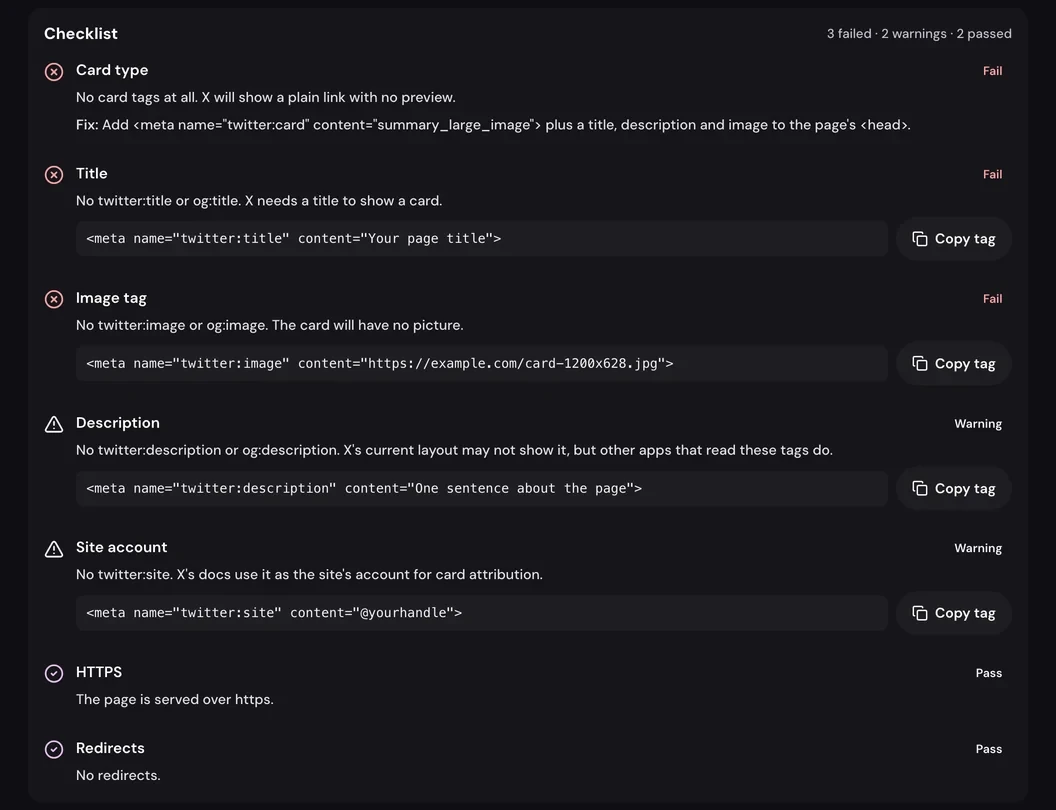
- Work through the checklist. Failures come first, then warnings, then passes. Each line says what we found and how to fix it, often with the exact tag and a Copy tag button.
- Check the tags table. It lists every
twitter:andog:tag on the page in order, plus the page title, canonical URL, final URL and any redirects. Duplicate tags, and tags with a misspelled name such astwitter:imgae, stand out here. - Fix and check again. Results are saved for 10 minutes per URL, so check again after that, or add a harmless query string such as
?v=2to check the new version straight away.

Why your link shows no preview on X
When the validator shows a plain link or a card without an image, the checklist usually names the cause. These are the common ones:
- No card tags at all. The page has no
twitter:orog:tags, so X has nothing to build a card from. Add the starter block above. - No title. X needs
twitter:titleorog:titleto show a card. - The image tag is missing or relative.
/images/card.pngis a relative URL; use the fullhttps://example.com/images/card.png. - The image is too small. Under 300×157 for the large card, or under 144×144 for the small one, X drops it.
- The image is too heavy or the wrong format. Over 5 MB, or an SVG or AVIF file. Export a JPG, PNG or WEBP.
- The image doesn’t load for a crawler. It’s behind a login, returns an error page, or the server blocks bots. Open the image URL in a private window to check.
- robots.txt blocks Twitterbot. X’s crawler follows your robots.txt. If a page with card markup is blocked, X shows no card, and if the image URL is blocked, X shows no image. Allow it with
User-agent: Twitterbotand an emptyDisallow:line, as X’s getting started guide shows. The validator doesn’t read robots.txt, so a robots.txt block can still hide your card on X even when every check passes. If that happens, check this first. - TLS problems. X’s crawler needs TLS 1.1 or newer, per X’s troubleshooting guide. If the validator reports a certificate error, X’s crawler is likely failing too.
What each check means
| Check | Pass | Warning or fail |
|---|---|---|
| Card type | twitter:card is a type X knows |
Missing (X may fall back to a small card) or unknown |
| Title and length | A title within 70 characters | Missing (fail) or longer than 70 (may be cut off) |
| Description and length | A description within 200 characters | Missing, or longer than 200 |
| Image tag and URL | A full https image URL | Missing, relative, data: or http on an https page |
| Image loads | The image URL returns an image | An error, a login page, a private address or a timeout |
| Image format | JPG, PNG or WEBP | GIF (first frame only), SVG or another format |
| Image size | Above X’s minimum and about 2:1 for the large card | Under the minimum, over 4096 pixels, far from 2:1 or under 600 pixels wide |
| Image file size | Under 5 MB | 5 MB or more |
| Image description | twitter:image:alt or og:image:alt within 420 characters |
Missing, or too long |
| Site account | twitter:site is set |
Missing |
| HTTPS and redirects | An https page with no redirects | Plain http, or redirects before the final page |
How to refresh a card X has already cached
X caches a card for 7 days after a link to the page is first posted, according to its getting started guide. So after you fix your tags, a post with the same URL may still show the old card for a while. Two ways around it:
- Share a slightly different URL. Add a query string such as
?v=2. X treats it as a new link and fetches the page again. Make sure your canonical tag still points to the clean URL. If you changed the image but kept its file name, change the image URL too (for examplecard.jpg?v=2), because X also caches images by URL, per its troubleshooting guide. - Wait it out. The old card expires on its own.
Before posting, run the new URL through the validator so you know the fresh card is right.
How the validator fetches your page
The validator requests the page once from our server, as a crawler named XholicCardValidator, with no cookies and no login. It follows up to 3 redirects within 5 seconds, reads up to 1 MB of HTML and the first 64 KB of the card image (enough to read its format and pixel size). It only fetches public http and https pages on the standard ports, so private networks, localhost and pages behind a login can’t be checked, just as X’s crawler can’t see them. You can run 20 checks every 10 minutes.
The preview follows X’s current web layout. X’s apps can differ slightly, and X can change how cards look without notice, so treat the preview as a close match rather than a guarantee.
Frequently asked questions
Is there still an official Twitter Card Validator?
X removed the preview from its Card Validator in 2022. The only official check left is pasting the link into the post composer and looking at the card before you post. Xholic’s free Twitter Card Validator draws the card for you and lists what to fix.
What is the best Twitter card image size?
1200×628 pixels for the large image card, as a JPG, PNG or WEBP under 5 MB. X’s documented minimum is 300×157 and its maximum is 4096×4096, with a 2:1 aspect ratio. For the small summary card, use a square image of at least 144×144.
Do I need twitter: tags if I already have Open Graph tags?
Mostly no: X falls back to og:title, og:description and og:image. But add twitter:card with summary_large_image, because without it X may show the small summary card instead of the large image.
Why does X show the wrong image for my link?
Usually because X cached an older card, the page has more than one image tag and X may pick the wrong one, or your CMS adds its own og:image. Check the tags table in the validator for duplicate image tags and keep one twitter:image and one og:image, both pointing to the image you want.
Why is my card image cropped?
The large card shows images at about 2:1. A square or tall image gets its top and bottom cut off. Export the image at 1200×628 and keep important text away from the edges.
Can I check a page that isn’t live yet?
Only if it’s reachable on the public internet. The validator, like X’s crawler, can’t reach localhost, private networks or pages behind a login. Use a public preview or staging URL.
Related guides and tools
- Twitter Card Validator: see the card X will build for any link, with a checklist of fixes.
- Twitter image size tool: every X image size with its source, plus a browser-only resizer.
- Twitter Banner Maker: design a matching 1500×500 header for your profile.
- Twitter post templates: fill-in-the-blank posts for launches and links.