Quick answer: Type any text and the tool instantly shows it in dozens of Unicode font styles bold, italic, cursive, gothic, monospace, and more. Click any style to copy it, then paste it directly into Twitter. It works because Twitter supports Unicode characters, not actual font changes.
What Is It?
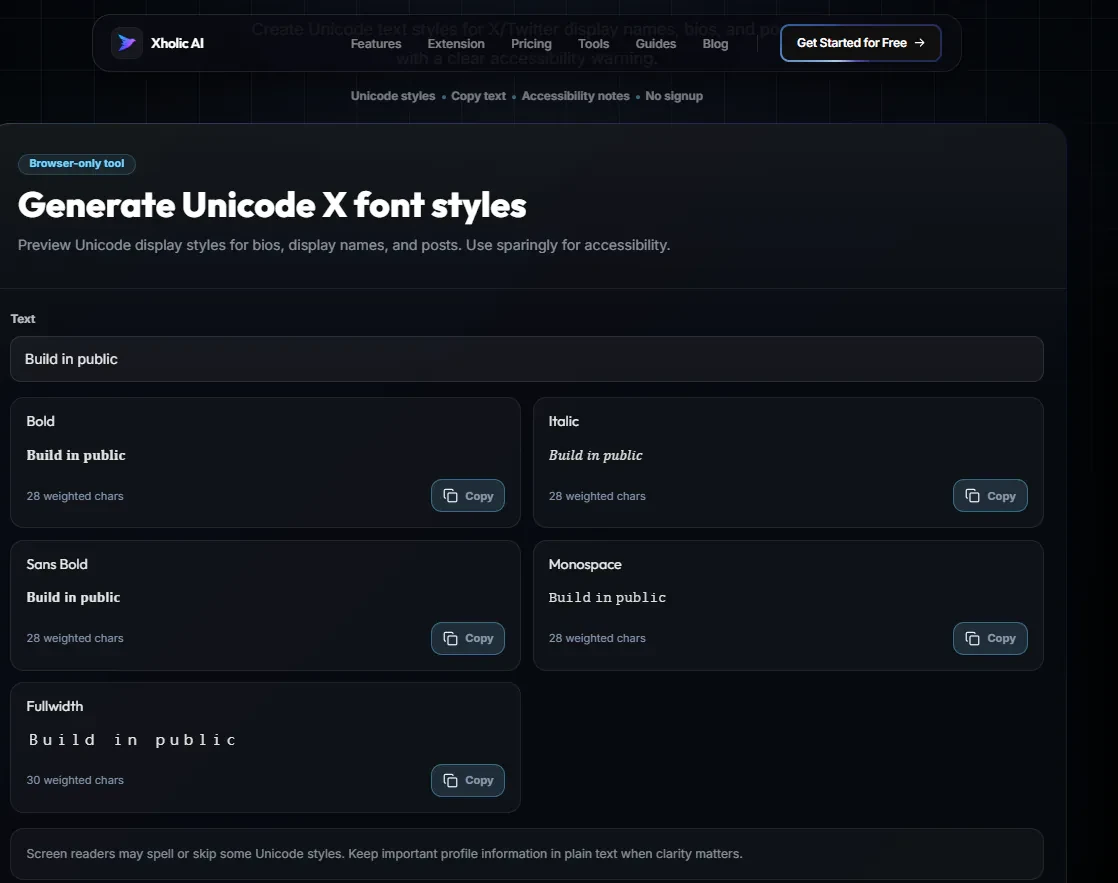
The Twitter Font Generator is a free tool at xholic.ai. Type any text and the tool instantly shows it in dozens of Unicode font styles, bold, italic, cursive, gothic, monospace, and more. Click any style to copy it, then paste it directly into Twitter. It works because Twitter supports Unicode characters, not actual font changes.
Open the Twitter Font Generator Tool.
Who Uses It and Why
| Who Uses It | What They Use It For |
|---|---|
| Profile optimisers | Add bold or cursive text to their display name or bio to stand out in search results |
| Content creators | Use styled text in tweets to make keywords or phrases visually pop |
| Brand accounts | Create a consistent visual identity across their bio and pinned tweet |
| Students & casual users | Just want their bio or username to look different from everyone else’s |
| Marketers | Design promotional tweets with styled headings or emphasis text |
How to Use It - Step by Step
It takes under a minute. Here’s exactly what to do:
Step 1: Open the tool
Go to Twitter Font Generator. Nothing to install.
Step 2: Type your text
Enter your name, bio text, or any phrase into the input box. The tool updates in real time as you type.
Step 3: Browse the styles
Scroll through the font previews below the input. You’ll see your text in bold, italic, cursive, double-struck, gothic, monospace, small caps, and more.
Step 4: Click to copy
When you find a style you like, click the Copy button next to it. The styled text goes to your clipboard.
Step 5: Paste into Twitter
Go to your Twitter bio, display name, or tweet compose box and paste. The styled text appears exactly as it looked in the preview.
Pro tip: Use styled fonts sparingly. One bold word in a bio stands out. An entire bio in gothic script becomes hard to read, and may not display correctly on older devices. Pick one style for your display name and keep your bio mostly plain.
Real Example
A fitness creator types ‘Coach Mike’ into the tool and picks the bold double-struck style: ’𝗖𝗼𝗮𝗰𝗵 𝗠𝗶𝗸𝗲’. They paste it as their display name. In search results and notifications, their name now stands out visually from everyone around them, no design tool needed.
What to Do With Your Result
These aren’t actual fonts they’re Unicode characters that look like fonts. They work on Twitter because Twitter supports the full Unicode character set. The same paste works on Instagram, LinkedIn, TikTok, and most other platforms.
Heads up: Some Unicode styles don’t work in every context. Emoji-heavy styles and some decorative characters may display as boxes on older Android phones or in Twitter’s search results. Test in your actual bio before committing.
Frequently Asked Questions
Can I actually change fonts on Twitter?
Not directly Twitter uses its own font called Chirp and doesn’t allow custom fonts. What you’re actually doing is replacing normal letters with Unicode characters that look like different fonts. The result is the same visually.
Will the styled text work in my bio?
Yes. Twitter bios support Unicode characters, so any style generated here will display correctly in your bio. Your 160-character limit still applies some Unicode characters count as 2 characters.
Does it work on mobile?
Yes. Open the tool in your phone browser, type your text, tap Copy, then paste into the Twitter app. It works on both iOS and Android.
Will it affect my character count on Twitter?
Some Unicode styles use multi-codepoint characters that count as 2 in Twitter’s character counter. If you’re close to the 280-character limit on a tweet, check the count after pasting.
Can I use these fonts in a tweet, not just my bio?
Yes. Paste styled text directly into the tweet compose box. It will appear as styled in the published tweet.
Are there styles that are more professional?
Bold and small caps tend to read as professional. Cursive and gothic can work for creative accounts. Bubble text and upside-down text are mostly novelty styles.
Related Xholic Tools
These tools work well alongside this one:
- Twitter Bio Generator - Write a great bio, then style it with this font generator
- Twitter Character Counter - Check your character count after pasting styled text
- Twitter Bio Templates - Get a bio structure, then style the keywords
- Fake Tweet Generator - Preview how your styled text looks in a real tweet mockup