The wrong question is “fake tweet generator vs Photoshop.” The question is whether you need a mockup for approval, education, or preview, or whether you’re drifting into something that can be mistaken for evidence. If the artifact might leave your team’s control, the more realistic it looks, the more you’ve raised your own verification risk.
A fake tweet generator is for speed and repeatability. Photoshop is for control and edge cases. Neither should be used to manufacture proof, and both should stay behind a clear disclosure wall when the goal is internal review, not public deception.
| Criterion | Fake Tweet Generator | Photoshop |
|---|---|---|
| Speed | Fastest path to a usable mockup | Slower unless you already have templates |
| Visual control | Good for common layouts, limited for edge cases | Strong control over every pixel |
| Editability | Usually locked after export | Layered files stay editable |
| Collaboration | Simple for one-off previews | Better for team review and revision |
| Detection risk | Easy to question if shared without context | Can be cleaner, but still unverified as a screenshot |
| Best use | Drafts, decks, concept checks, training | Client reviews, brand accuracy, high-fidelity approvals |
The Question Most Comparisons Get Wrong
Most comparisons frame this as a style contest. They ask which tool makes the more convincing fake tweet, and that framing is already off. The useful question is who will see the file, what they’ll believe about it, and whether the artifact is clearly a mockup or a screenshot pretending to be live.
A fake tweet, in practical terms, is any artifact that presents words as posted on X by a real or fictional handle without disclosure. A labeled mockup is different. It’s a design aid for approvals, pitch decks, training, or concept testing, and it should stay clearly marked as such.
Practical rule: the more realistic the screenshot, the more important the process around it becomes.
That’s why realism and risk aren’t the same thing. Tight typography, believable avatars, and polished timestamps can make a file look clean, but they don’t change whether someone can reuse it out of context. The failure mode isn’t bad design, it’s bad governance.
There’s also a deeper shift in how misinformation gets processed. An assessment released in 2026 by the International Panel on the Information Environment synthesized 24 peer-reviewed studies, 33,801 participants, and 60 randomized controlled trial effect estimates from 2018 to 2025, and concluded that misleading text poses a greater persuasive risk than deepfakes in some settings. That matters here because a fabricated X screenshot looks visual like Photoshop, but the persuasive payload is the text inside it. IPIE’s 2026 analysis makes the core point plain, tweet-style fakes are a credibility problem, not just a design problem.
So the right way to compare fake tweet generator vs Photoshop is by intent, traceability, and downstream use. If the file is for internal review, you want clarity and control. If the file might be shared externally, you want disclosure, provenance, and a paper trail.
What Each Tool Actually Does in 2026
Fake tweet generator workflows
A browser-based fake tweet generator is built for one job, produce a realistic-looking X post mockup quickly. Modern tools usually let you customize the display name, @handle, avatar, body text, timestamp, verified badge, and engagement counts, then export a PNG or JPG version, sometimes with a shareable URL. One example explicitly describes that setup for X post mockups and PNG export in-browser. Xholic’s fake tweet generator fits that model.
The upside is obvious. You can turn a brief into a visual in minutes, and that’s enough for a deck, a preview, or a training asset. The trade-off shows up fast. Once you export, the text is usually locked, layout control is limited, and the same template can start to feel familiar if your team uses it often.
Photoshop workflows
Photoshop takes the opposite route. You start with a reference screenshot or a base frame, then rebuild the X UI with layers, shapes, text, and image components. Good operators organize the file so handles, avatars, badges, and engagement metrics can be swapped without rebuilding the whole composition. Smart Objects help when you want editable avatars or reusable UI parts.
That extra control comes with a cost. Photoshop has a learning curve, and a polished template takes time to build. Once it exists, though, one PSD can support a long run of variations for different campaigns, clients, or approval rounds.
If you want a broader design-tool angle, this comparison of Photoshop and AI upscalers is useful for understanding where manual control still matters versus where automated tooling is enough.
The blunt version is this. Generators trade control for speed. Photoshop trades speed for control. If you already know which of those matters more, the choice gets much easier.
Side-by-Side Comparison on the Criteria That Matter
The wrong comparison starts with realism alone. The better question is which tool creates the right approval risk, the right amount of editability, and the least governance headache for your team.
| Criterion | Fake Tweet Generator | Photoshop |
|---|---|---|
| Realism | Strong for common layouts and fast mockups | Strongest for edge cases, custom styling, and exact UI mimicry |
| Speed | Very fast, often the easiest way to get a deck-ready asset | Slower unless you already have a reusable PSD template |
| Cost | Often free or low-friction for one-offs, depending on the tool | Requires a subscription and more operator time |
| Editability | Limited after export | Layered files stay editable and reusable |
| Collaboration | Fine for solo work and quick previews | Better for shared review, versioning, and team comments |
| Detection risk | Easier to question if shared without context | Can look more polished, but still needs disclosure and verification discipline |
On realism, Photoshop wins whenever the mockup needs custom fonts, tighter badge spacing, or unusual UI details that a generator will flatten. Fake tweet generators cover the common cases well enough for internal previews and deck assets. That is the point. Most teams do not need perfect mimicry, they need something clean enough to review without burning time.
Speed is where the generator earns its place. Drop in the copy, export, move on. Photoshop slows the first pass, but it pays back when the same layout needs repeated changes across several approvals.
Cost follows the same pattern. A generator works as a throwaway utility. Photoshop makes more sense when one layered file supports a long chain of revisions, because the setup cost gets reused.
Editability and collaboration are where Photoshop pulls ahead. A flattened export is fine until the hook changes, the handle changes, or legal asks for a disclosure line. Then the layered file saves you from rebuilding the whole composition.
Detection risk is the line nobody should ignore. Without proper disclosure and verification, neither tool makes a screenshot trustworthy on its own. The safer habit is to treat the mockup as an approval asset, not proof. If the visual will be judged alongside adjacent design workflows, comparing Photoshop and AI upscalers is a useful reminder that pixel quality does not solve provenance.
The blunt call is simple. Use generators for speed and low-stakes previews. Use Photoshop when revision control, reuse, and tighter governance matter more than getting something out fast.
Workflows for Mockups, Decks, and Previews
A mockup should answer one question fast. Can this pass review without creating verification risk? That framing keeps the work honest. The point is approval, not making a fake post look real.
The fast path for approvals and previews
A creative ops lead usually takes the generator route for early decks and internal previews. Drop in the copy, fill the engagement counters, pick a verified-style template, export a PNG, then stamp on a visible “CONCEPT, NOT LIVE” watermark before the asset goes into Slides. For teams that want a lightweight visual scaffold, this blank Twitter post template gives you a clean starting point before the final copy lands.
That workflow wins on speed because the text can change without rebuilding the layout. It also keeps approval work contained. If the founder rewrites the hook or legal changes the disclosure line, you re-export and move on.
The high-fidelity path for client review
Photoshop earns its place when the asset has to survive heavier review. Start from a real screenshot base, rebuild the X UI with vector shapes and text layers, and keep the handle, timestamp, and engagement modules editable. Export a layered PSD for revisions and a PNG for the deck.
That setup takes more time upfront, but it avoids repeated rebuilds later. If the same mockup needs tighter edits across several rounds, the layered file pays back quickly. If you need AI-powered editing alongside your mockup workflow, use Zemith for AI editing to streamline asset refinement.
High-fidelity work also makes governance easier. The source file can carry disclosure text, version notes, and layout changes without turning the deck asset into a dead end.
A direct rule helps here. Use generators for fast, low-stakes previews. Use Photoshop when revision control, reuse, and approval traceability matter more than speed.
One practical habit cuts risk in both workflows. Keep the visual scaffold close to the editing tools, then treat the output as a review asset, not a claim about a live post.
Legal, Ethical, and Platform Risks You Should Plan Around
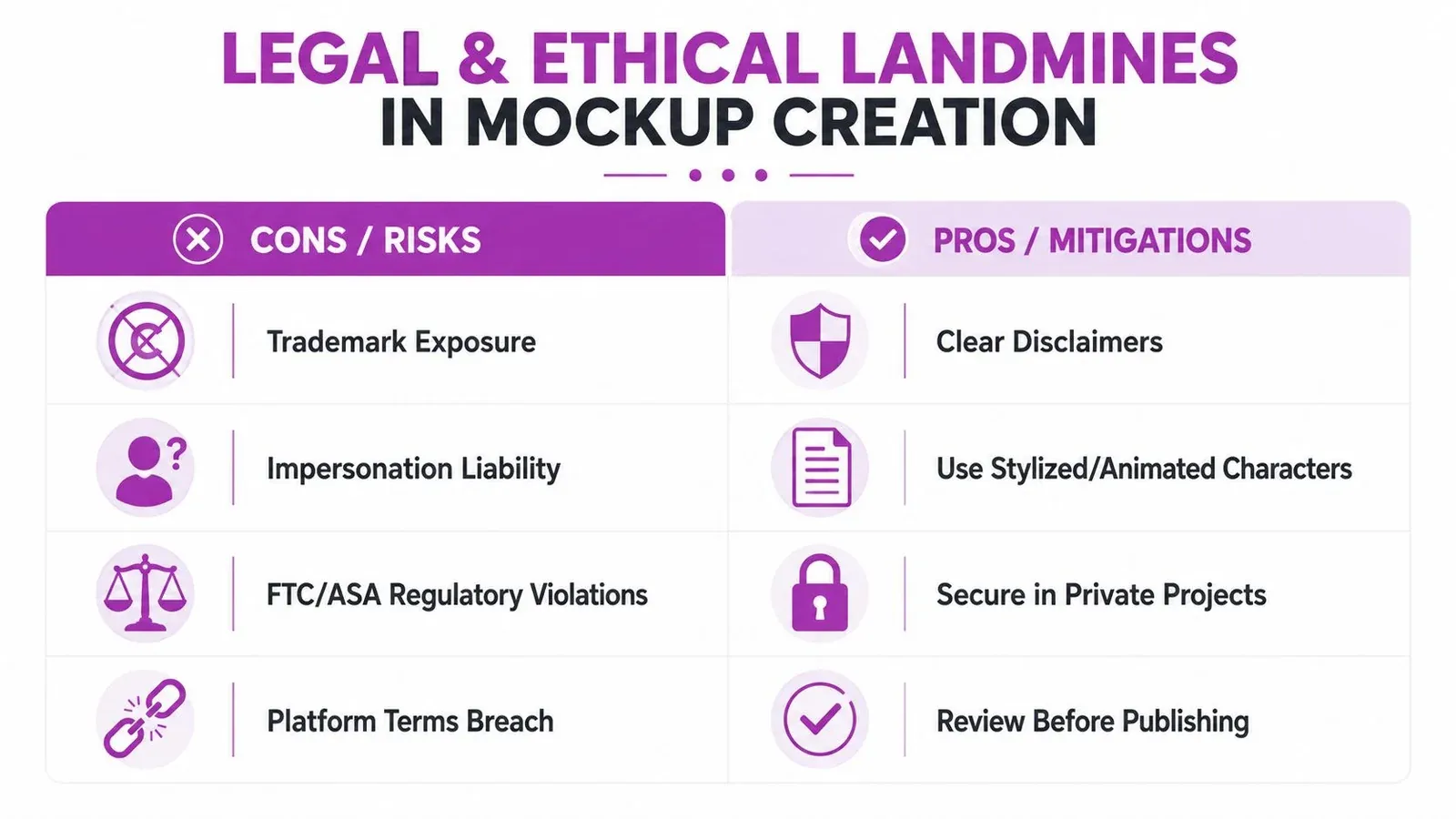
A mockup becomes a liability the moment it can pass as evidence. The problem is not polish, it is verification risk. If a real public figure, brand, or creator appears in an unmarked screenshot, impersonation, trademark exposure, and reputation damage can follow fast.
Sponsored previews need the same discipline. If the asset is meant to show paid placement, endorsement, or partnership language, the disclosure has to be obvious enough that nobody reads it as a live post. Synthetic media used in civic or electoral contexts raises the stakes further, because a private review file can become deceptive as soon as it leaves the team.
What usually goes wrong
The failures are plain. A screenshot goes into Slack without the disclaimer line. A deck slide gets forwarded and someone presents it as live engagement. A parody asset gets reused later after the watermark that made the joke obvious is gone.
That is a brand problem, and it also feeds a wider trust problem. Reuters has reported on AI-driven deepfakes and the push for stronger detection measures, while the ADL’s 2025 trends overview tracks how mis- and disinformation tactics keep spreading into more formats and workflows. Reuters’ reporting on AI-driven deepfakes and the ADL’s 2025 trends overview point to the same operational reality, provenance now matters more than polish.
For a practical trust and safety checklist, trust and safety best practices are worth following. For a step-by-step walkthrough of generator outputs and their limits, see our fake tweet generator guide.
The risk is not only the first use. The more synthetic screenshots circulate, the easier it becomes for bad actors to dismiss real evidence later. That is the liar’s dividend, and it hurts journalists, researchers, archive teams, and comms leads who need authentic screenshots to still mean something.
Set the rule early. Private mockup, visible label, restricted audience, and no third-party handle without written approval.
Verification Habits That Beat Pixel Polishing
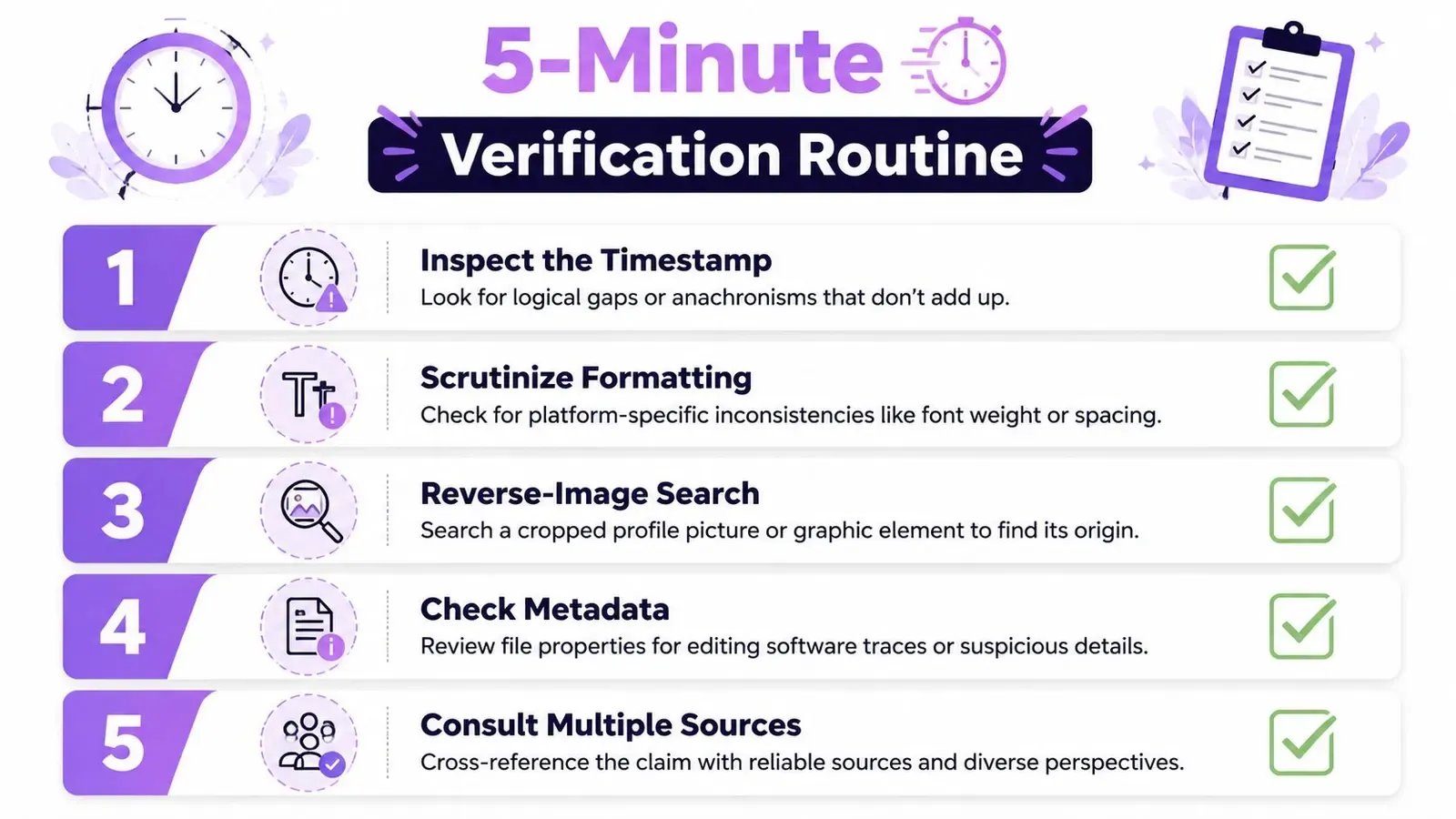
A team trying to catch deception doesn’t need more Photoshop time. It needs a five-minute verification habit. Start with the timestamp and thread context, then click through the quoted post or referenced account instead of trusting the image alone.
A quick screen you can actually use
Read the text first. Then check whether the handle, badge, and engagement pattern make sense together. If the screenshot shows a quote post or reply chain, verify that the surrounding context exists on the original account or through search.
After that, run a reverse-image lookup. If the image has been shared before, that’s a signal worth stopping for. Then inspect metadata where available, because editing software traces and pasted screenshot remnants can show up there even when the picture looks clean.
Operating rule: treat every screenshot as unverified until the source proves otherwise.
Text-and-source verification beats pixel polishing. A fake tweet can be made to look tidy, but if the exact phrase doesn’t surface on the account timeline or in search, the file still doesn’t hold up. For public posts, that check is often more useful than staring at compression artifacts. The earlier section on source checking already pointed out why exact-text searches and archive checks are more reliable than eyeballing a frame, and that logic still holds here.
If your team works with X a lot, advanced search operators for Twitter are worth keeping in the workflow. They make it easier to confirm whether a post exists, whether it was deleted, and whether the screenshot matches the original conversation.
When Each Option Fits Real Creator and Team Scenarios
Solo creators need speed. If you’re shipping tweet drafts, testing hooks, or dropping a visual into a pitch deck tonight, a generator is the right tool because it gets you from brief to asset without turning the task into a design project. It’s also the easiest path when you’re iterating on copy with a partner who cares more about the message than the pixel grid.
Design teams need durability. If the mockup will go through client review, legal review, or three rounds of comments from people who all want small changes, Photoshop is the better choice because the layered file stays intact. That matters when a handle changes, a timestamp needs to be corrected, or a disclosure line has to be added without flattening everything.
Training and education lean toward generators. If you’re building phishing awareness material, crisis comms drills, or journalism-school examples, disposable mockups are easier to produce and easier to retire. Brand guardians who are recreating a real screenshot for a case study need Photoshop, because the type, spacing, and structure have to remain honest.
Internal approvals can go either way. The tool doesn’t matter as much as the wall around the file. If the artifact is clearly marked, kept private, and reviewed before distribution, both tools can serve the workflow.
Recommendation block
- Use a generator when speed, volume, and easy iteration matter most.
- Use Photoshop when the mockup has to survive client feedback and exact visual scrutiny.
- Use neither publicly unless the file is clearly disclosed as a mockup.
- Use a watermark any time a screenshot could be mistaken for live proof.
Checklist and a Safer Path Forward for X Creators
Before you publish or paste any mockup, run this checklist. Confirm that the intent is mockup-only. Add a visible label or watermark. Restrict the file to the intended audience. If a third-party handle appears, capture written approval before sharing it.
Then verify the content, not just the pixels. Read the source text first, check the URL bar or account context, inspect the timestamp, and run a reverse-image search if the file looks too clean. If the screenshot is supposed to represent a real post, treat it as unverified until you can trace it back to the original source.
For creators who need mockups and real publishing in the same workflow, separate the jobs. Use a generator or Photoshop for previews, then move the post into a system built for writing, scheduling, and analyzing real content. That’s where a creator workspace like Xholic AI fits, it keeps mockups, drafts, reply research, and live X content in one place so teams can stop exporting fakes and start shipping posts they can stand behind.
If you want a more disciplined workflow for X, use Xholic AI to keep mockups, drafts, and reply research in one context-aware system. It’s useful when you need to plan real posts, review conversations, and keep approval work separate from anything that could be mistaken for evidence.