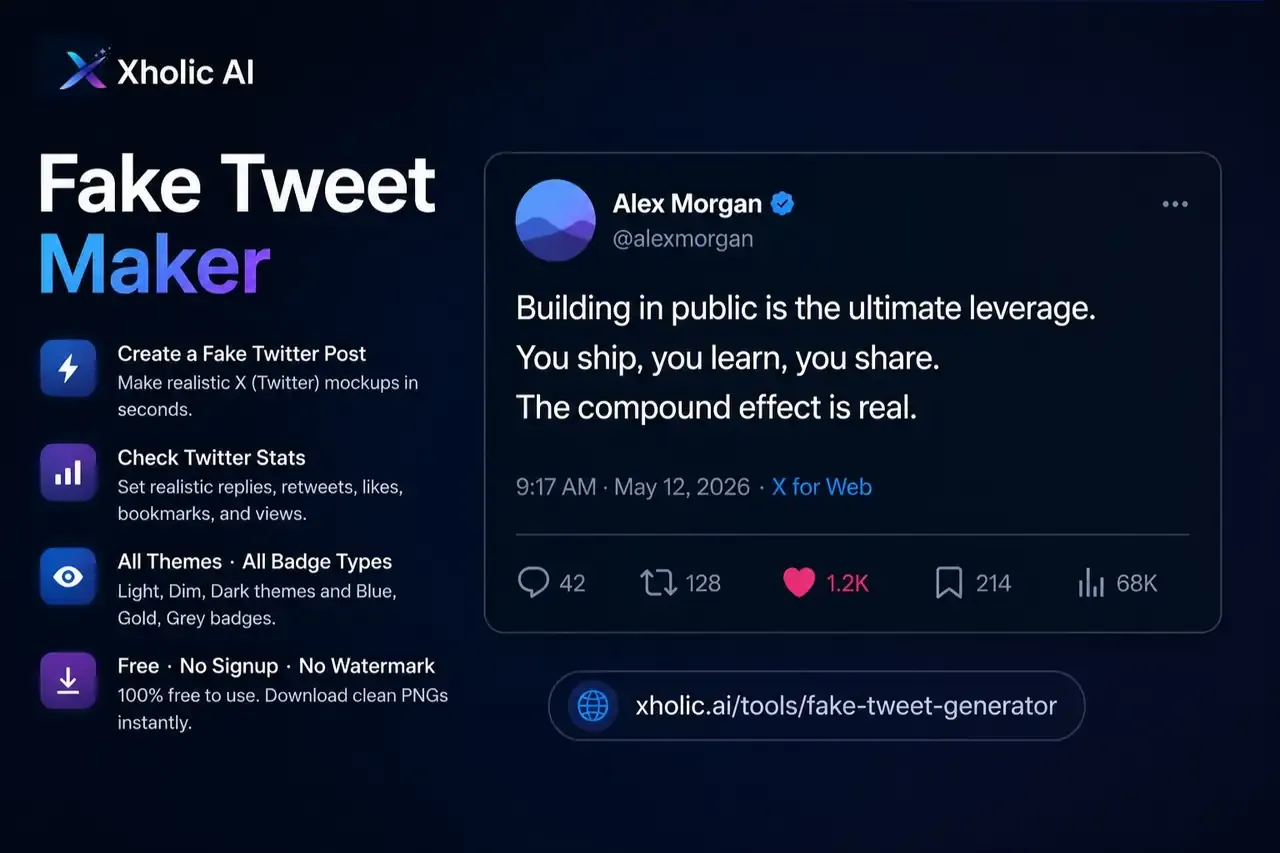
Free. No signup. No watermark. All themes. All badge types.
Xholic AI: xholic.ai/tools/fake-tweet-generator
Introduction
People land on this topic from five different directions. Some type “fake tweet maker” because they need a mockup for a client presentation and want it done in two minutes. Some type “tweet generator” because they are planning content and want to visualise how their copy looks before it goes live. Some type “fake Twitter post” because they are a teacher building a media literacy lesson or a designer who needs realistic placeholder content. Some type “twitter stats” because they want to understand what the engagement numbers on a tweet actually mean before they set them in a mockup. And some type “fake tweet generator” because they have tried three other tools already, all of them added a watermark or buried the dark mode option behind a subscription, and they are looking for one that just works.
This article is written for all five. It covers what the tool does, how to use it, how to set engagement numbers that look real, what twitter stats actually mean in the context of a mockup, how to create a fake Twitter post that holds up to scrutiny, and every question we get asked most often. By the end, you will know exactly how to use Xholic’s fake tweet maker, and exactly why the details that seem small are the ones that determine whether a mockup looks genuine or obviously generated.
What Is a Fake Tweet Maker?
A fake tweet maker is a web-based design tool that creates visual mockups of X (Twitter) posts. You fill in the profile details, write the tweet text, set the engagement numbers, choose a theme, and export the result as an image. The output looks like a screenshot of a real tweet. It is not a real tweet. Nothing is published to the platform. Nothing connects to any account. The only output is a PNG file saved to your device.
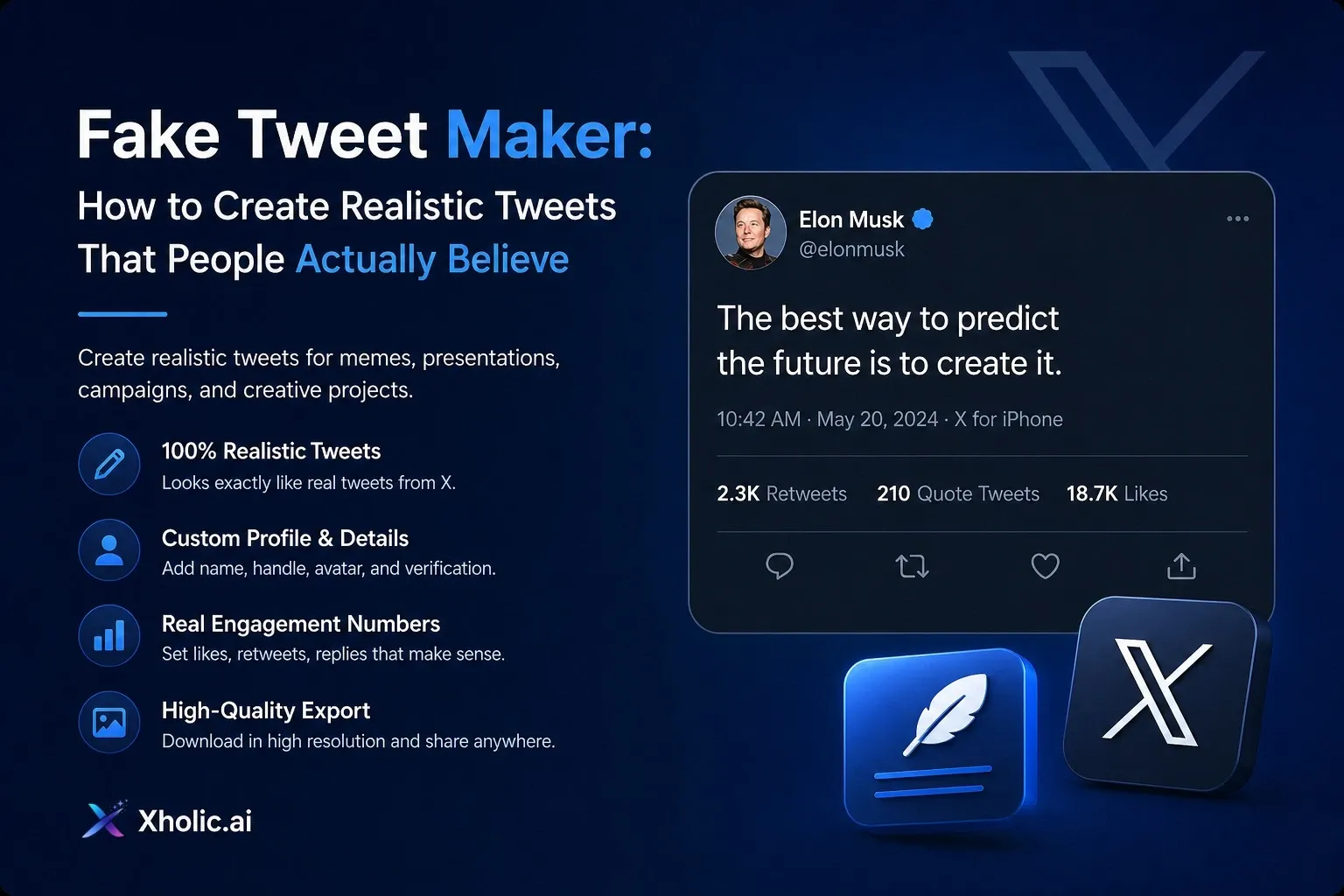
Every element visible in a real X post is editable in our tool. The display name. The username handle. The profile picture. The verified badge, and we support all three badge types currently used by X, not just the blue one. The tweet text, including line breaks, mentions, and hashtags. The timestamp. The visual theme: light, dim, or dark. The engagement metrics: replies, reposts, likes, bookmarks, and views. Optional media upload if the tweet includes an image.
What it is not: a hacking tool, a way to post from anyone’s account, a service that stores your content, or a product that requires a subscription to use fully. Ours is entirely free, entirely browser-based, and has no connection to X’s servers. If you want to compare the broader fake tweet maker landscape before choosing one, our tested comparison covers eight current options.
What Is a Tweet Generator?
A tweet generator and a fake tweet maker are the same thing described with slightly different emphasis. Tweet generator is the more neutral framing, it describes any tool that produces a visual tweet output without requiring you to publish on the platform. Fake tweet maker and fake tweet generator emphasise that the output is a mockup rather than a real post.
Some tools use the phrase tweet generator to mean an AI writing assistant that suggests tweet copy. That is a different product. Our tweet generator at Xholic is a visual mockup tool, it creates the image of a tweet, not just the words. You supply the copy. The tool produces the visual.
What Is a Fake Twitter Post?
A fake Twitter post is exactly what it sounds like: a visual representation of an X post that was created by a design tool rather than actually published on the platform. The phrase “fake Twitter post” is commonly used by people who need the output for a specific practical purpose and are describing what they are looking for in plain terms.
The use cases are wide. A marketing manager needs a fake Twitter post to show a client how their campaign tweet will look before it goes live. A teacher needs a fake Twitter post to demonstrate to students how convincingly screenshots can be fabricated. A founder needs a fake Twitter post in a pitch deck to visualise what product launch engagement might look like. A UX designer needs a fake Twitter post as placeholder content in an interface mockup. A content creator needs a fake Twitter post for a satirical piece or a creative project.
In all of these cases, the person is looking for the same thing: a tool that produces a realistic-looking X post image, quickly, for free, without publishing anything real.
Understanding Twitter Stats: What the Numbers in a Tweet Actually Mean
This section matters because it is one of the most searched questions in this space, and because getting the engagement numbers wrong is the single fastest way to make a mockup look obviously fake. Before you set the stats on your fake tweet, it helps to understand what each number represents on a real post.
Replies
Replies are direct responses to a tweet. On a typical post from a small to mid-size account, the reply count tends to be the lowest of all the engagement metrics, most people who react to a post will like it rather than reply to it. A tweet with 200 likes might have 8 to 15 replies. A tweet with 2,000 likes might have 40 to 80 replies. If your fake tweet shows 5,000 likes and 4,800 replies, that ratio is immediately implausible to anyone who spends time on X.
Reposts
Reposts, formerly retweets, represent shares of the original tweet to someone else’s audience. Repost counts are generally higher than reply counts but lower than like counts. A reasonable ratio for a well-performing tweet is roughly one repost for every three to five likes. So a tweet with 300 likes might have 60 to 100 reposts. This varies significantly by content type, news and announcements get more reposts relative to likes than opinion or entertainment content.
Likes
Likes are the most commonly visible and most commonly set engagement metric in tweet mockups. They are also the one most people get wrong by setting too high or leaving at zero. A realistic like count depends entirely on the implied size of the account. A nano creator with under 1,000 followers: single digits to low double digits. A small creator with 1,000 to 10,000 followers: 30 to 200 likes. A mid-tier account with 10,000 to 100,000 followers: 100 to 2,000 likes. A large brand or creator over 100,000 followers: 1,000 to 15,000 likes. A major celebrity or viral post: tens of thousands.
Bookmarks
Bookmarks are a relatively newer metric on X and represent users who have saved the tweet to revisit later. Bookmark counts tend to be lower than like counts and often lower than repost counts. For informational content, threads, tips, how-to posts, bookmarks are proportionally higher than for opinion or entertainment posts. A tweet with 500 likes on an informational topic might have 80 to 150 bookmarks.
Views
Views on X represent the number of times the tweet appeared in someone’s timeline or was opened. Views are by far the highest number on any given tweet. Even a tweet with very few likes will show a view count in the hundreds or low thousands if the account has any active followers. A tweet with 50 likes might show 4,000 to 12,000 views. A tweet with 500 likes might show 40,000 to 120,000 views. The ratio of views to likes is wide and variable, but views are always significantly higher than any other metric. If your mockup shows 200 likes and 180 views, that looks broken to anyone who uses X.
How to Use the Xholic Fake Tweet Maker - Step by Step
The Xholic editor is built around the finished tweet card. You edit directly on the mockup. What you see while editing is what you get when you download. There is no separate form with a preview panel, the card in front of you is the output.
Step 1 - Open the Tool
Go to xholic.ai/tools/fake-tweet-generator. No account. No email address. No payment details. The editor opens immediately. It works on Chrome, Safari, Firefox, and Edge. It functions on mobile browsers, though a desktop screen gives you more room to work.
Step 2 - Set the Display Name and Handle
Click the display name on the tweet card and type whatever you need. Display names on X can include spaces, capital letters, and standard punctuation, exactly as they appear on the real platform. Then click the username field and update the handle. X usernames follow strict formatting rules: letters, numbers, and underscores only. No dots. No hyphens. No spaces. The @ symbol is added automatically.
If you are mocking up a real account, match the handle exactly. If you are creating a fictional account, keep the format realistic even if the name is invented. An invalid handle format is the kind of detail that reads as wrong immediately to anyone who uses X regularly.
Step 3 - Upload a Profile Picture
Click the avatar area and upload an image. Square images work best, they crop cleanly into the circular format X uses for profile pictures. If your image is rectangular, crop it to a square before uploading to control exactly what appears in the circle.
Step 4 - Choose the Verified Badge
We support all three verified badge types X currently uses, plus the option to have no badge at all.
The blue badge belongs on X Premium subscribers. This is available to any individual who pays for the platform’s premium tier. It is the most common badge and the right one for any personal account or individual creator who would realistically be verified.
The gold badge belongs on verified organisations. X reserves this for brands, companies, and institutions that have gone through X’s business verification process. If your mockup is for a brand account, use gold, not blue. A personal blue badge on a brand account is an immediately visible error.
The grey badge belongs on government and multilateral accounts. Official government agencies, politicians in official roles, and organisations like the United Nations or the World Health Organisation use this badge. It is specific. Using it on a commercial or personal account makes no sense to anyone who knows the system.
No badge is the right choice for any account that is not verified or would not be. It is also always better than using the wrong badge type.
Step 5 - Write the Tweet Text
Click the tweet body and type your content. Line breaks, mentions, hashtags, and standard punctuation all render correctly inside the card. If this is a draft of something you actually plan to publish, use this moment properly, look at how the hook reads in the first line, how the copy breaks across the visible width, whether the key message is visible before a read-more cutoff.
Seeing copy inside a real-looking tweet card is a different experience from reading it in a document editor. The rhythm of the line breaks matters. The weight of the first sentence matters differently. Things that read fine in a doc sometimes read clunky in a tweet card, and the reverse is also true.
Step 6 - Set the Timestamp
Pick a date and time that looks real. Not midnight on January 1st. Not 12:00 PM exactly. Not 3:00 PM on the dot. Real posts go up at 7:34 AM and 9:17 PM and 2:53 in the afternoon. An irregular timestamp signals that a human actually opened their phone and posted something. A round timestamp signals that something generated it.
Step 7 - Set the Twitter Stats (Engagement Numbers)
This is the step most people rush and the one that makes the biggest visible difference. Use the Randomize Metrics button as a starting point, it generates plausible mid-tier engagement numbers that you can then adjust to fit the account type you are depicting.
Apply the ratios covered earlier in this article. Views should be significantly higher than likes, often 20 to 100 times higher depending on account size. Reposts should be roughly one third to one fifth of likes. Replies should be the lowest count. Bookmarks should sit below reposts for entertainment content and closer to reposts for informational content. Getting these proportions roughly right is what makes the twitter stats in your mockup feel like they come from a real post rather than someone guessing.
Step 8 - Choose Your Theme
Light mode is the white background, cleanest for documents and presentations. Dim mode is X’s default dark mode for most mobile users, a dark blue-grey that feels natural on a phone screen. Dark mode is true black, common on OLED screens and desktop dark mode. Choose whichever fits the context your mockup is going into.
Step 9 - Add an Image (Optional)
Drag and drop an image into the media area or click to upload. Single image tweets are fully supported. If your mockup represents a tweet that would include a visual, add it, the proportions and the way copy reads above and below the image change significantly, and you want to see those proportions before the real post goes live.
Step 10 - Preview and Download
Switch to Preview mode. The editing interface disappears and you see the clean tweet card exactly as it will export. Check everything one final time, the handle format, the badge type, the engagement number ratios, the timestamp, the theme. Click Download. The file exports as a high-resolution PNG. No watermark. No Xholic branding in the image. Free.
How to Create a Fake Twitter Post That Looks Genuinely Real
Getting a mockup to look convincing is about the accumulated effect of small details. None of the following points is complicated. All of them matter.
Username formatting
Letters, numbers, underscores. That is it. No dots. No hyphens. No spaces. @john.smith and @john-smith both look wrong to an experienced X user because they cannot exist on the platform. Even for fictional accounts, keep the handle format to what X actually allows.
Badge matching
Already covered in Step 4, but worth repeating: the wrong badge type is more visible than no badge at all. When in doubt, use no badge.
Realistic engagement proportions
The twitter stats in a mockup do not need to be precise. They need to feel proportionate. A tweet from a small brand account with single-digit thousands of followers should not have a million views and zero replies. An account with 200 followers should not have 50,000 likes. Mismatched proportions are the most common tell in any fake tweet post.
Timestamp irregularity
Covered in Step 6. Avoid round numbers. Avoid midnight. Avoid January 1st. Use a time that looks like someone actually decided to post something.
Theme consistency
Match the mockup theme to wherever it is going. Light tweet in a light document. Dark tweet in a dark presentation. A mismatched theme looks like a screenshot taken from a different context and pasted in, which is not the impression you want a professional mockup to give.
Profile picture quality
A blurry avatar or an obvious stock photo undermines everything else. For brand mockups, use the real logo. For personal account mockups, use a headshot-style image. For fictional accounts, use something that looks like a real person’s profile picture.
Copy length and line breaks
X has a 280-character limit. Very short tweets with no media feel sparse. Very long tweets that hit 280 characters wrap in ways that look different at different screen sizes. Preview the card in both light and dark modes before downloading to check how the copy flows across different backgrounds.
Who Uses a Fake Tweet Maker - and For What
The range of people who use these tools is wider and more professional than the name suggests. Here is an honest picture of the actual user base.
Social media managers
The most common professional use case. A tweet mockup for a campaign that needs sign-off before it goes live. A visual to show a client what the brand’s launch post will look like. An internal review asset that can circulate by email rather than requiring everyone to log into a draft. These are routine needs in any marketing team that does content planning properly.
Founders and entrepreneurs
Pitch decks increasingly include social media content, not as evidence of existing traction but as a vision of how the product will be received. A mockup of a hypothetical launch post, clearly labelled as a concept, communicates something a bullet point cannot. Early-stage founders use this tool regularly as a standard part of how they build investor materials.
Teachers
This became one of our most used and most appreciated applications. A teacher who demonstrates in real time, in front of a class, in under two minutes, how a completely convincing fake tweet can be made from nothing is teaching media literacy in the most effective way possible. The lesson is not about the tool. The lesson is about the unreliability of screenshots as evidence. Seeing it built is the lesson.
UX designers and product teams
Anyone building a product that handles X content needs realistic placeholder data in the design phase. Fake tweet posts are more useful than Lorem Ipsum because they reflect the actual data format, the realistic character lengths, and the visual weight of different verified badge and engagement combinations. They look more professional in design reviews and communicate more clearly to engineering teams.
Content creators and writers
Drafting a thread and wanting to see the hooks in context. Building a satirical piece that uses tweet format as the medium. Creating a creative project that places fictional or historical figures into a modern Twitter context. Planning a meme series. All of these are regular reasons people reach for a tweet generator.
Journalists and researchers
Creating representative examples for published pieces. Demonstrating how disinformation spreads through screenshot fabrication. Illustrating a hypothetical scenario without using a real account. These are legitimate journalistic and academic uses that appear regularly in our user base.
Why We Built It the Way We Did
Every decision we made building Xholic’s fake tweet maker came from running into the same frustrations with what already existed. Here is what we chose to do differently.
Actually free at export
Other tools advertise free and then produce a watermarked image at download time, or drop the resolution, or cap the number of exports per day. We do not do any of that. The PNG you download is clean, full resolution, and completely yours. There is no premium tier for a watermark-free export. The tool is free or it is not, and ours is.
All three badge types
Most tweet generators offer only the blue badge because it is the most recognisable. We built all three, blue, gold, and grey, because professional use cases need them. A campaign mockup for a corporate client needs a gold badge. An educational example about government X accounts needs a grey badge. Offering only blue limits the tool for anyone doing real work.
Editing directly on the card
We designed the editor so that you work on the tweet card itself rather than filling out a separate form. When you edit directly on the card, you always see the real proportions, real typography, and real visual weight of what you are building. There is no interpretation step between the form and the output. What you edit is what you download.
The Randomize Metrics button
The purpose of this button is to solve a specific problem. People left with blank engagement fields either put zeros or make up round numbers. Both look wrong. The Randomize function generates engagement numbers in realistic mid-tier proportions, something to adjust from rather than invent from scratch. It takes one click and saves several minutes of second-guessing what feels plausible.
A broader X mockup ecosystem
The fake tweet maker is one tool inside a suite we have built at Xholic for X mockups. The Quote Tweet Generator lets you build a quote tweet with a fully editable parent post. The Reply Chain Generator lets you create a multi-post thread or conversation. The Block Screen Generator and Account Suspension Screen Generator cover those specific interface states. People who need a fake tweet often need one of these other views too, and we built them to work alongside each other.
Is Making a Fake Tweet Illegal?
The direct answer is that creating a tweet mockup for planning, design, education, research, or clearly labelled creative work is legal in most countries. There is no law in most jurisdictions that prohibits making a visual mockup of a social media post. The tool works like any other design application that lets you recreate an interface for a practical purpose.
The legal question is entirely about use and intent, not about the tool or the image itself.
Uses that are legal and clearly established
Creating mockups of your own tweet content before publishing. Building campaign visuals for client presentations and internal team review. Producing pitch deck materials that show a vision of future social engagement. Demonstrating screenshot fabrication in educational settings. Designing product interfaces with realistic placeholder content. Creating clearly labelled satire and parody. Producing journalistic and academic illustrations with appropriate attribution and context.
Uses that are legally problematic
Attributing fabricated statements to a real person with the intent to damage their reputation, this is defamation. Presenting a fake tweet as evidence in any legal or official context, this is fraud. Using a fake Twitter post to harass, threaten, or target an individual, this falls under harassment law. Spreading deliberate political misinformation through a fabricated screenshot, this is covered under election-related statutes in an increasing number of countries. Presenting a generated tweet image to an audience as a genuine, live post without any clarification.
This is not legal advice. What it is: a clear statement that the tool is not the issue. The use is the issue. If your use falls into the first list, you are in established, unambiguous territory. If it falls into the second list, using a free web tool rather than Photoshop does not change anything about how the law treats what you have done.
Practical rule: any time a mockup leaves a private context, gets shared publicly, included in a publication, or shown to an audience, label it. A caption, a text overlay, or the surrounding context of how it is presented usually resolves the ambiguity.
Responsible Use
We built the tool for specific purposes and with specific uses in mind. The lines below are not a legal disclaimer. They reflect what we designed this for and what we would not want it to be used for.
What Xholic’s fake tweet maker is built for
Visualizing and drafting tweet copy before publishing. Building campaign mockups for client approval. Creating investor and pitch deck visuals. Educational demonstrations of how screenshots can be fabricated. UX research and product design with realistic X placeholder content. Clearly labelled satire, parody, and creative projects. Journalistic and academic illustration with appropriate context.
What it is not built for
Impersonating a real person with harmful or deceptive intent. Creating fake evidence for any official or legal context. Spreading misinformation presented as a real X post. Harassment of individuals using fabricated statements attributed to them. Any use where the output would be presented as a genuine, live tweet without clarification.
These are not arbitrary lines. They reflect the difference between the tool as a planning and creative aid versus the tool as a mechanism for harm. We take that distinction seriously.
Frequently Asked Questions
What is a fake tweet maker?
A fake tweet maker is a free browser-based tool that creates visual mockups of X (Twitter) posts. You fill in the profile name, username, verified badge, tweet text, engagement numbers, timestamp, and theme, then export the result as a PNG image. The tool does not post anything to X, does not require a login, and does not connect to any X account. Xholic’s fake tweet maker is completely free with no watermark on the export.
What is a fake tweet generator?
A fake tweet generator is the same type of tool as a fake tweet maker, a browser-based design application that creates realistic-looking X post images without publishing anything to the platform. The terms are used interchangeably. Xholic’s fake tweet generator lets you customise every visible element of a tweet and download the result as a high-resolution PNG.
What is a tweet generator?
A tweet generator in the context of a mockup tool is a visual design application that creates tweet images. It is different from an AI writing tool that suggests tweet copy. Xholic’s tweet generator produces the visual output, the image of the tweet, not just the words inside it.
What is a fake Twitter post?
A fake Twitter post is an image of an X post that was created using a design tool rather than published on the actual platform. It looks like a real tweet screenshot but was built entirely in a browser. People use fake Twitter posts for campaign planning, client presentations, education, pitch decks, UX design, and creative content.
What are Twitter stats and how do I set realistic ones in a mockup?
Twitter stats refer to the engagement metrics visible on any X post: replies, reposts, likes, bookmarks, and views. To set realistic stats in a mockup, views should be significantly higher than likes, often 20 to 100 times higher. Reposts should be roughly one third to one fifth of likes. Replies should be the lowest count. Bookmarks sit below reposts for most content types. Use the Randomize Metrics button in Xholic to generate a plausible starting point and adjust from there.
Does the Xholic fake tweet maker post to my X account?
No. The tool creates images only. It does not request X credentials, does not access any X account, and does not communicate with X’s servers. The output is a PNG file saved to your device. Nothing is published, scheduled, or stored on any platform.
Is the fake tweet maker free?
Yes, completely free. No signup, no subscription, no credit card. The PNG export is clean and free with no watermark and no Xholic branding inside the image.
Can I make a fake tweet with a verified badge?
Yes. Xholic supports all three X verified badge types: the blue badge for X Premium subscribers, the gold badge for verified organisations, and the grey badge for government and multilateral accounts. You can also leave the badge off entirely.
How do I make a fake tweet look real?
Use a valid username format with letters, numbers, and underscores only. Set engagement numbers in realistic proportions, views much higher than likes, reposts lower than likes, replies the lowest. Use the correct verified badge for the account type, or no badge. Set an irregular timestamp that looks hand-typed. Choose a theme that fits the presentation context. Use a realistic profile picture.
Can I make a fake Twitter post in dark mode?
Yes. Xholic supports all three X visual themes: light, dim, the dark blue-grey that X uses as its default dark mode for most mobile users, and dark, true black. You can switch between them instantly in the editor.
What format does the download come in?
PNG. High-resolution, lossless, no watermark. Works cleanly in PowerPoint, Keynote, Google Slides, Word, Google Docs, and design tools. PNG preserves the sharp edges of text and UI elements better than JPEG for tweet mockup content.
Can I add an image inside the fake tweet?
Yes. Drag and drop an image into the media area or click to upload. Single-image tweets are fully supported. This is especially useful for product launch mockups and campaign visuals where the tweet image is doing significant communication work alongside the copy.
Does Xholic store my tweet content?
No. The tool runs entirely in your browser. Your tweet text, profile details, and uploaded images are not stored on Xholic’s servers or transmitted anywhere. When you close the tool, the session clears.
Can I create a fake reply chain or fake thread?
Yes, through a separate tool. Xholic’s Reply Chain Generator lets you build a multi-post reply thread or conversation mockup. The Quote Tweet Generator lets you build a quote tweet with a fully editable parent post. Both sit alongside the fake tweet maker in Xholic’s suite of X mockup tools.
Is Xholic affiliated with X or Twitter?
No. Xholic AI is an independent platform with no affiliation with, endorsement from, or sponsorship by X Corp. Our tools are independently built for planning, design, education, and creative use.
What is the best fake tweet generator in 2026?
Xholic’s fake tweet generator supports all three X themes, light, dim, and dark, all three verified badge types, blue, gold, and grey, full manual control over every twitter stat with a randomize feature, media upload for tweet images, direct card editing, and a clean PNG export, all free, no signup, no watermark. It is built for professional, educational, and creative use cases that require an accurate, fully featured mockup and realistic engagement numbers.
Try It Now
Everything in this article leads back to one place: xholic.ai/tools/fake-tweet-generator.
Open it in your browser. No setup. No account. The editor is there immediately. Fill in the details, set the twitter stats using the ratios in this guide, choose the right theme, preview the card, and download the PNG. The whole thing takes under two minutes.
If you are a marketing team building a campaign mockup, the export drops straight into a slide. If you are a teacher running a media literacy lesson, the build process in front of the class is the lesson. If you are a founder putting together a pitch deck, the mockup communicates a vision that a bullet point never could. If you are a designer who needs a realistic fake Twitter post for placeholder content, the result is accurate enough to use in a real design review.
We built Xholic’s fake tweet maker because the gap between having an idea and seeing it properly was more frustrating than it needed to be. We hope it is less frustrating now.