You can schedule posts on X (Twitter) directly on X.com by clicking the calendar icon in the post composer, choosing a date and time, and confirming the post. If you want more than one-off scheduling, third-party tools add queues, best-time suggestions, and a cleaner workflow, which matters because teams using scheduling tools save an average of 6.3 hours per week, or about 328 hours per year according to Schedulewave’s social media scheduling statistics.
If you’re reading this, you’re probably in one of two situations. You either keep forgetting to post when you meant to, or you’re posting live so often that X is eating your day. Scheduling fixes both problems, but only if you use the right method for your stage.
For a solo creator, the native scheduler on X is usually enough to start. For a founder, marketer, or social media manager trying to stay consistent, a scheduling system works better than random one-off posts. That’s the essential difference. Learning how to schedule posts on Twitter isn’t just about clicking a button. It’s about building a repeatable publishing habit that doesn’t make your account feel robotic.
Scheduling Posts Directly on X.com
The native X scheduler is the simplest place to start. It works best when you want to plan individual posts without adding another tool to your workflow.
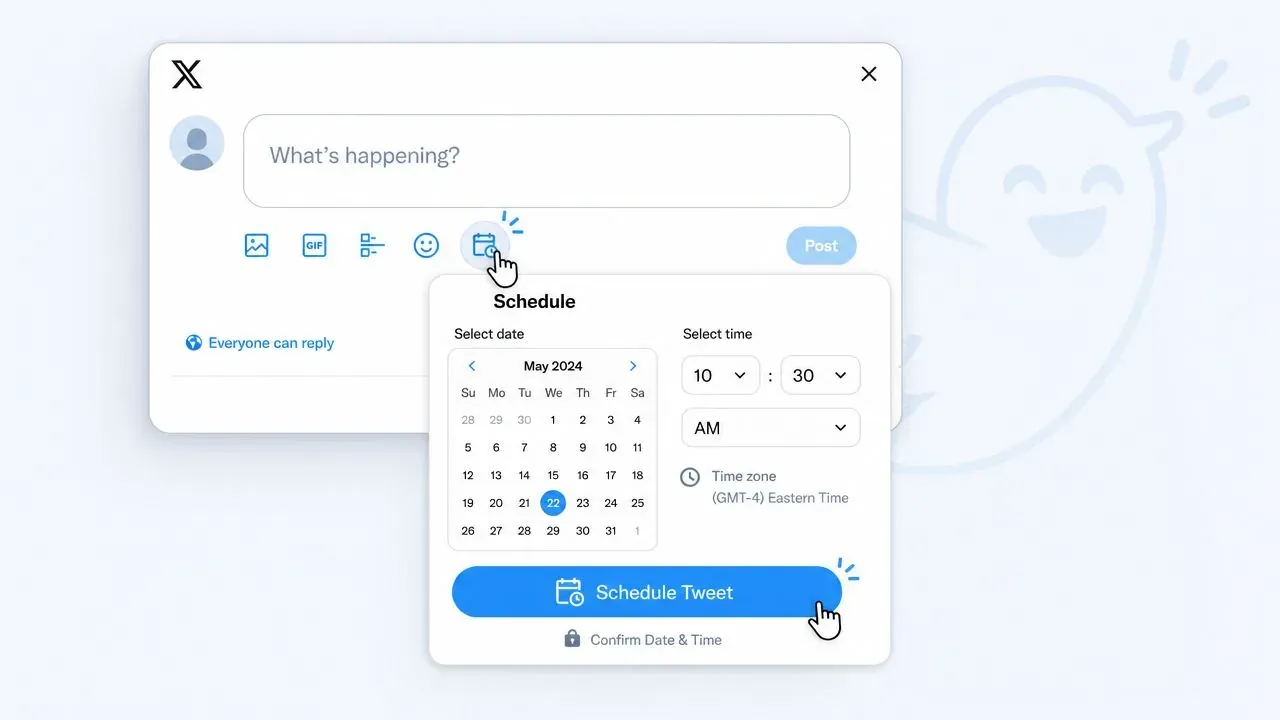
According to Onlypult’s walkthrough of X scheduling, the desktop workflow is straightforward: compose the post, click the calendar or schedule icon, choose the date and time, confirm, and click Schedule. You can later find those posts under Unsent Tweets / Scheduled to edit, reschedule, or delete.
How to schedule a single post
Use this when you already know exactly what you want to publish and when.
- Open X.com on desktop and start a new post.
- Write the post as usual.
- Add media if needed. Images, GIFs, and videos can be included before scheduling.
- Click the calendar icon in the composer.
- Pick the publish date and time.
- Confirm the selection, then click Schedule.
That’s it. If you just need one launch post, one announcement, or one reminder post, native scheduling is fast and reliable.
Practical rule: Native scheduling is best for planned posts you already know you want to publish. It’s weaker when you need a repeatable queue.
If your post includes video, prep matters. Before scheduling, it’s worth checking a guide on how to optimize video for X so your upload is more likely to look right in-feed.
How to handle media threads and changes
Threads are where beginners usually get tripped up. The native scheduler can work for threads, but it takes more care than a dedicated scheduling app.
A simple approach is to draft the full thread first in a document, then paste each post into X in order. Read the thread top to bottom before scheduling it. One broken transition can make the whole thread feel sloppy.
Here’s a basic thread structure for a founder posting a product lesson:
- Post 1: Strong hook
- Post 2: What happened
- Post 3: What changed
- Post 4: What you learned
- Post 5: Soft CTA or question
Example:
We stopped treating X like a broadcast channel and started using it as a feedback loop. Result: better ideas, better replies, better product language. Here’s the shift that mattered most:
To manage scheduled posts later, go into Unsent Tweets / Scheduled. If timing changes or news makes the post feel off, cancel it there. If the wording needs work, many users find the safest approach is to delete the scheduled version and create a fresh one rather than trying to patch a messy draft at the last minute.
The trade-off is clear:
| Native X scheduler | What it’s good at | Where it falls short |
|---|---|---|
| Single posts | Fast and free | No queue system |
| Basic threads | Works for light use | Clunky for heavier thread workflows |
| Media posts | Fine for straightforward publishing | No advanced scheduling logic |
| Edits and changes | You can manage scheduled drafts | Not built for campaign-scale planning |
Using X Pro (TweetDeck) for Advanced Management
X Pro makes more sense when one account isn’t your whole world. If you’re managing multiple brands, founder accounts, or client profiles, a column-based workspace is easier than jumping in and out of tabs.
Who X Pro is actually for
X Pro, formerly TweetDeck, is the option for people who live inside X all day and want a control panel instead of a simple composer. It’s especially useful when you need to monitor mentions, lists, search terms, and scheduled content at the same time.
That workflow advantage matters more than the scheduling button itself. A social media manager can draft from one account, watch a competitor list in another column, and keep a scheduled queue visible without losing context.
For users trying to build a fuller publishing and engagement process, this guide on using social media management tools to go viral on Twitter X is a useful companion read because it focuses on workflow, not just interface clicks.
A better dashboard workflow
The biggest gain with X Pro is visibility. Instead of checking each post manually, you can keep a dedicated Scheduled column in your workspace and scan what’s going out next.
A practical setup looks like this:
- Left column: Home or key timeline
- Second column: Notifications or mentions
- Third column: Search for target keywords or industry terms
- Fourth column: Scheduled posts
- Fifth column: One private list of important accounts
Keep scheduled posts visible while you work. That one habit catches duplicate topics, awkward timing, and campaign overlap before they go live.
X Pro isn’t the easiest starting point for beginners. It’s better for operators who need live monitoring and publishing in one place. If all you want is to schedule tomorrow’s post, native X is simpler. If you’re balancing multiple accounts and active conversations, X Pro is a more natural control room.
Gaining Efficiency with Third-Party Schedulers
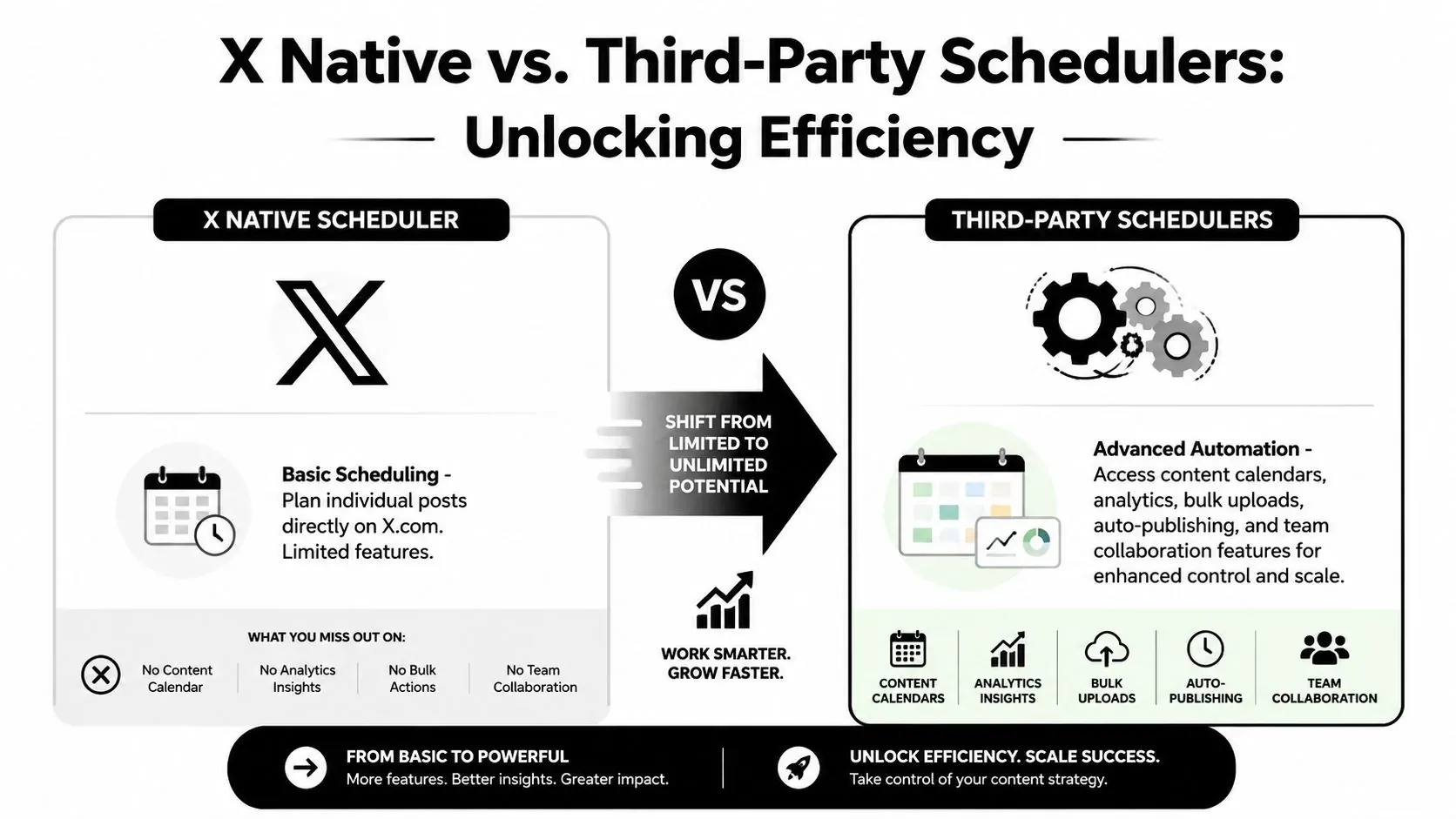
Native scheduling works for occasional posts. It gets slow once you start batching content, repeating the same timing decisions, and trying to maintain a steady publishing rhythm across a full week.
Third-party schedulers help by turning scheduling into a repeatable operating model instead of a series of one-off choices.
What third-party tools add
The main difference is queue-based publishing. You set recurring time slots once, then place approved posts into those slots instead of selecting a fresh date and time for every post.
Typefully shows this model clearly in its guide. You can enter a time like “tue at 11pm,” send a post to the next free slot or a queue slot, and use Find best time to test stronger publishing windows before it goes live, as shown in Typefully’s scheduling walkthrough.
That change sounds minor. In daily use, it saves far more time than the calendar picker itself.
Queue-based scheduling is especially useful when content follows repeatable patterns:
- Thought leadership: morning slots
- Product posts: campaign or launch slots
- Engagement prompts: midday slots
- Evergreen lessons: backup slots for lighter days
When queue-based publishing is the better fit
Queue tools work best once posting has structure. If an account publishes founder lessons, product observations, and repurposed replies every week, fixed slots remove a lot of friction. The cadence gets decided once. From there, the job is to keep the queue filled with strong drafts.
Sprout Social recommends starting with 3 to 4 posts per day and refining from your own performance history, with Tuesday through Thursday between 8 a.m. and 11 a.m. local time often cited as a strong starting window in its guide to how to schedule tweets. The useful part is not the exact recommendation. It is the ability to turn timing patterns into a repeatable schedule you can maintain.
If you want a broader comparison of tools and scheduling approaches, this 2026 Twitter scheduling guide is worth skimming.
For a closer look at how a queue-based scheduler works in practice, this overview of Xholic’s Twitter scheduler shows the kind of setup that fits teams publishing from recurring content slots rather than picking every time manually.
Use a third-party scheduler when:
| Situation | Native X | Third-party scheduler |
|---|---|---|
| One-off post tomorrow | Good fit | Fine, but overkill |
| Weekly content batching | Awkward | Better fit |
| Exact-time campaign post | Good fit | Good fit |
| Ongoing queue with recurring slots | Weak | Strong |
| Timing decisions based on patterns | Limited | Stronger workflow |
How to Build a Smart Scheduling Workflow
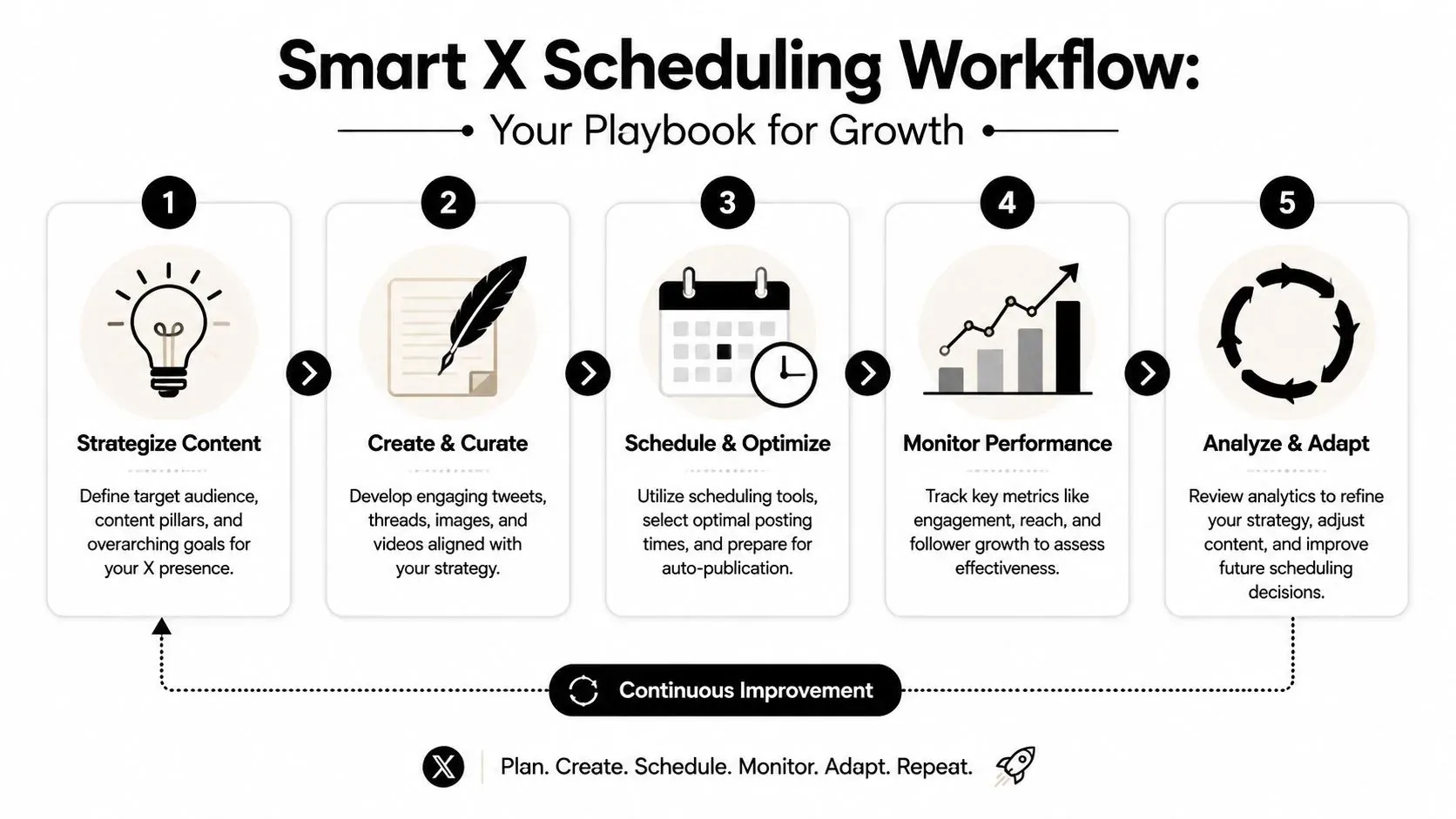
Monday goes sideways fast when X content starts from a blank page. The teams that stay consistent usually run a simple system: capture ideas all week, batch drafts in one sitting, schedule the right posts, then stay present when they publish.
That system matters more than the scheduling button you use.
A practical weekly system
This workflow fits founders, solo operators, and lean marketing teams because it scales with your needs. Native scheduling on X works for straightforward posting. A queue-based tool becomes useful once you are publishing recurring formats, coordinating approvals, or managing multiple content lanes at once.
Step 1: Capture ideas while you work Good posts rarely appear on command. Save sharp customer phrasing, product screenshots, objections from sales calls, strong one-liners from team chats, and replies that deserve a longer follow-up. By the time the writing session starts, the raw material is already there.
Step 2: Batch write with a clear goal Write several posts in one focused session. I usually separate this into two passes: first for hooks and angles, second for tightening and formatting. That keeps momentum high and stops one draft from eating the whole hour.
Step 3: Sort posts by publishing method Not every post belongs in the same workflow. Time-sensitive announcements and launch posts often deserve exact scheduling inside X or X Pro. Recurring content, such as weekly insights, repurposed replies, and educational threads, is easier to manage in a queue-based scheduler like Xholic AI because the slot is already defined and the only job is feeding it good drafts.
Step 4: Review before posts go live A scheduled post still needs context. Check for stale references, broken links, duplicated ideas, or a tone mismatch with what is happening that day. This is also the point to confirm that promo posts are balanced with posts that earn replies and profile visits.
Step 5: Measure and adjust every week A workflow improves when review is built in. Use your post data to spot which hooks earn replies, which formats get ignored, and which time slots attract the right audience. This guide to Twitter analytics for X growth is useful here because it turns review into clear scheduling decisions instead of a quick glance at impressions.
Before the review loop, it helps to see the full process in motion:
Scheduling should create more room for conversations, faster iteration, and better timing. If it only distances you from your audience, the workflow needs to be fixed.
A simple content calendar example
A useful calendar does not need many columns. It just needs enough structure to remove daily decision fatigue.
| Day | Post type | Example |
|---|---|---|
| Tuesday morning | Insight post | ”One mistake I made building in public was confusing visibility with clarity.” |
| Wednesday morning | Mini-thread | ”3 things we changed after watching which posts got replies” |
| Thursday morning | Product or lesson | ”The best product copy often comes from support tickets, not brainstorms” |
This is usually the point where workflow choices split by growth stage. If you post a few times a week and write each post manually, native scheduling is often enough. If you are managing recurring series, campaigns, approvals, and performance reviews, a scheduler with queues and reusable slots saves time because the system is already set up before the next draft is written.
If your team needs approvals, mockups help before anything enters the queue. A fake tweet or quote tweet generator can show stakeholders how a post will look in a deck, which is useful for campaign reviews, internal signoff, and visual consistency. Mockups should be labeled clearly when needed and should never be used to impersonate people, fabricate evidence, or mislead viewers.
A smart workflow stays simple on the surface. Underneath, it handles idea capture, batch drafting, scheduling, and post-publish engagement without forcing you to rebuild the process every week.
Best Practices and Common Mistakes to Avoid
A scheduled post can save an hour and still create a problem five minutes after it goes live.
That usually happens when the system is built around convenience instead of review. The strongest scheduling setups leave space for judgment. They help you publish consistently, but they also make it easy to pause, swap, or rewrite a post when the day changes.
What works consistently
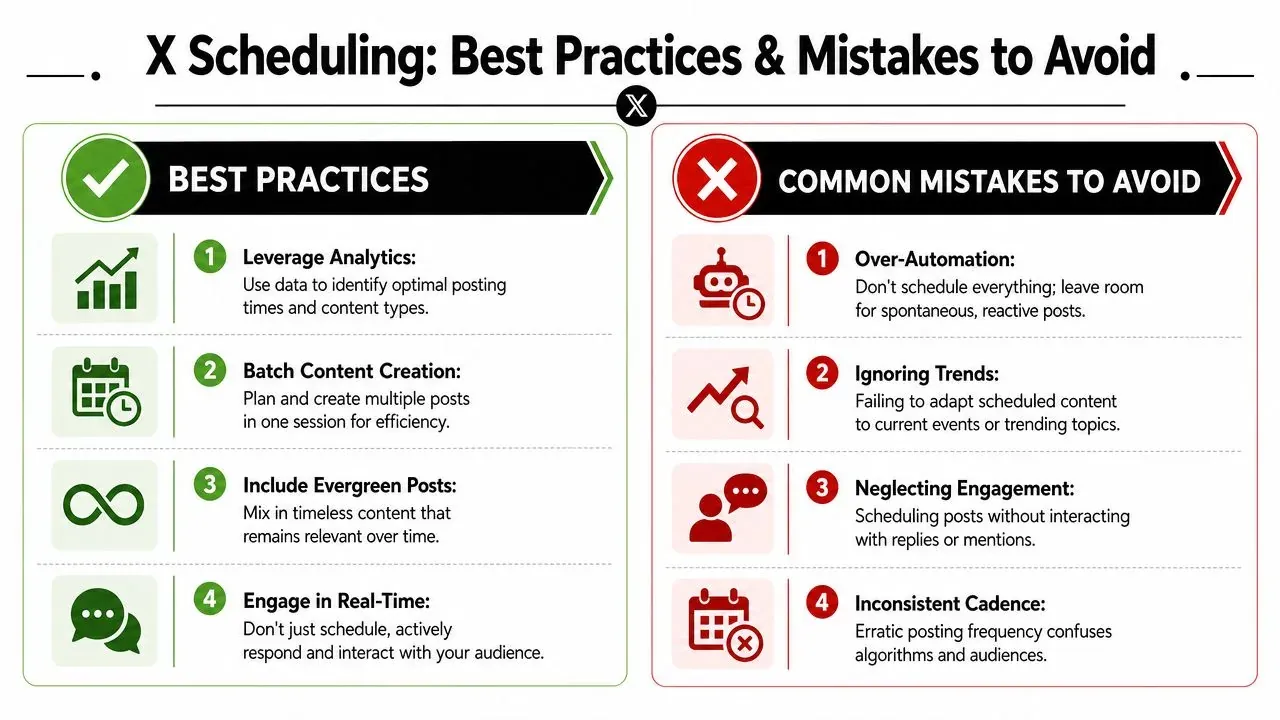
Start with a schedule you can maintain. A solo creator posting a few strong updates each week needs a different system than a team running campaigns, approvals, and recurring content slots. Native scheduling works well for simple publishing. Queue-based tools make more sense once volume, reuse, and collaboration start to matter.
Timing should also stay flexible. General posting windows can give you a starting point, but they should not become permanent rules. Good operators review performance, look for patterns in replies and engagement, and adjust the schedule based on what their own audience does. If you want to refine those decisions, this guide on the best time to post on Twitter is a useful next read.
Another detail gets missed often. X Business help explains that scheduled organic posts are not discoverable until their publish time, while ads workflows can create Promoted-only posts that behave differently from standard organic posts, as noted in X Business help for scheduled tweets.
That distinction matters when you are coordinating organic content and paid support at the same time.
A practical system usually includes four habits:
- Review scheduled posts before they go live: A quick same-day check catches outdated references, awkward timing, and broken thread flow.
- Keep room for live posts: Scheduled content handles consistency. Live posting handles relevance.
- Group posts by purpose: Educational posts, replies, threads, promos, and campaign content should not all sit in one undifferentiated queue.
- Measure by response, not output: A full calendar looks organized, but replies, saves, profile visits, and conversions tell you whether the schedule is doing its job.
Mistakes that break the system
The biggest mistake is treating scheduling as a substitute for attention.
Posts still need supervision after they are queued. News breaks. Product details change. A joke that looked harmless yesterday can read badly today. Teams that schedule well build in checkpoints, usually the night before or the morning of publication.
Other common failures show up fast:
- Posting and disappearing: If nobody checks replies, scheduled content becomes broadcast-only content.
- Letting the queue fill with weak posts: Consistency helps when the posts are worth reading. Empty calories train people to scroll past.
- Forgetting thread dependencies: One broken post, deleted draft, or bad transition can make the whole thread feel sloppy.
- Keeping the same schedule for too long: Audience behavior shifts, especially during launches, events, holidays, and news cycles.
I have found one rule to be reliable. Schedule the repeatable parts. Review the sensitive parts. Stay available after publishing.
That is the difference between using a scheduler as a calendar and using it as a working system.
Frequently Asked Questions About Scheduling on X
Scheduling gets easier once the setup matches the job. Native X works well for simple posts and occasional threads. A queue-based tool makes more sense when you are managing recurring content, approvals, or mobile publishing as part of a real system.
Can you edit a scheduled tweet on X?
You can manage scheduled posts from Unsent Tweets / Scheduled in the web workflow mentioned earlier. For small text changes, that is usually enough.
For anything that changes timing, thread order, or the call to action, I usually replace the scheduled post instead of trying to patch it. That reduces mistakes, especially in multi-post threads where one weak edit can throw off the whole sequence.
Can you schedule posts on Twitter from mobile?
Native scheduling is still mainly a desktop workflow. If your team writes, reviews, and publishes from phones, a third-party scheduler is usually the more practical option.
That is one of the clearest trade-offs between native scheduling and a tool-based system. X keeps things simple. External schedulers give you more flexibility across devices.
What’s the easiest way to schedule a long thread?
For one-off threads, native X is workable. For a thread-heavy strategy, it becomes slow to review and easier to break.
A third-party scheduler is usually easier if you publish threads every week, reuse formats, or need someone else to approve drafts before they go live. The value is not just scheduling. It is cleaner drafting, clearer sequencing, and fewer thread errors.
Do scheduled tweets perform worse than live posts?
Scheduled posts do not underperform just because they were scheduled. Performance usually comes down to timing, relevance, hook strength, and whether someone is around to reply after the post goes out.
I have seen scheduled posts outperform live posts when the topic was strong and the account stayed active after publishing. I have also seen perfectly timed scheduled posts fall flat because nobody checked replies for hours.
What’s the difference between drafting, queueing, scheduling, and automation?
Drafting is writing and saving ideas.
Queueing is placing approved posts into pre-set publishing slots.
Scheduling is choosing a specific date and time for a post.
Automation is using rules or workflows to handle part of the process while a person still reviews what should be published. That distinction matters because good scheduling systems save time without turning the account into an unattended feed.
If you want one place for ideation, drafting, replying, and scheduling approved posts, try Xholic AI. It is built for teams and creators who want a cleaner posting system on X without living in the timeline all day.